lit-and-figma
Compare original and translation side by side
🇺🇸
Original
English🇨🇳
Translation
ChineseLit and Figma
Lit 和 Figma
In this article I will go over how to set up a Lit web component and use it to create a figma plugin.
TLDR You can find the final source here.
在本文中,我将介绍如何搭建Lit Web组件并使用它来创建Figma插件。
TLDR 你可以在此处找到最终源码:https://github.com/rodydavis/figma_lit_example。
Prerequisites
前置要求
- Vscode
- Figma Desktop
- Node
- Typescript
- Vscode
- Figma 桌面端
- Node
- Typescript
Getting Started
开始上手
We can start off by creating a empty directory and naming it with whatever we want.
snake_casemkdir figma_lit_example
cd figma_lit_example我们可以先创建一个空目录,并用蛇形命名法为其命名。
mkdir figma_lit_example
cd figma_lit_exampleWeb Setup
Web环境搭建
Now we are in the directory and can setup Figma and Lit. Let's start with node.
figma_lit_examplenpm init -yThis will setup the basics for a node project and install the packages we need. Now lets add some config files. Now open the and replace it with the following:
package.json{
"name": "figma_lit_example",
"version": "1.0.0",
"description": "Lit Figma Plugin",
"dependencies": {
"lit": "^2.0.0-rc.1"
},
"devDependencies": {
"@figma/plugin-typings": "^1.23.0",
"html-webpack-inline-source-plugin": "^1.0.0-beta.2",
"html-webpack-plugin": "^4.3.0",
"css-loader": "^5.2.4",
"ts-loader": "^8.0.0",
"typescript": "^4.2.4",
"url-loader": "^4.1.1",
"webpack": "^4.44.1",
"webpack-cli": "^4.6.0"
},
"scripts": {
"dev": "npx webpack --mode=development --watch",
"copy": "mkdir -p lit-plugin && cp ./manifest.json ./lit-plugin/manifest.json && cp ./dist/ui.html ./lit-plugin/ui.html && cp ./dist/code.js ./lit-plugin/code.js",
"build": "npx webpack --mode=production && npm run copy",
"zip": "npm run build && zip -r lit-plugin.zip lit-plugin"
},
"browserslist": [
"last 1 Chrome versions"
],
"keywords": [],
"author": "",
"license": "ISC"
}This will add everything we need and add the scripts we need for development and production. Then run the following:
npm iThis will install everything we need to get started. Now we need to setup some config files.
touch tsconfig.json
touch webpack.config.ts
This will create 2 files. Now open up and paste the following:
tsconfig.json{
"compilerOptions": {
"target": "es2017",
"module": "esNext",
"moduleResolution": "node",
"lib": ["es2017", "dom", "dom.iterable"],
"typeRoots": ["./node_modules/@types", "./node_modules/@figma"],
"declaration": true,
"sourceMap": true,
"inlineSources": true,
"noUnusedLocals": true,
"noImplicitReturns": true,
"noFallthroughCasesInSwitch": true,
"experimentalDecorators": true,
"skipLibCheck": true,
"strict": true,
"noImplicitAny": false,
"outDir": "./lib",
"baseUrl": "./packages",
"importHelpers": true,
"plugins": [
{
"name": "ts-lit-plugin",
"rules": {
"no-unknown-tag-name": "error",
"no-unclosed-tag": "error",
"no-unknown-property": "error",
"no-unintended-mixed-binding": "error",
"no-invalid-boolean-binding": "error",
"no-expressionless-property-binding": "error",
"no-noncallable-event-binding": "error",
"no-boolean-in-attribute-binding": "error",
"no-complex-attribute-binding": "error",
"no-nullable-attribute-binding": "error",
"no-incompatible-type-binding": "error",
"no-invalid-directive-binding": "error",
"no-incompatible-property-type": "error",
"no-unknown-property-converter": "error",
"no-invalid-attribute-name": "error",
"no-invalid-tag-name": "error",
"no-unknown-attribute": "off",
"no-unknown-event": "off",
"no-unknown-slot": "off",
"no-invalid-css": "off"
}
}
]
},
"include": ["src/**/*.ts"],
"references": []
}This is a basic typescript config. Now open up and paste the following:
webpack.config.tsconst HtmlWebpackInlineSourcePlugin = require("html-webpack-inline-source-plugin");
const HtmlWebpackPlugin = require("html-webpack-plugin");
const path = require("path");
module.exports = (env, argv) => ({
mode: argv.mode === "production" ? "production" : "development",
devtool: argv.mode === "production" ? false : "inline-source-map",
entry: {
ui: "./src/ui.ts",
code: "./src/code.ts",
app: "./src/my-app.ts",
},
module: {
rules: [
{ test: /\.tsx?$/, use: "ts-loader", exclude: /node_modules/ },
{ test: /\.css$/, use: ["style-loader", { loader: "css-loader" }] },
{ test: /\.(png|jpg|gif|webp|svg)$/, loader: "url-loader" },
],
},
resolve: { extensions: [".ts", ".js"] },
output: {
filename: "[name].js",
path: path.resolve(__dirname, "dist"),
},
plugins: [
new HtmlWebpackPlugin({
template: path.resolve(__dirname, "ui.html"),
filename: "ui.html",
inject: true,
inlineSource: ".(js|css)$",
chunks: ["ui"],
}),
new HtmlWebpackInlineSourcePlugin(HtmlWebpackPlugin),
],
});Now we need to create the ui for the plugin:
touch ui.htmlOpen up and add the following:
/src/ui.html<my-app></my-app>Now we need a manifest file for the figma plugin:
touch manifest.jsonOpen and add the following:
manifest.json{
"name": "figma_lit_example",
"id": "973668777853442323",
"api": "1.0.0",
"main": "code.js",
"ui": "ui.html"
}Now we need to create our web component:
mkdir src
cd src
touch my-app.ts
touch code.ts
touch ui.ts
cd ..
Open and paste the following:
/src/ui.tsimport "./my-app";Open and paste the following:
/src/my-app.tsimport { html, LitElement } from "lit";
import { customElement, query } from "lit/decorators.js";
@customElement("my-app")
export class MyApp extends LitElement {
@property() amount = "5";
@query("#count") countInput!: HTMLInputElement;
render() {
return html`
<div>
<h2>Rectangle Creator</h2>
<p>Count: <input id="count" value="${this.amount}" /></p>
<button id="create" @click=${this.create}>Create</button>
<button id="cancel" @click=${this.cancel}>Cancel</button>
</div>
`;
}
create() {
const count = parseInt(this.countInput.value, 10);
this.sendMessage("create-rectangles", { count });
}
cancel() {
this.sendMessage("cancel");
}
private sendMessage(type: string, content: Object = {}) {
const message = { pluginMessage: { type: type, ...content } };
parent.postMessage(message, "*");
}
}Open and paste the following:
code.tsconst options: ShowUIOptions = {
width: 250,
height: 200,
};
figma.showUI(__html__, options);
figma.ui.onmessage = msg => {
switch (msg.type) {
case 'create-rectangles':
const nodes: SceneNode[] = [];
for (let i = 0; i < msg.count; i++) {
const rect = figma.createRectangle();
rect.x = i * 150;
rect.fills = [{ type: 'SOLID', color: { r: 1, g: 0.5, b: 0 } }];
figma.currentPage.appendChild(rect);
nodes.push(rect);
}
figma.currentPage.selection = nodes;
figma.viewport.scrollAndZoomIntoView(nodes);
break;
default:
break;
}
figma.closePlugin();
};现在我们进入了目录,可以开始搭建Figma和Lit的开发环境了。先从Node环境开始。
figma_lit_examplenpm init -y这将搭建Node项目的基础结构并安装我们需要的包。现在让我们添加一些配置文件。打开并将其内容替换为以下内容:
package.json{
"name": "figma_lit_example",
"version": "1.0.0",
"description": "Lit Figma Plugin",
"dependencies": {
"lit": "^2.0.0-rc.1"
},
"devDependencies": {
"@figma/plugin-typings": "^1.23.0",
"html-webpack-inline-source-plugin": "^1.0.0-beta.2",
"html-webpack-plugin": "^4.3.0",
"css-loader": "^5.2.4",
"ts-loader": "^8.0.0",
"typescript": "^4.2.4",
"url-loader": "^4.1.1",
"webpack": "^4.44.1",
"webpack-cli": "^4.6.0"
},
"scripts": {
"dev": "npx webpack --mode=development --watch",
"copy": "mkdir -p lit-plugin && cp ./manifest.json ./lit-plugin/manifest.json && cp ./dist/ui.html ./lit-plugin/ui.html && cp ./dist/code.js ./lit-plugin/code.js",
"build": "npx webpack --mode=production && npm run copy",
"zip": "npm run build && zip -r lit-plugin.zip lit-plugin"
},
"browserslist": [
"last 1 Chrome versions"
],
"keywords": [],
"author": "",
"license": "ISC"
}这将添加我们需要的所有依赖以及开发和生产环境所需的脚本。然后运行以下命令:
npm i这将安装我们开始开发所需的所有内容。现在我们需要创建一些配置文件。
touch tsconfig.json
touch webpack.config.ts这将创建两个文件。现在打开并粘贴以下内容:
tsconfig.json{
"compilerOptions": {
"target": "es2017",
"module": "esNext",
"moduleResolution": "node",
"lib": ["es2017", "dom", "dom.iterable"],
"typeRoots": ["./node_modules/@types", "./node_modules/@figma"],
"declaration": true,
"sourceMap": true,
"inlineSources": true,
"noUnusedLocals": true,
"noImplicitReturns": true,
"noFallthroughCasesInSwitch": true,
"experimentalDecorators": true,
"skipLibCheck": true,
"strict": true,
"noImplicitAny": false,
"outDir": "./lib",
"baseUrl": "./packages",
"importHelpers": true,
"plugins": [
{
"name": "ts-lit-plugin",
"rules": {
"no-unknown-tag-name": "error",
"no-unclosed-tag": "error",
"no-unknown-property": "error",
"no-unintended-mixed-binding": "error",
"no-invalid-boolean-binding": "error",
"no-expressionless-property-binding": "error",
"no-noncallable-event-binding": "error",
"no-boolean-in-attribute-binding": "error",
"no-complex-attribute-binding": "error",
"no-nullable-attribute-binding": "error",
"no-incompatible-type-binding": "error",
"no-invalid-directive-binding": "error",
"no-incompatible-property-type": "error",
"no-unknown-property-converter": "error",
"no-invalid-attribute-name": "error",
"no-invalid-tag-name": "error",
"no-unknown-attribute": "off",
"no-unknown-event": "off",
"no-unknown-slot": "off",
"no-invalid-css": "off"
}
}
]
},
"include": ["src/**/*.ts"],
"references": []
}这是一个基础的TypeScript配置。现在打开并粘贴以下内容:
webpack.config.tsconst HtmlWebpackInlineSourcePlugin = require("html-webpack-inline-source-plugin");
const HtmlWebpackPlugin = require("html-webpack-plugin");
const path = require("path");
module.exports = (env, argv) => ({
mode: argv.mode === "production" ? "production" : "development",
devtool: argv.mode === "production" ? false : "inline-source-map",
entry: {
ui: "./src/ui.ts",
code: "./src/code.ts",
app: "./src/my-app.ts",
},
module: {
rules: [
{ test: /\.tsx?$/, use: "ts-loader", exclude: /node_modules/ },
{ test: /\.css$/, use: ["style-loader", { loader: "css-loader" }] },
{ test: /\.(png|jpg|gif|webp|svg)$/, loader: "url-loader" },
],
},
resolve: { extensions: [".ts", ".js"] },
output: {
filename: "[name].js",
path: path.resolve(__dirname, "dist"),
},
plugins: [
new HtmlWebpackPlugin({
template: path.resolve(__dirname, "ui.html"),
filename: "ui.html",
inject: true,
inlineSource: ".(js|css)$",
chunks: ["ui"],
}),
new HtmlWebpackInlineSourcePlugin(HtmlWebpackPlugin),
],
});现在我们需要创建插件的UI文件:
touch ui.html打开并添加以下内容:
ui.html<my-app></my-app>现在我们需要为Figma插件创建一个清单文件:
touch manifest.json打开并添加以下内容:
manifest.json{
"name": "figma_lit_example",
"id": "973668777853442323",
"api": "1.0.0",
"main": "code.js",
"ui": "ui.html"
}现在我们需要创建我们的Web组件:
mkdir src
cd src
touch my-app.ts
touch code.ts
touch ui.ts
cd ..打开并粘贴以下内容:
/src/ui.tsimport "./my-app";打开并粘贴以下内容:
/src/my-app.tsimport { html, LitElement } from "lit";
import { customElement, query } from "lit/decorators.js";
@customElement("my-app")
export class MyApp extends LitElement {
@property() amount = "5";
@query("#count") countInput!: HTMLInputElement;
render() {
return html`
<div>
<h2>Rectangle Creator</h2>
<p>Count: <input id="count" value="${this.amount}" /></p>
<button id="create" @click=${this.create}>Create</button>
<button id="cancel" @click=${this.cancel}>Cancel</button>
</div>
`;
}
create() {
const count = parseInt(this.countInput.value, 10);
this.sendMessage("create-rectangles", { count });
}
cancel() {
this.sendMessage("cancel");
}
private sendMessage(type: string, content: Object = {}) {
const message = { pluginMessage: { type: type, ...content } };
parent.postMessage(message, "*");
}
}打开并粘贴以下内容:
code.tsconst options: ShowUIOptions = {
width: 250,
height: 200,
};
figma.showUI(__html__, options);
figma.ui.onmessage = msg => {
switch (msg.type) {
case 'create-rectangles':
const nodes: SceneNode[] = [];
for (let i = 0; i < msg.count; i++) {
const rect = figma.createRectangle();
rect.x = i * 150;
rect.fills = [{ type: 'SOLID', color: { r: 1, g: 0.5, b: 0 } }];
figma.currentPage.appendChild(rect);
nodes.push(rect);
}
figma.currentPage.selection = nodes;
figma.viewport.scrollAndZoomIntoView(nodes);
break;
default:
break;
}
figma.closePlugin();
};Building the Plugin
构建插件
Now that we have all the code in place we can build the plugin and test it in Figma.
npm run build现在我们已经完成了所有代码的编写,可以构建插件并在Figma中进行测试了。
npm run buildStep 1
步骤1
Download and open the desktop version of Figma.
下载并打开Figma桌面端。
Step 2
步骤2
Open the menu and navigate to “Plugins > Manage plugins”
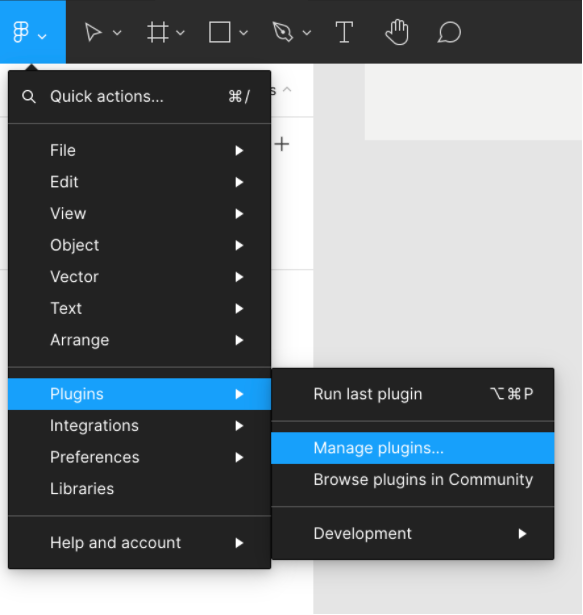
打开菜单并导航至“插件 > 管理插件”
Step 3
步骤3
Click on the plus icon to add a local plugin.
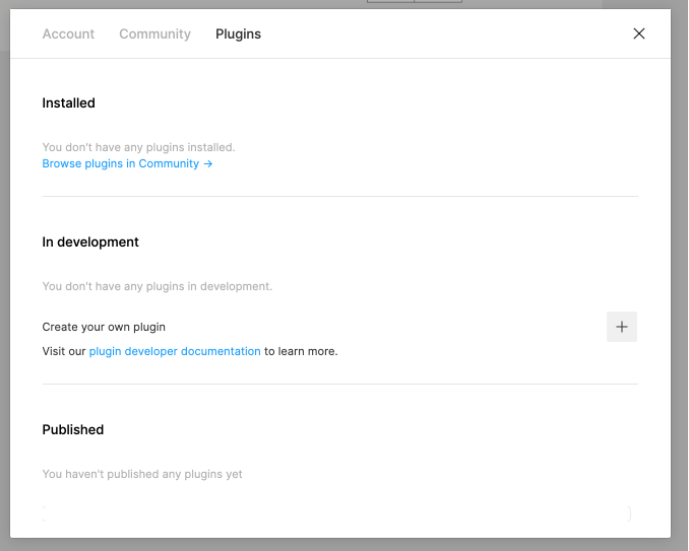
Click on the box to link to an existing plugin to navigate to the folder that was created after the build process in your source code and select .
lit-pluginmanifest.json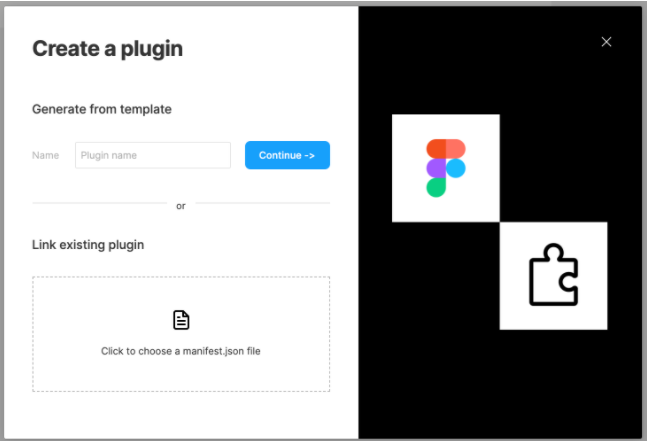
点击加号图标添加本地插件。
点击“链接到现有插件”的选项,导航至构建完成后在源码中生成的文件夹,选择文件。
lit-pluginmanifest.jsonStep 4
步骤4
To run the plugin navigate to “Plugins > Development > figma_lit_example” to launch your plugin.
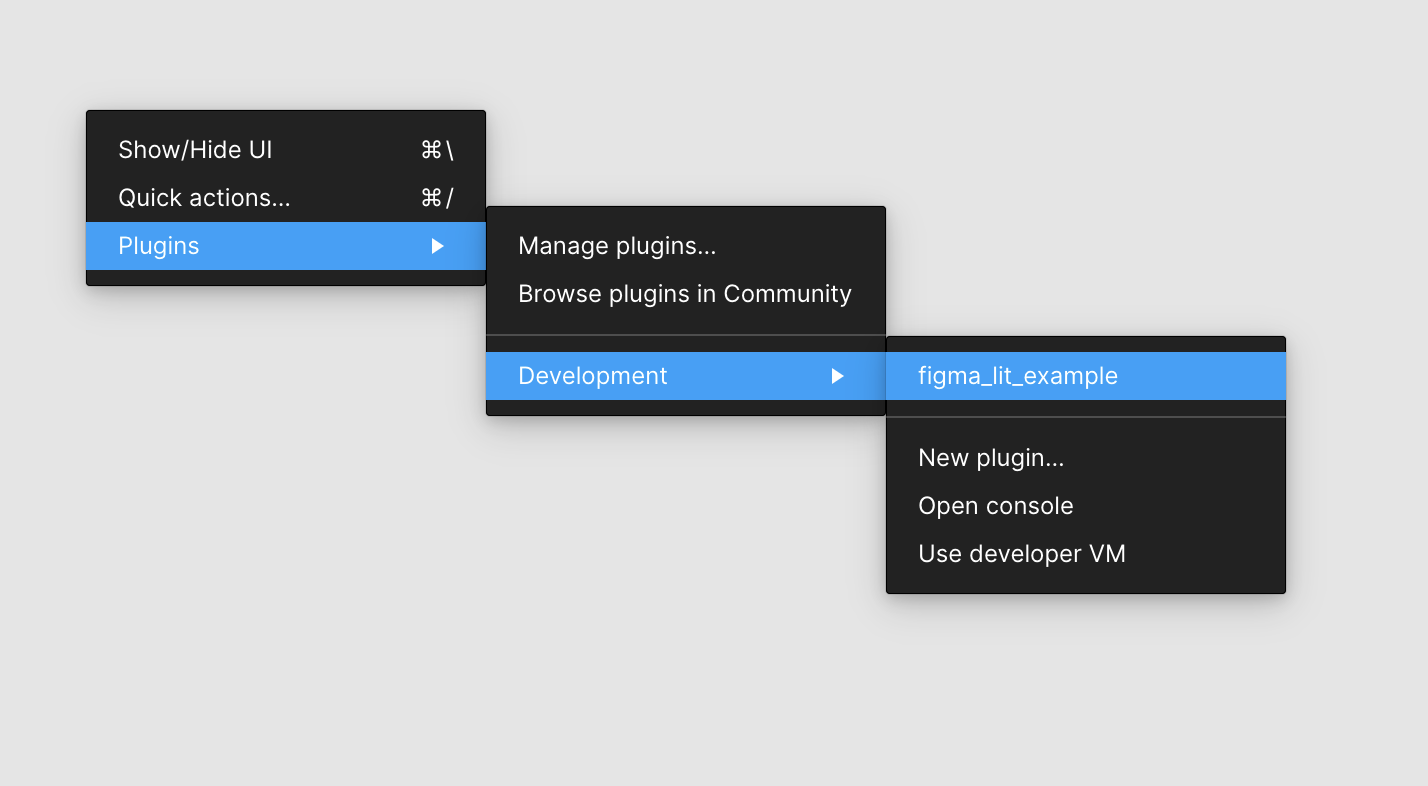
要运行插件,导航至“插件 > 开发 > figma_lit_example”来启动你的插件。
Step 5
步骤5
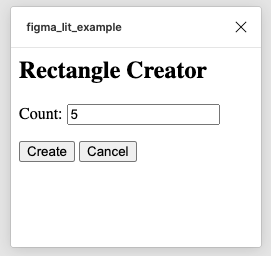
Now your plugin should launch and you can create 5 rectangles on the canvas.
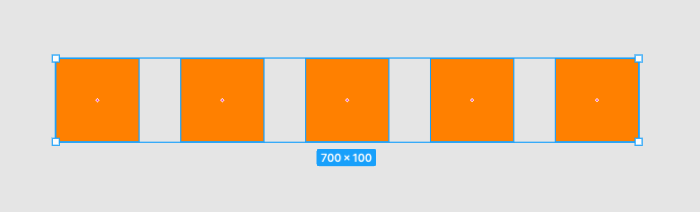
If everything worked you will have 5 new rectangles on the canvas focused by figma.
现在你的插件应该已经启动,你可以在画布上创建5个矩形了。
如果一切正常,画布上会出现5个新的矩形,并且Figma会自动聚焦到这些矩形上。
WASM Support
WASM支持
If there is a heavy computation that could benefit from running in WebAssembly the following will ensure that it is hardware accelerated when possible.
Let's add AssemblyScript and some dependencies that will be used for loading the WASM into the figma ui.
npm i @assemblyscript/loader
npm i --D assemblyscript js-inline-wasm
npx asinit .
Confirm yes to the prompt to have it generate the project files and add the following to the scripts in :
package.json"asbuild:untouched": "asc assembly/index.ts --target debug",
"asbuild:optimized": "asc assembly/index.ts --target release",
"asbuild": "npm run asbuild:untouched && npm run asbuild:optimized",
"inlinewasm": "inlinewasm build/optimized.wasm --output src/wasm.ts",The code that will be used for the WASM is in and it should show the following:
/assembly/index.ts// The entry file of your WebAssembly module.
export function add(a: i32, b: i32): i32 {
return a + b;
}Now let's build the wasm module:
npm run asbuildFor the wasm build to be ignored for git add the following to .gitignore:
buildThis will generate the wasm and wat files in the build directory, but for figma to load them into the ui it needs to be inlined so run the following command to generate the js from the wasm file:
npm run inlinewasmThis should generate with the following:
src/wasm.tsconst encoded = 'AGFzbQEAAAABBwFgAn9/AX8DAgEABQMBAAAHEAIDYWRkAAAGbWVtb3J5AgAKCQEHACAAIAFqCwAmEHNvdXJjZU1hcHBpbmdVUkwULi9vcHRpbWl6ZWQud2FzbS5tYXA=';
export default new Promise(resolve => {
const decoded = atob(encoded);
const len = decoded.length;
const bytes = new Uint8Array(len);
for (var i = 0; i < len; i++) {
bytes[i] = decoded.charCodeAt(i);
}
resolve(new Response(bytes, { status: 200, headers: { "Content-Type": "application/wasm" } }));
});Now open up the and update with the following:
/src/my-app.tsimport { html, LitElement } from "lit";
import { customElement, property, query } from "lit/decorators.js";
@customElement("my-app")
export class MyApp extends LitElement {
@property() amount = "5"; // <-- Pass in a value for the number of rectangles to create
@query("#count") countInput!: HTMLInputElement;
render() {
return html`
<div>
<h2>Rectangle Creator</h2>
<!-- Pass in the amount to the input value -->
<p>Count: <input id="count" value="${this.amount}" /></p>
...
</div>
`;
}
...
}This will let us pass in the amount of boxes to create externally.
Now open and update it with the following:
/src/ui.tsimport "./my-app";
import wasm from "./wasm"; // <-- Our WASM file to load
WebAssembly.instantiateStreaming(wasm as Promise<Response>).then((obj) => {
// @ts-ignore
const value: number = obj.instance.exports.add(2, 4);
console.log("return from wasm", value);
const elem = document.querySelector('my-app')! as HTMLElement;
elem.setAttribute('amount', `${value}`);
});Now when we build the plugin and run it in figma the amount of boxes will be the result of calling into wasm!
如果存在需要大量计算的任务,使用WebAssembly可以在可能的情况下利用硬件加速。
让我们添加AssemblyScript和一些用于在Figma UI中加载WASM的依赖。
npm i @assemblyscript/loader
npm i --D assemblyscript js-inline-wasm
npx asinit .在提示中选择“是”以生成项目文件,并在的脚本中添加以下内容:
package.json"asbuild:untouched": "asc assembly/index.ts --target debug",
"asbuild:optimized": "asc assembly/index.ts --target release",
"asbuild": "npm run asbuild:untouched && npm run asbuild:optimized",
"inlinewasm": "inlinewasm build/optimized.wasm --output src/wasm.ts",WASM使用的代码位于中,内容如下:
/assembly/index.ts// The entry file of your WebAssembly module.
export function add(a: i32, b: i32): i32 {
return a + b;
}现在让我们构建WASM模块:
npm run asbuild为了让Git忽略WASM构建文件,在.gitignore中添加以下内容:
build这将在build目录中生成wasm和wat文件,但为了让Figma能在UI中加载它们,需要将其内联,运行以下命令从wasm文件生成js:
npm run inlinewasm这将生成,内容如下:
src/wasm.tsconst encoded = 'AGFzbQEAAAABBwFgAn9/AX8DAgEABQMBAAAHEAIDYWRkAAAGbWVtb3J5AgAKCQEHACAAIAFqCwAmEHNvdXJjZU1hcHBpbmdVUkwULi9vcHRpbWl6ZWQud2FzbS5tYXA=';
export default new Promise(resolve => {
const decoded = atob(encoded);
const len = decoded.length;
const bytes = new Uint8Array(len);
for (var i = 0; i < len; i++) {
bytes[i] = decoded.charCodeAt(i);
}
resolve(new Response(bytes, { status: 200, headers: { "Content-Type": "application/wasm" } }));
});现在打开并更新为以下内容:
/src/my-app.tsimport { html, LitElement } from "lit";
import { customElement, property, query } from "lit/decorators.js";
@customElement("my-app")
export class MyApp extends LitElement {
@property() amount = "5"; // <-- 传入要创建的矩形数量
@query("#count") countInput!: HTMLInputElement;
render() {
return html`
<div>
<h2>Rectangle Creator</h2>
<!-- 将数量传入输入框的值中 -->
<p>Count: <input id="count" value="${this.amount}" /></p>
...
</div>
`;
}
...
}这将允许我们从外部传入要创建的矩形数量。
现在打开并更新为以下内容:
/src/ui.tsimport "./my-app";
import wasm from "./wasm"; // <-- 我们要加载的WASM文件
WebAssembly.instantiateStreaming(wasm as Promise<Response>).then((obj) => {
// @ts-ignore
const value: number = obj.instance.exports.add(2, 4);
console.log("return from wasm", value);
const elem = document.querySelector('my-app')! as HTMLElement;
elem.setAttribute('amount', `${value}`);
});现在当我们构建插件并在Figma中运行时,创建的矩形数量将是调用WASM后的结果!
Conclusion
总结
如果你想了解更多关于Figma插件开发的内容,可以在此处阅读更多文档:https://www.figma.com/plugin-docs/intro/,关于Lit的文档可以在此处查看:https://lit.dev/。