how-to-send-push-notifications-on-flutter-web-fcm
Compare original and translation side by side
🇺🇸
Original
English🇨🇳
Translation
ChineseHow To Send Push Notifications on Flutter Web (FCM)
如何在Flutter Web中实现推送通知(FCM)
If you are using Firebase then you are probably familiar with Firebase Cloud Messaging. The setup on Flutter web is very different than mobile and other plugins you are probably used to.

如果你正在使用Firebase,那么你可能对Firebase Cloud Messaging并不陌生。Flutter Web端的配置流程与移动端以及你熟悉的其他插件配置有很大不同。
Setting Up
配置步骤
Open your web/index.html and look for the following script. If you do not have one you can add it now in the tag.
<script>
if ("serviceWorker" in navigator) {
  window.addEventListener("load", function () {
    navigator.serviceWorker.register("/flutter_service_worker.js");
  });
}
</script>
We need to modify it to support the FCM service worker. The important thing we need to do is comment out the flutter_service_worker.js so that we will not get 404 errors when registering the FCM service worker.
<script>
if ("serviceWorker" in navigator) {
  window.addEventListener("load", function () {
    // navigator.serviceWorker.register("/flutter_service_worker.js");
    navigator.serviceWorker.register("/firebase-messaging-sw.js");
  });
}
</script>
Now create a new file called firebase-messaging-sw.js in the web folder with the following contents:
importScripts("https://www.gstatic.com/firebasejs/7.5.0/firebase-app.js");
importScripts("https://www.gstatic.com/firebasejs/7.5.0/firebase-messaging.js");
firebase.initializeApp({
    apiKey: "API_KEY",
    authDomain: "AUTH_DOMAIN",
    databaseURL: "DATABASE_URL",
    projectId: "PROJECT_ID",
    storageBucket: "STORAGE_BUCKET",
    messagingSenderId: "MESSAGING_SENDER_ID",
    appId: "APP_ID",
    measurementId: "MEASUREMENT_ID"
});
const messaging = firebase.messaging();
messaging.setBackgroundMessageHandler(function (payload) {
    const promiseChain = clients
        .matchAll({
            type: "window",
            includeUncontrolled: true
        })
        .then(windowClients => {
            for (let i = 0; i < windowClients.length; i++) {
                const windowClient = windowClients[i];
                windowClient.postMessage(payload);
            }
        })
        .then(() => {
            return registration.showNotification("New Message");
        });
    return promiseChain;
});
self.addEventListener('notificationclick', function (event) {
    console.log('notification received: ', event)
});
Make sure to replace the config keys with your firebase keys.
打开你的web/index.html文件,找到以下脚本。如果没有的话,现在就把它添加到标签中。
<script>
if ("serviceWorker" in navigator) {
  window.addEventListener("load", function () {
    navigator.serviceWorker.register("/flutter_service_worker.js");
  });
}
</script>
我们需要修改它以支持FCM Service Worker。关键操作是注释掉flutter_service_worker.js的注册代码,这样在注册FCM Service Worker时就不会出现404错误。
<script>
if ("serviceWorker" in navigator) {
  window.addEventListener("load", function () {
    // navigator.serviceWorker.register("/flutter_service_worker.js");
    navigator.serviceWorker.register("/firebase-messaging-sw.js");
  });
}
</script>
现在在web文件夹中创建一个新文件,命名为firebase-messaging-sw.js,并填入以下内容:
importScripts("https://www.gstatic.com/firebasejs/7.5.0/firebase-app.js");
importScripts("https://www.gstatic.com/firebasejs/7.5.0/firebase-messaging.js");
firebase.initializeApp({
    apiKey: "API_KEY",
    authDomain: "AUTH_DOMAIN",
    databaseURL: "DATABASE_URL",
    projectId: "PROJECT_ID",
    storageBucket: "STORAGE_BUCKET",
    messagingSenderId: "MESSAGING_SENDER_ID",
    appId: "APP_ID",
    measurementId: "MEASUREMENT_ID"
});
const messaging = firebase.messaging();
messaging.setBackgroundMessageHandler(function (payload) {
    const promiseChain = clients
        .matchAll({
            type: "window",
            includeUncontrolled: true
        })
        .then(windowClients => {
            for (let i = 0; i < windowClients.length; i++) {
                const windowClient = windowClients[i];
                windowClient.postMessage(payload);
            }
        })
        .then(() => {
            return registration.showNotification("New Message");
        });
    return promiseChain;
});
self.addEventListener('notificationclick', function (event) {
    console.log('notification received: ', event)
});
请确保将配置密钥替换为你的Firebase密钥。
Helper Methods
辅助方法
Create a new dart file wherever you like named firebase_messaging.dart with the following:
import 'dart:async';
import 'package:firebase/firebase.dart' as firebase;

class FBMessaging {
  FBMessaging._();
  static FBMessaging _instance = FBMessaging._();
  static FBMessaging get instance => _instance;
  firebase.Messaging _mc;
  String _token;

  final _controller = StreamController<Map<String, dynamic>>.broadcast();
  Stream<Map<String, dynamic>> get stream => _controller.stream;

  void close() {
    _controller?.close();
  }

  Future<void> init() async {
    _mc = firebase.messaging();
    _mc.usePublicVapidKey('FCM_SERVER_KEY');
    _mc.onMessage.listen((event) {
      _controller.add(event?.data);
    });
  }

  Future requestPermission() {
    return _mc.requestPermission();
  }

  Future<String> getToken([bool force = false]) async {
    if (force || _token == null) {
      await requestPermission();
      _token = await _mc.getToken();
    }
    return _token;
  }
}
Create a button in the app that will be used to request permissions. While it is possible to request for permission when the app launches this is usually bad practice as the user is unlikely to accept and there is no trust built yet. You can request permissions with the following:
final _messaging = FBMessaging.instance;
_messaging.requestPermission().then((_) async {
  final _token = await _messaging.getToken();
  print('Token: $_token');
});
You can listen to messages with the following:
final _messaging = FBMessaging.instance;
_messaging.stream.listen((event) {
  print('New Message: ${event}');
});
在你喜欢的位置创建一个新的Dart文件,命名为firebase_messaging.dart,并填入以下内容:
import 'dart:async';
import 'package:firebase/firebase.dart' as firebase;

class FBMessaging {
  FBMessaging._();
  static FBMessaging _instance = FBMessaging._();
  static FBMessaging get instance => _instance;
  firebase.Messaging _mc;
  String _token;

  final _controller = StreamController<Map<String, dynamic>>.broadcast();
  Stream<Map<String, dynamic>> get stream => _controller.stream;

  void close() {
    _controller?.close();
  }

  Future<void> init() async {
    _mc = firebase.messaging();
    _mc.usePublicVapidKey('FCM_SERVER_KEY');
    _mc.onMessage.listen((event) {
      _controller.add(event?.data);
    });
  }

  Future requestPermission() {
    return _mc.requestPermission();
  }

  Future<String> getToken([bool force = false]) async {
    if (force || _token == null) {
      await requestPermission();
      _token = await _mc.getToken();
    }
    return _token;
  }
}
在应用中创建一个按钮用于请求权限。虽然可以在应用启动时就请求权限,但这通常是不好的做法,因为用户此时还未建立对应用的信任,很可能会拒绝请求。你可以通过以下代码请求权限:
final _messaging = FBMessaging.instance;
_messaging.requestPermission().then((_) async {
  final _token = await _messaging.getToken();
  print('Token: $_token');
});
你可以通过以下代码监听消息:
final _messaging = FBMessaging.instance;
_messaging.stream.listen((event) {
  print('New Message: ${event}');
});
Testing
测试环节
Now when you run your application and request permissions you will get a token back. With this token you can open the firebase console and sent a test message to the token.
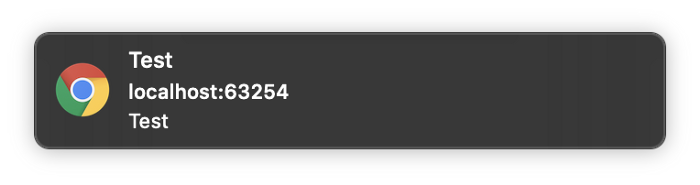
现在运行你的应用并请求权限,你将获得一个令牌。使用这个令牌,你可以打开Firebase控制台,向该令牌发送测试消息。
Conclusion
总结
Now you can send push notifications to Flutter apps! You still need to use conditional imports to support the mobile side as well but stay tuned for an example with that. Let me know your questions and any feedback you may have.
现在你已经可以向Flutter应用发送推送通知了!你还需要使用条件导入来同时支持移动端,敬请关注相关示例。如有任何疑问或反馈,欢迎告诉我。