how-to-build-a-webrtc-signal-server-with-pocketbase
Compare original and translation side by side
🇺🇸
Original
English🇨🇳
Translation
ChineseHow to Build a WebRTC Signal Server with PocketBase
如何使用PocketBase构建WebRTC信令服务器
Overview
概述
If you are new to WebRTC then I suggest checking out this great Fireship video on WebRTC in 100 seconds:
Also if you are looking for a Firebase example then check out this repository which this example is largely based on.
This example is built using PocketBase as the signal server for WebRTC and runs SQLite on the server with easy to use realtime SDKs built on top of Server Sent Events (SSE).
如果你是WebRTC新手,建议观看Fireship的这个很棒的视频:WebRTC 100秒快速入门:
Setting up the server
搭建服务器
Download PocketBase and create a new directory that we will use for the project.
mkdir webrtc-pocketbase-demo
cd webrtc-pocketbase-demo
Copy the PocketBase binary into the directory you just created under a sub directory . If you are on MacOS you will need to allow the executable to run in settings.
.pbStart the PocketBase server with the following command:
.pb/pocketbase serveIf all goes well you should see the following:
2023/11/04 15:10:56 Server started at http://127.0.0.1:8090
├─ REST API: http://127.0.0.1:8090/api/
└─ Admin UI: http://127.0.0.1:8090/_/
Open up the Admin UI url and create a new username and password.
For this example the email and password will be the following:
Key
Value
Email
Password
Test123456789
You should now see the following:
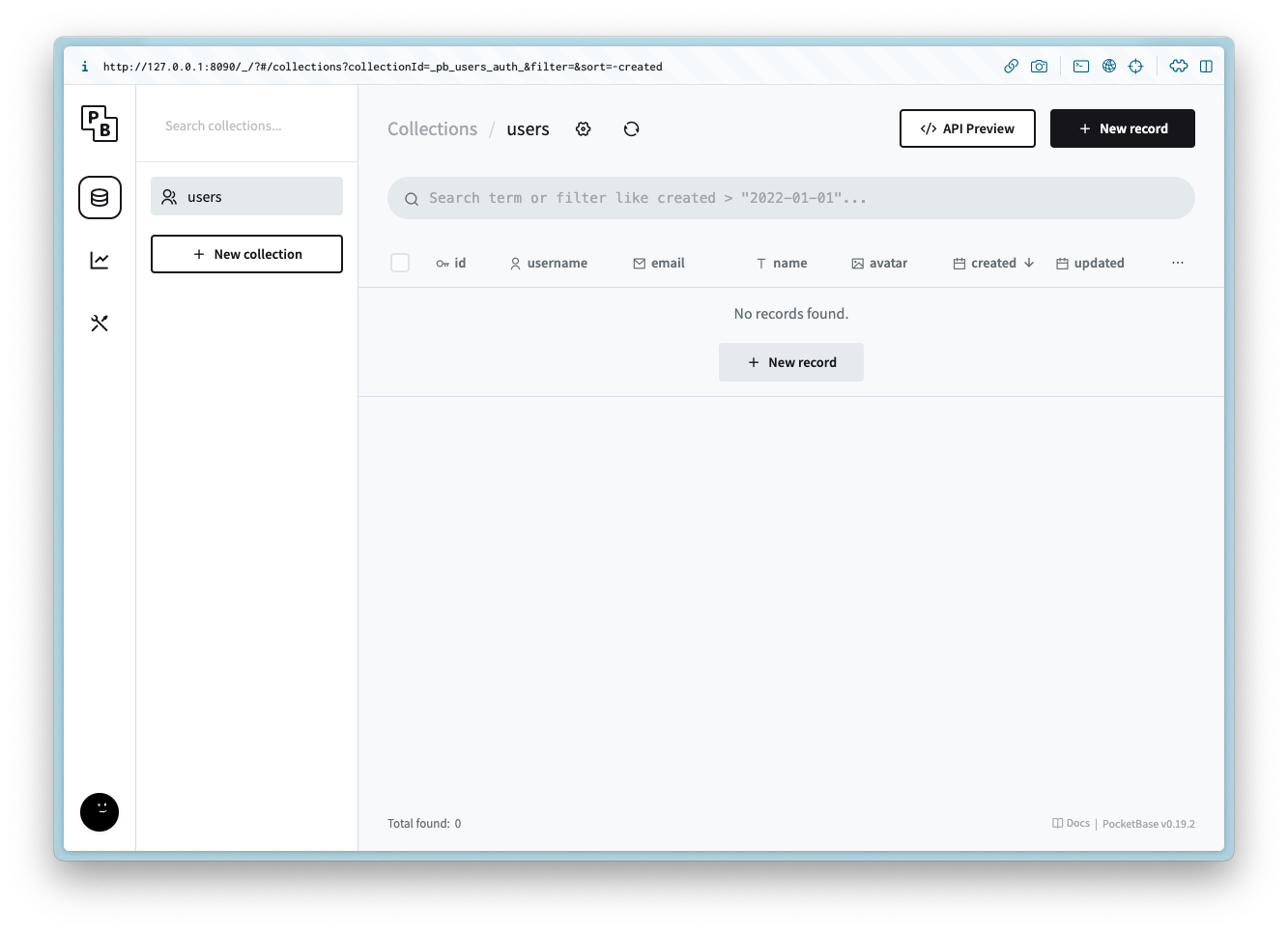
下载PocketBase并创建一个新的项目目录。
mkdir webrtc-pocketbase-demo
cd webrtc-pocketbase-demo将PocketBase二进制文件复制到你刚创建的目录下的子目录中。如果你使用MacOS,需要在设置中允许该可执行文件运行。
.pb使用以下命令启动PocketBase服务器:
.pb/pocketbase serve如果一切顺利,你会看到以下输出:
2023/11/04 15:10:56 Server started at http://127.0.0.1:8090
├─ REST API: http://127.0.0.1:8090/api/
└─ Admin UI: http://127.0.0.1:8090/_/
打开Admin UI地址并创建新的用户名和密码。
本示例中使用的邮箱和密码如下:
键
值
邮箱
密码
Test123456789
现在你会看到以下界面:
Creating the collections
创建集合
ice_servers
ice_servers
Create a new collection named with the following columns:
ice_serversColumn Name
Column Type
url
Plain text
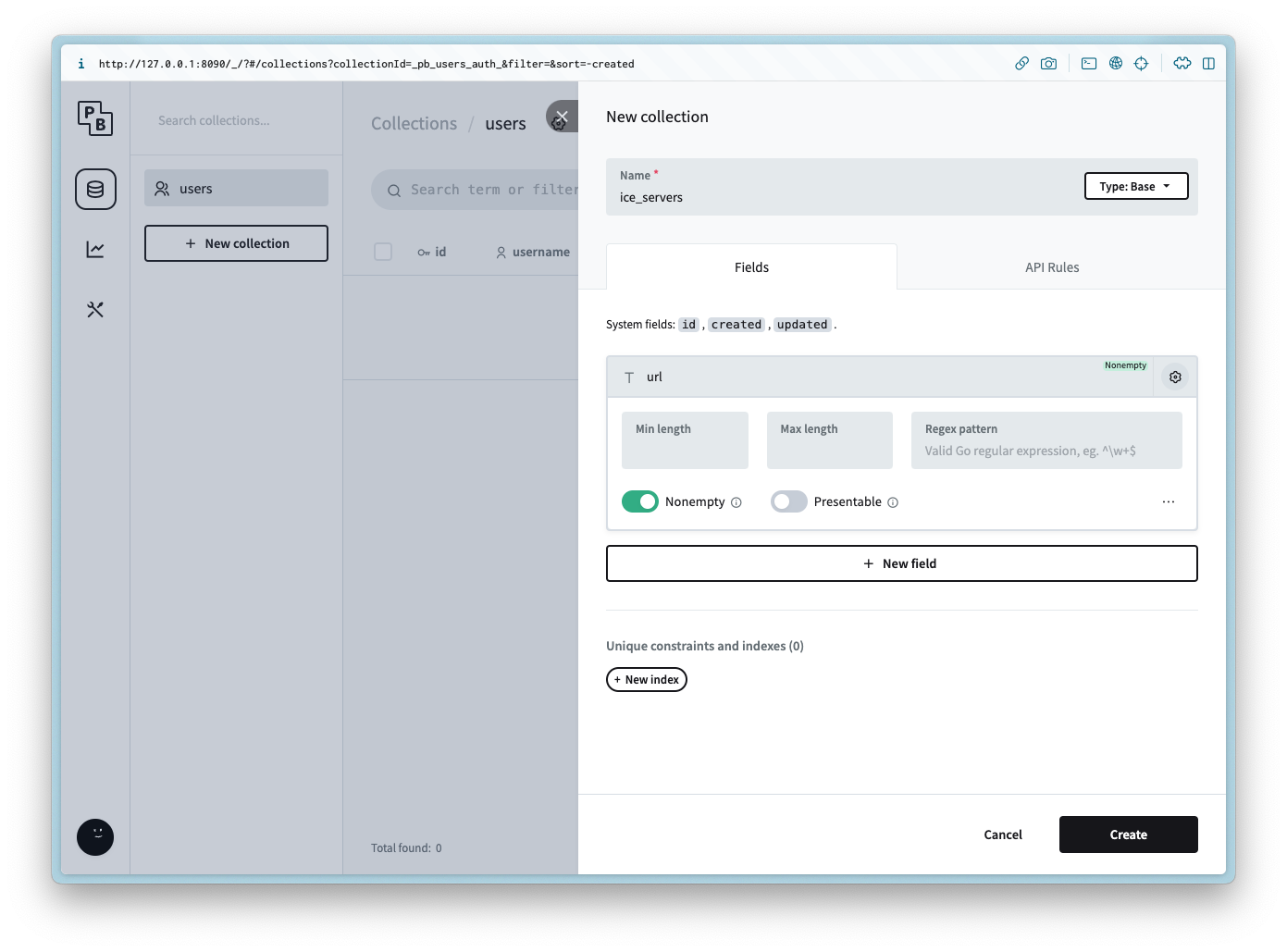
Add the following API rule to the List/Search and View:
@request.auth.id != ''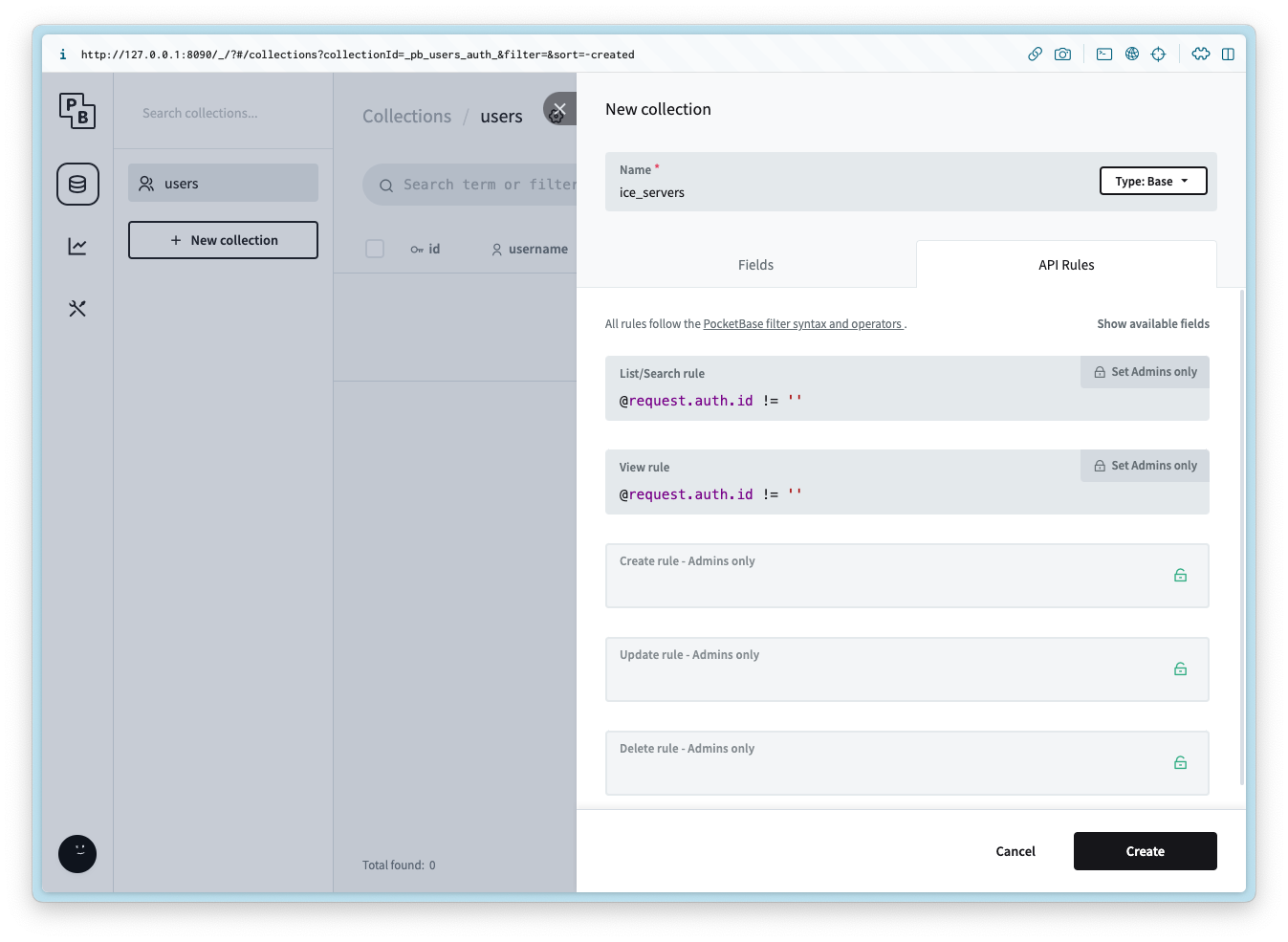
After the collection is created add 2 records for each of the following values for the url:
stun:stun1.l.google.com:19302
stun:stun2.l.google.com:19302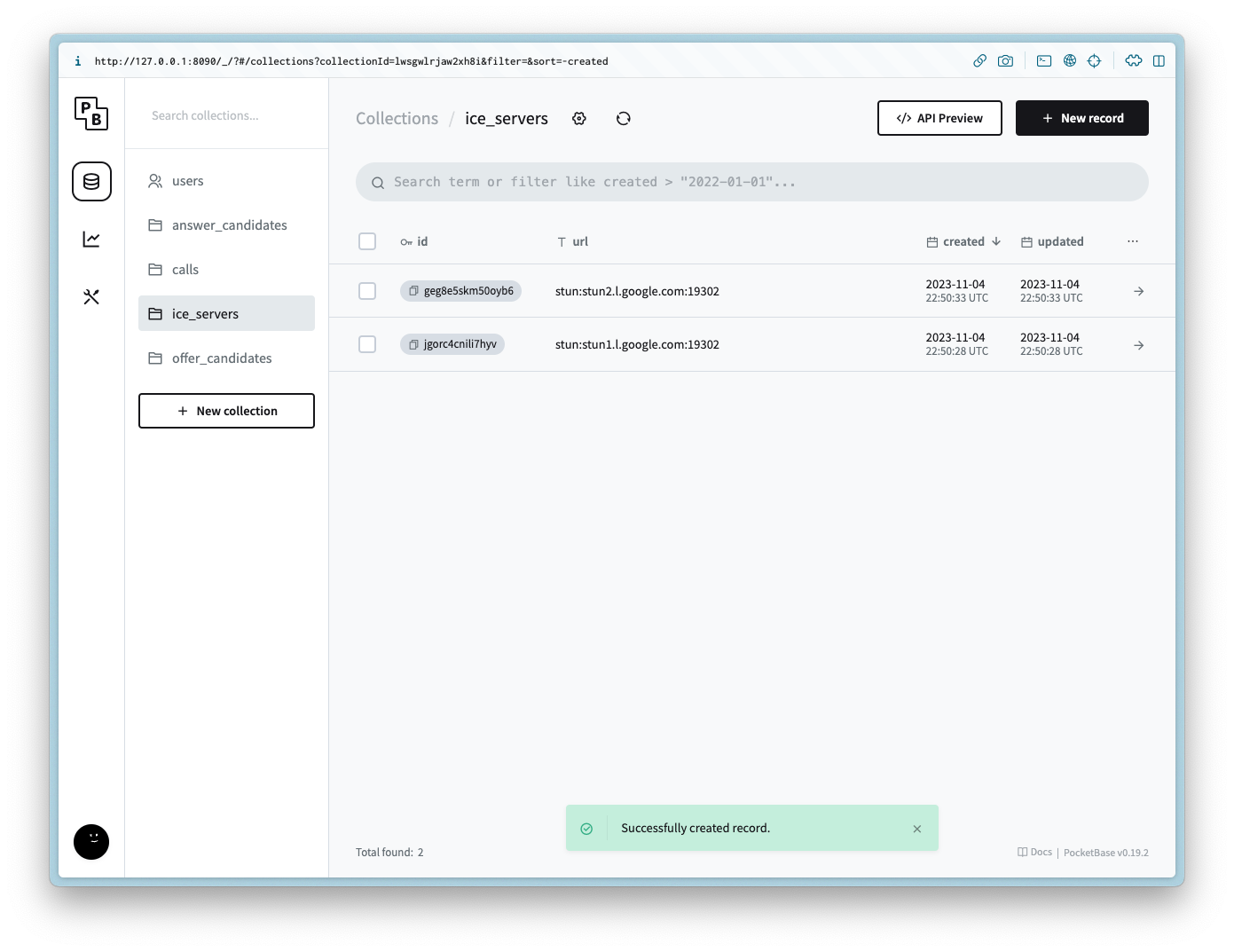
创建一个名为的新集合,包含以下列:
ice_servers列名
列类型
url
纯文本
为“列表/搜索”和“查看”添加以下API规则:
@request.auth.id != ''集合创建完成后,添加2条记录,url值分别为:
stun:stun1.l.google.com:19302
stun:stun2.l.google.com:19302
calls
calls
Create a new collection named with the following columns:
callsColumn Name
Column Type
Column Settings
user_id
Relation
Non empty, , Cascade delete is
userstrueoffer
JSON
answer
JSON
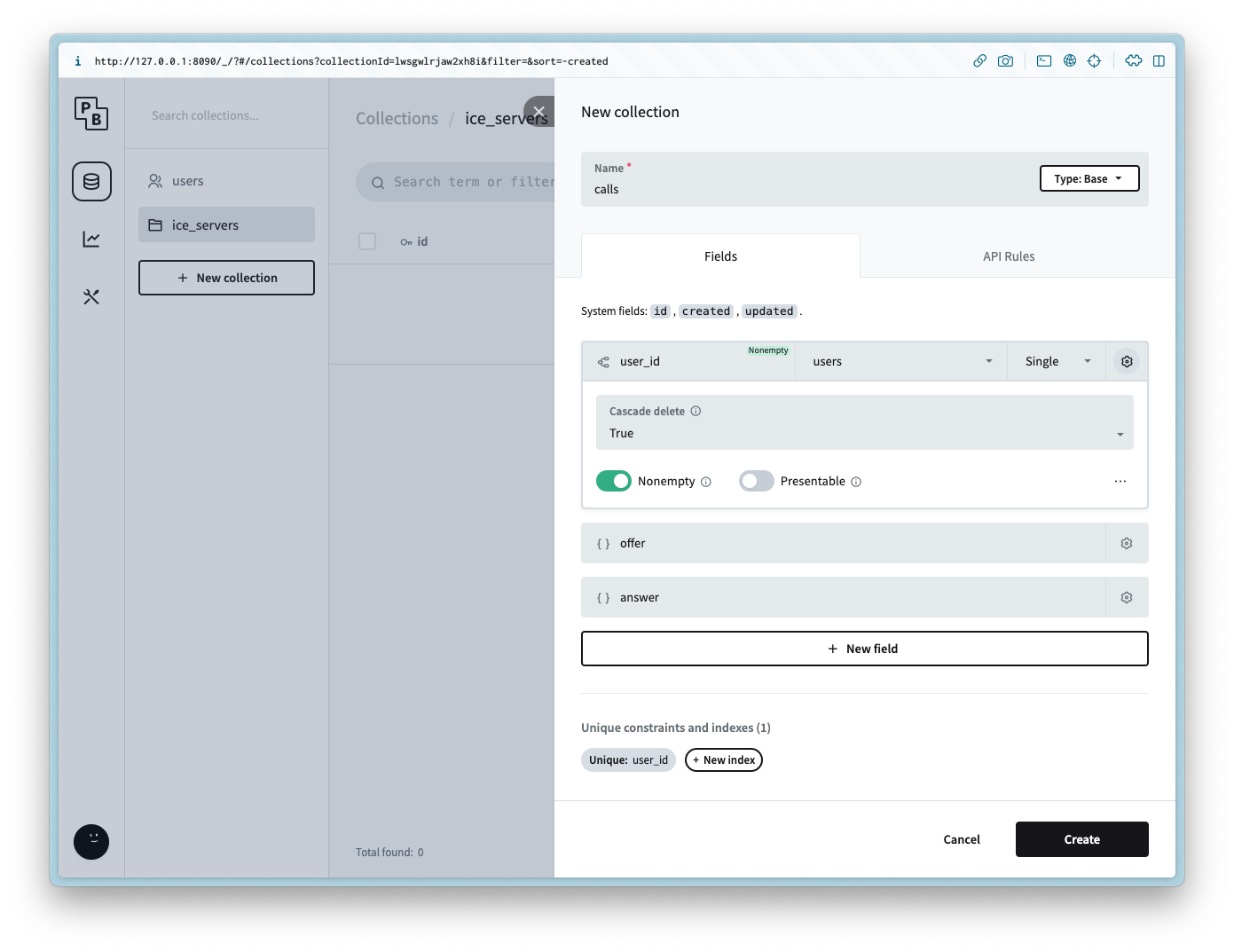
it is also possible to limit the user to one call each by setting the Unique constraint on the column.
user_id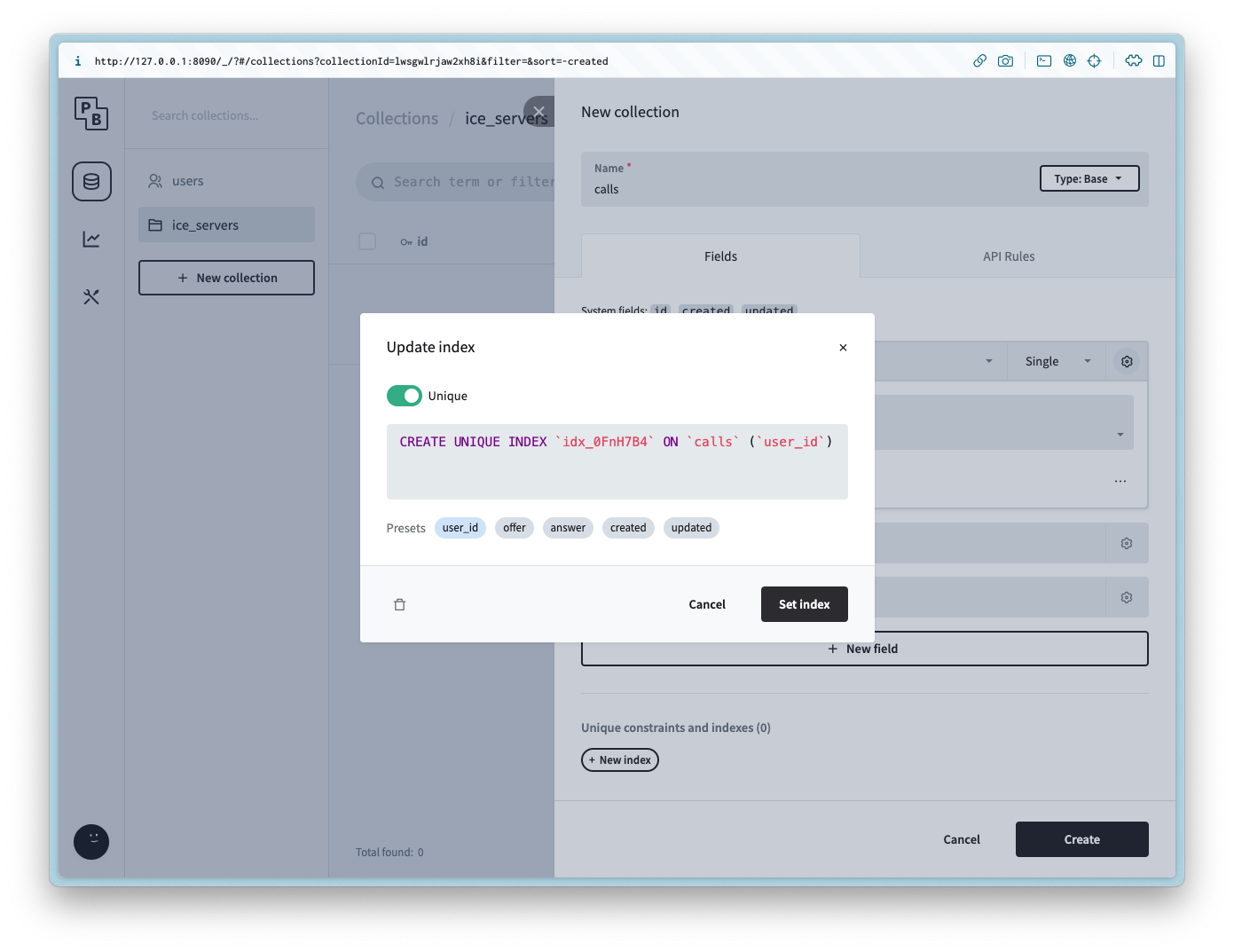
Add the following API rule to all of the methods:
@request.auth.id != ''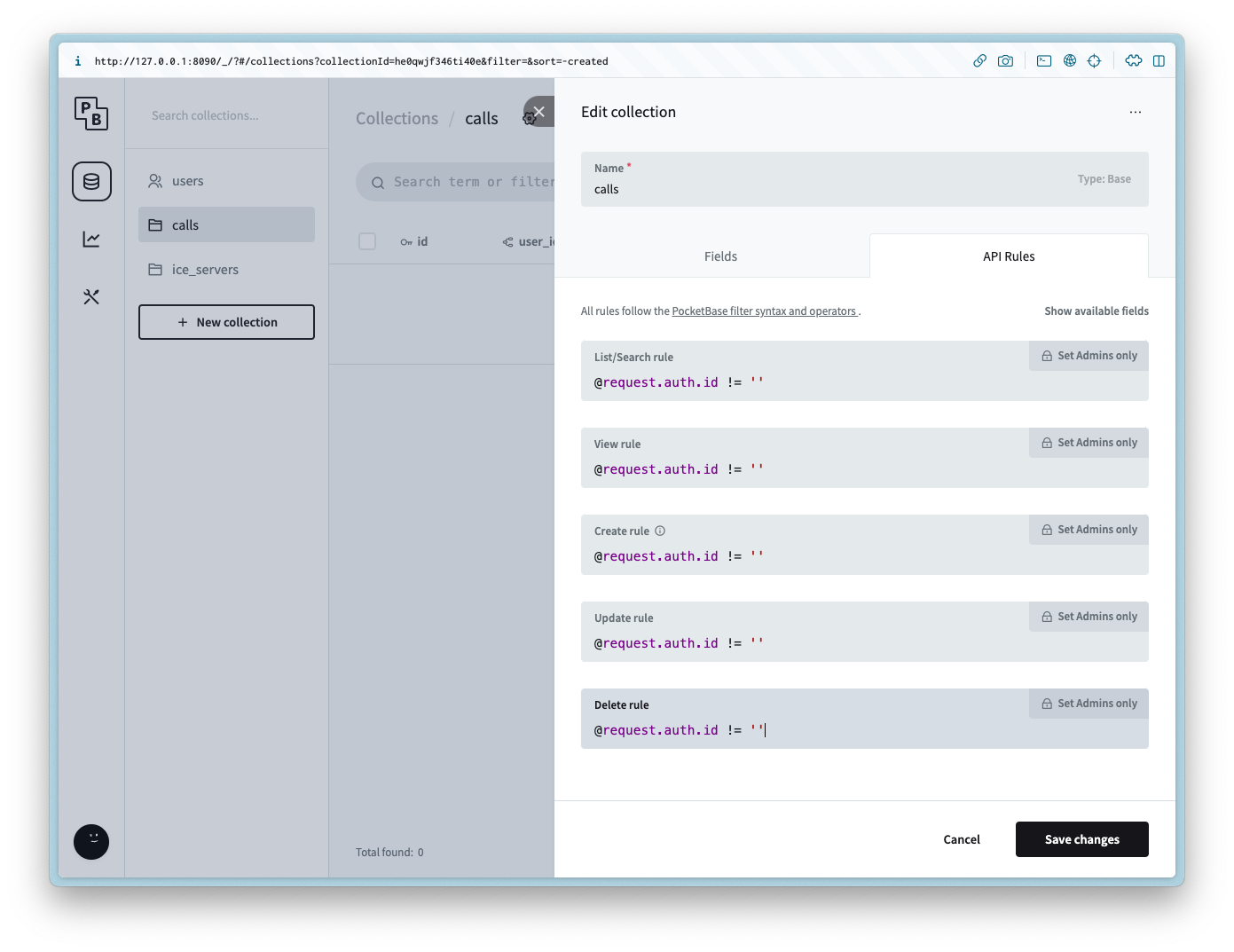
创建一个名为的新集合,包含以下列:
calls列名
列类型
列设置
user_id
关联
非空,关联,级联删除设为
userstrueoffer
JSON
answer
JSON
你也可以通过在列设置唯一约束,限制每个用户只能发起一个通话。
user_id为所有方法添加以下API规则:
@request.auth.id != ''offer_candidates
offer_candidates
Create a new collection named with the following columns:
offer_candidatesColumn Name
Column Type
Column Settings
call_id
Relation
Non empty, , Cascade delete is
callstruedata
JSON
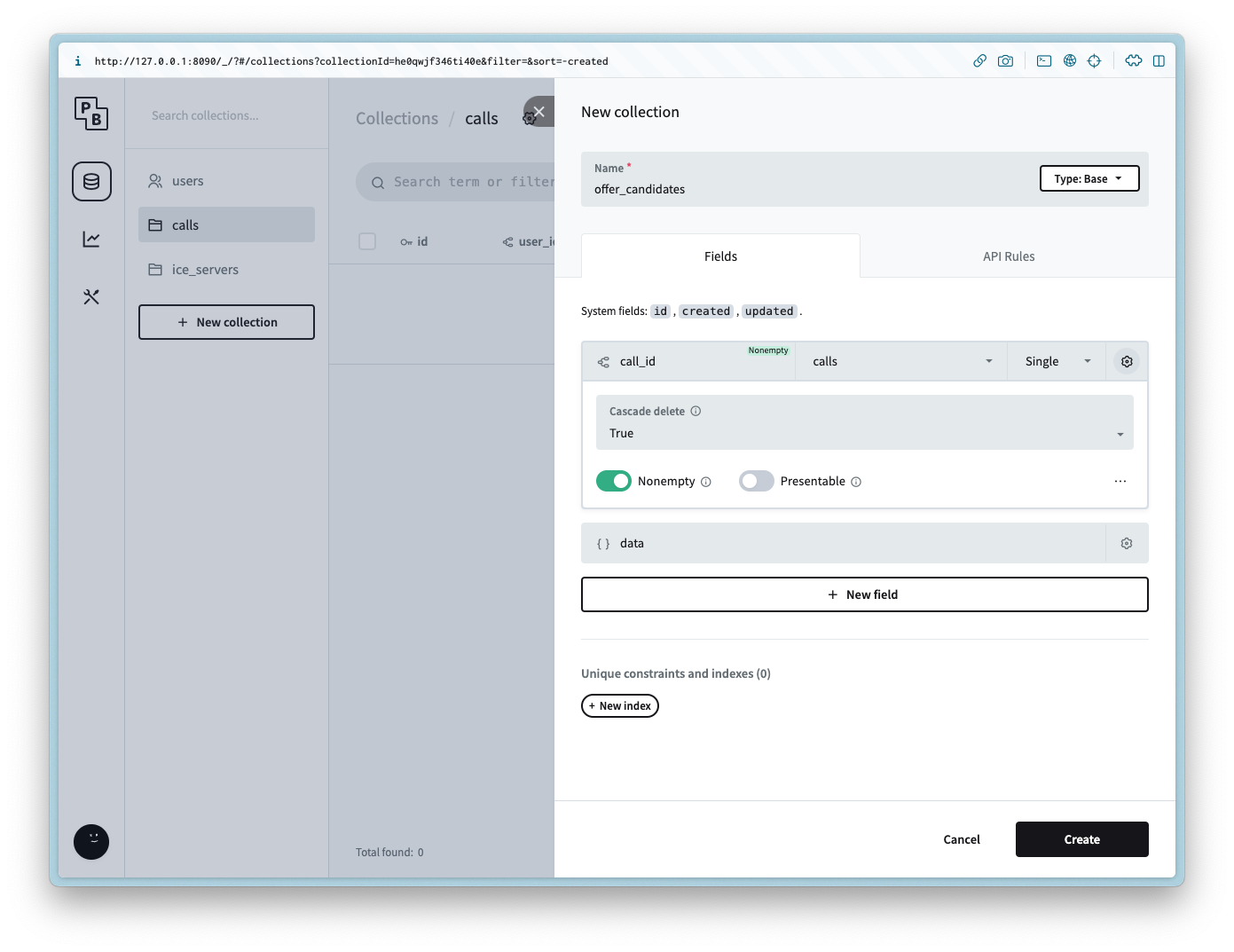
Add the following API rule to all of the methods:
@request.auth.id != ''创建一个名为的新集合,包含以下列:
offer_candidates列名
列类型
列设置
call_id
关联
非空,关联,级联删除设为
callstruedata
JSON
为所有方法添加以下API规则:
@request.auth.id != ''answer_candidates
answer_candidates
Create a new collection named with the following columns:
answer_candidatesColumn Name
Column Type
Column Settings
call_id
Relation
Non empty, , Cascade delete is
callstruedata
JSON
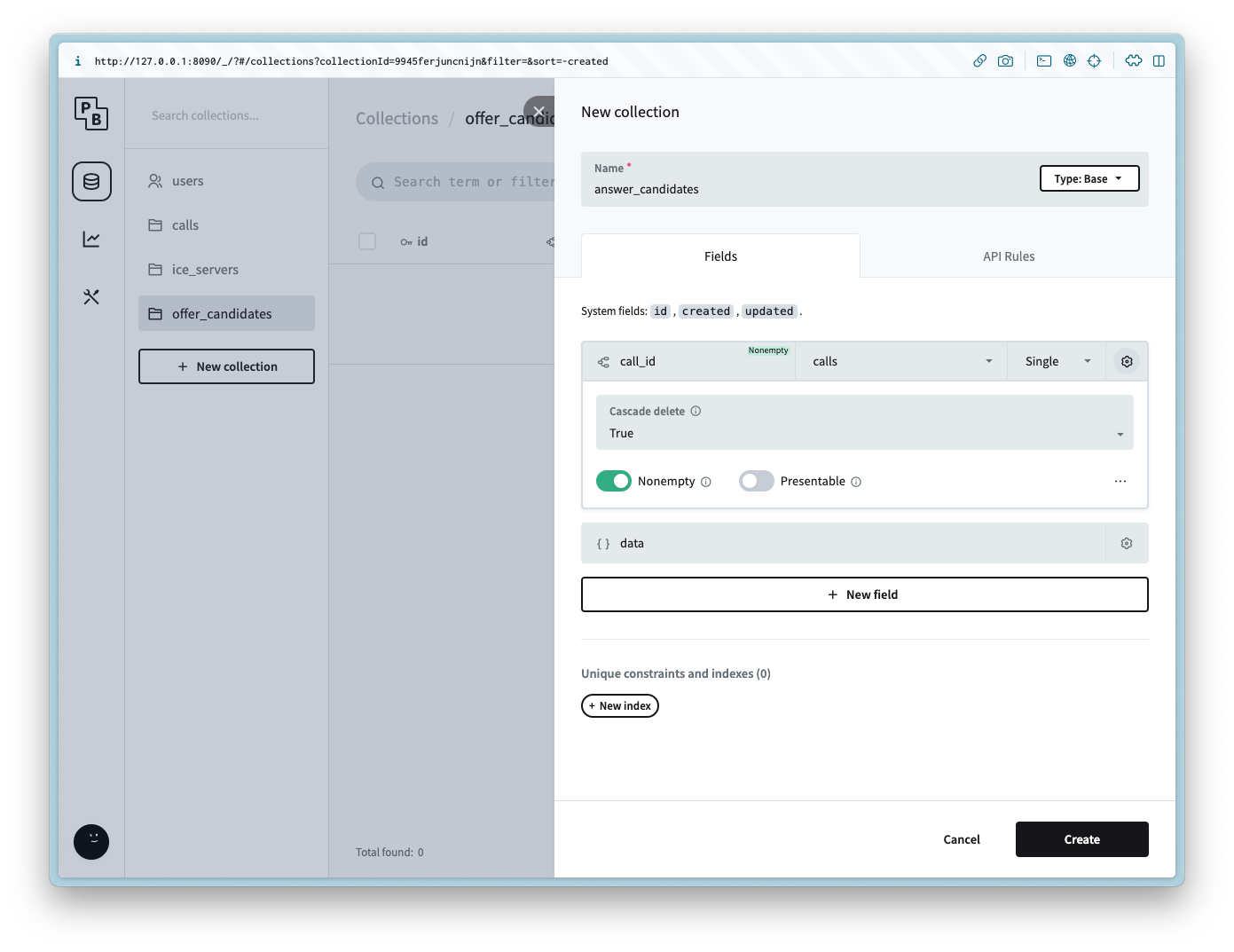
Add the following API rule to all of the methods:
@request.auth.id != ''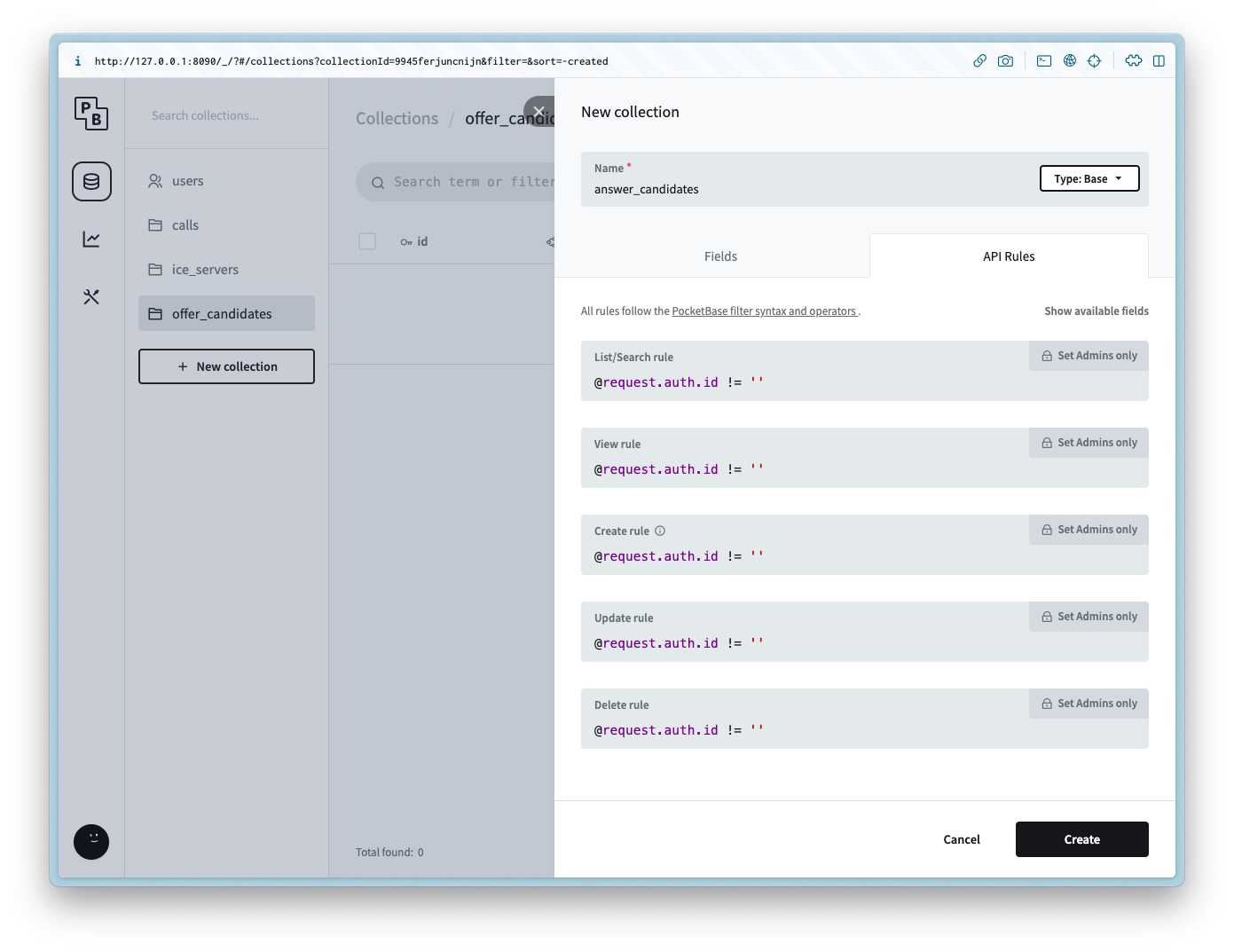
创建一个名为的新集合,包含以下列:
answer_candidates列名
列类型
列设置
call_id
关联
非空,关联,级联删除设为
callstruedata
JSON
为所有方法添加以下API规则:
@request.auth.id != ''users
users
For demo purposes we will not be including an auth form for the user, but to make the example simple create a new user with the same login info for the admin.
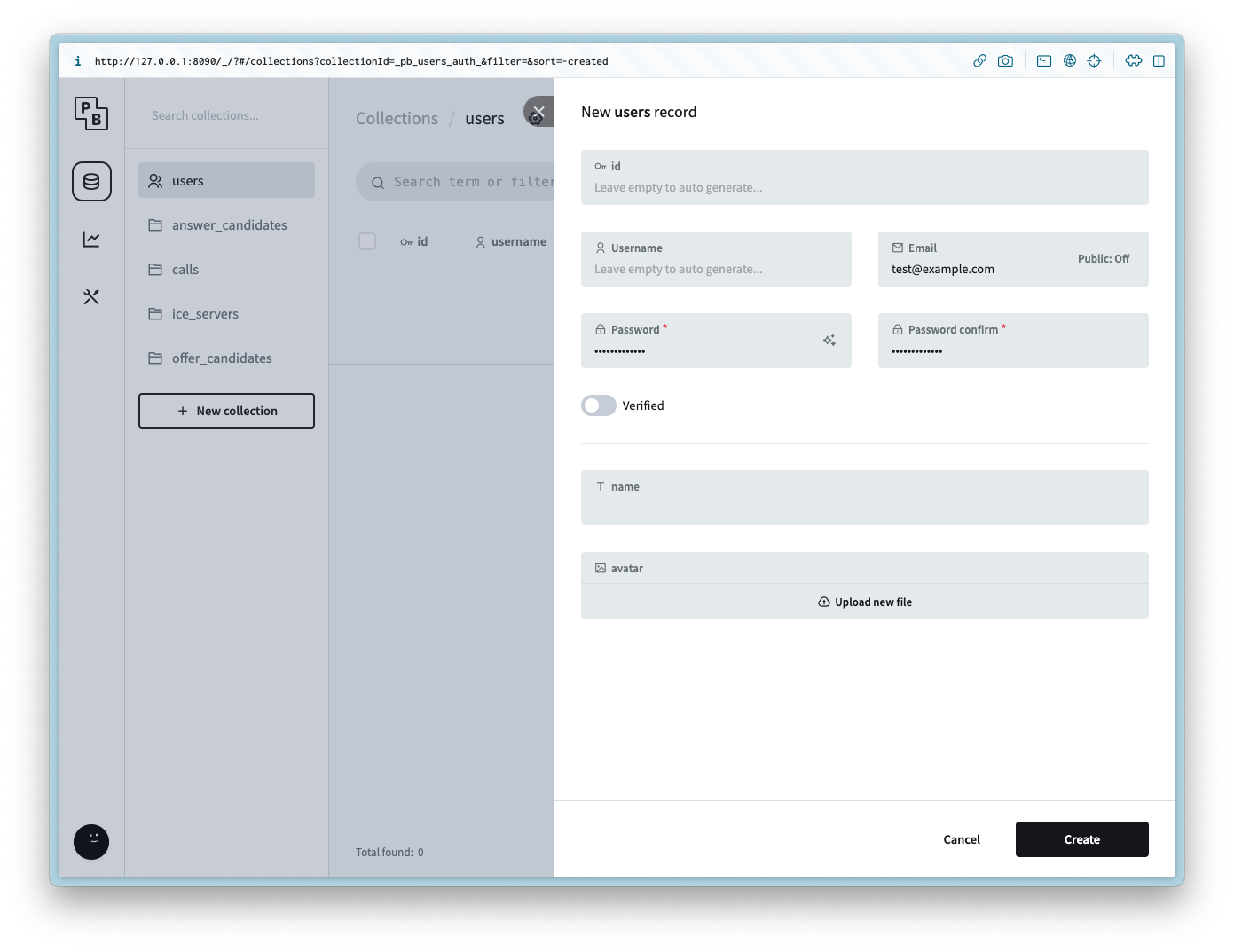
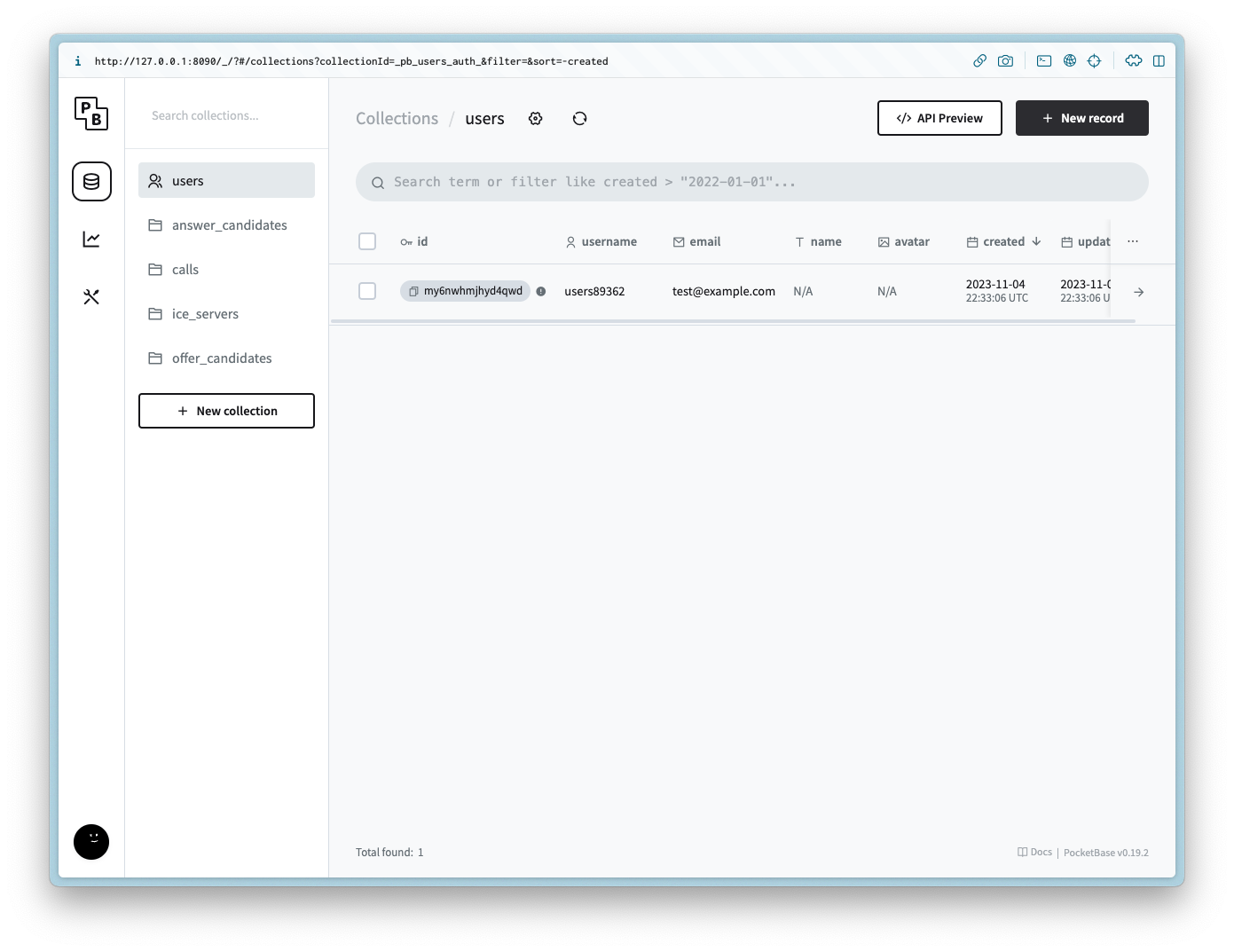
为了简化示例,我们不包含用户认证表单,但需要创建一个与管理员登录信息相同的新用户。
Setting up the client
搭建客户端
Navigate to the directory and run the following commands to get started:
npm init -y
npm i -D vite
npm i pocketbase
Update the to be the following:
package.json{
"name": "webrtc-pocketbase-demo",
"version": "0.0.0",
"scripts": {
"dev": "vite",
"build": "vite build",
"serve": "vite preview"
},
"devDependencies": {
"vite": "^4.5.0"
},
"dependencies": {
"pocketbase": "^0.19.0"
}
}If you are in a Git repository update/create the to have the following:
.gitignorenode_modules
.DS_Store
dist
dist-ssr
*.local
.pb
.env进入项目目录并运行以下命令开始:
npm init -y
npm i -D vite
npm i pocketbase将更新为以下内容:
package.json{
"name": "webrtc-pocketbase-demo",
"version": "0.0.0",
"scripts": {
"dev": "vite",
"build": "vite build",
"serve": "vite preview"
},
"devDependencies": {
"vite": "^4.5.0"
},
"dependencies": {
"pocketbase": "^0.19.0"
}
}如果你使用Git仓库,更新或创建文件,添加以下内容:
.gitignorenode_modules
.DS_Store
dist
dist-ssr
*.local
.pb
.envHTML
HTML
Create and add the following:
index.html<!DOCTYPE html>
<html lang="en">
<head>
<meta charset="UTF-8" />
<link rel="icon" type="image/svg+xml" href="favicon.svg" />
<meta name="viewport" content="width=device-width, initial-scale=1.0" />
<title>WebRTC Pocketbase Demo</title>
</head>
<body>
<h2>1. Start your Webcam</h2>
<div class="videos">
<span>
<h3>Local Stream</h3>
<video id="webcamVideo" autoplay playsinline></video>
</span>
<span>
<h3>Remote Stream</h3>
<video id="remoteVideo" autoplay playsinline></video>
</span>
</div>
<button id="webcamButton">Start webcam</button>
<h2>2. Create a new Call</h2>
<button id="callButton" disabled>Create Call (offer)</button>``
<h2>3. Join a Call</h2>
<p>Answer the call from a different browser window or device</p>
<input id="callInput" />
<button id="answerButton" disabled>Answer</button>
<h2>4. Hangup</h2>
<button id="hangupButton" disabled>Hangup</button>
<script type="module" src="/main.js"></script>
</body>
</html>创建并添加以下内容:
index.html<!DOCTYPE html>
<html lang="en">
<head>
<meta charset="UTF-8" />
<link rel="icon" type="image/svg+xml" href="favicon.svg" />
<meta name="viewport" content="width=device-width, initial-scale=1.0" />
<title>WebRTC Pocketbase Demo</title>
</head>
<body>
<h2>1. 启动你的摄像头</h2>
<div class="videos">
<span>
<h3>本地流</h3>
<video id="webcamVideo" autoplay playsinline></video>
</span>
<span>
<h3>远程流</h3>
<video id="remoteVideo" autoplay playsinline></video>
</span>
</div>
<button id="webcamButton">启动摄像头</button>
<h2>2. 创建新通话</h2>
<button id="callButton" disabled>创建通话(发起Offer)</button>
<h2>3. 加入通话</h2>
<p>在另一个浏览器窗口或设备上接听通话</p>
<input id="callInput" />
<button id="answerButton" disabled>接听</button>
<h2>4. 挂断</h2>
<button id="hangupButton" disabled>挂断</button>
<script type="module" src="/main.js"></script>
</body>
</html>CSS
CSS
Create and add the following:
style.cssbody {
--text-color: #2c3e50;
--video-background-color: #2c3e50;
font-family: system-ui, -apple-system, BlinkMacSystemFont, "Segoe UI", Roboto,
Oxygen, Ubuntu, Cantarell, "Open Sans", "Helvetica Neue", sans-serif;
-webkit-font-smoothing: antialiased;
-moz-osx-font-smoothing: grayscale;
text-align: center;
color: var(--text-color);
margin: 80px 10px;
}
video {
width: 40vw;
height: 30vw;
margin: 2rem;
background: var(--video-background-color);
}
.videos {
display: flex;
align-items: center;
justify-content: center;
}创建并添加以下内容:
style.cssbody {
--text-color: #2c3e50;
--video-background-color: #2c3e50;
font-family: system-ui, -apple-system, BlinkMacSystemFont, "Segoe UI", Roboto,
Oxygen, Ubuntu, Cantarell, "Open Sans", "Helvetica Neue", sans-serif;
-webkit-font-smoothing: antialiased;
-moz-osx-font-smoothing: grayscale;
text-align: center;
color: var(--text-color);
margin: 80px 10px;
}
video {
width: 40vw;
height: 30vw;
margin: 2rem;
background: var(--video-background-color);
}
.videos {
display: flex;
align-items: center;
justify-content: center;
}JS
JS
Create and add the following:
main.jsimport "./style.css";
import PocketBase from "pocketbase";
const pb = new PocketBase("http://127.0.0.1:8090");
const calls = pb.collection("calls");
const offerCandidates = pb.collection("offer_candidates");
const answerCandidates = pb.collection("answer_candidates");
const webcamButton = document.getElementById("webcamButton");
const webcamVideo = document.getElementById("webcamVideo");
const callButton = document.getElementById("callButton");
const callInput = document.getElementById("callInput");
const answerButton = document.getElementById("answerButton");
const remoteVideo = document.getElementById("remoteVideo");
const hangupButton = document.getElementById("hangupButton");
const auth = await pb
.collection("users")
.authWithPassword(
import.meta.env.VITE_POCKETBASE_USERNAME,
import.meta.env.VITE_POCKETBASE_PASSWORD
);
const userId = auth.record.id;
const iceServers = await pb.collection("ice_servers").getFullList();
const servers = {
iceServers: [{ urls: iceServers.map((e) => e.url) }],
iceCandidatePoolSize: 10,
};
const pc = new RTCPeerConnection(servers);
let localStream = null;
let remoteStream = null;
webcamButton.onclick = async () => {
localStream = await navigator.mediaDevices.getUserMedia({
video: true,
audio: true,
});
remoteStream = new MediaStream();
localStream.getTracks().forEach((track) => {
pc.addTrack(track, localStream);
});
pc.ontrack = (event) => {
const stream = event.streams[0];
stream.getTracks().forEach((track) => {
remoteStream.addTrack(track);
});
};
webcamVideo.srcObject = localStream;
remoteVideo.srcObject = remoteStream;
callButton.disabled = false;
answerButton.disabled = false;
webcamButton.disabled = true;
};
callButton.onclick = async () => {
const call = await calls.create({
user_id: userId,
});
const callId = call.id;
callInput.value = callId;
pc.onicecandidate = (event) => {
event.candidate &&
offerCandidates.create({
call_id: callId,
data: event.candidate.toJSON(),
});
};
const offerDescription = await pc.createOffer();
await pc.setLocalDescription(offerDescription);
const offer = {
sdp: offerDescription.sdp,
type: offerDescription.type,
};
await calls.update(callId, { offer });
calls.subscribe(callId, (e) => {
const data = e.record;
if (!pc.currentRemoteDescription && data?.answer) {
const answerDescription = new RTCSessionDescription(data.answer);
pc.setRemoteDescription(answerDescription);
}
});
answerCandidates.subscribe("*", (e) => {
if (e.action === "create") {
if (e.record?.call_id === callId) {
const data = e.record.data;
const candidate = new RTCIceCandidate(data);
pc.addIceCandidate(candidate);
}
}
});
hangupButton.disabled = false;
};
answerButton.onclick = async () => {
const callId = callInput.value;
const call = await calls.getOne(callId);
pc.onicecandidate = (event) => {
event.candidate &&
answerCandidates.create({
call_id: call.id,
data: event.candidate.toJSON(),
});
};
const offerDescription = call.offer;
const remoteDescription = new RTCSessionDescription(offerDescription);
await pc.setRemoteDescription(remoteDescription);
const answerDescription = await pc.createAnswer();
await pc.setLocalDescription(answerDescription);
const answer = {
type: answerDescription.type,
sdp: answerDescription.sdp,
};
await calls.update(call.id, { answer });
offerCandidates.subscribe("*", async (e) => {
if (e.record?.call_id === call.id) {
if (e.action === "create") {
const data = e.record.data;
const candidate = new RTCIceCandidate(data);
await pc.addIceCandidate(candidate);
} else if (e.action === "delete") {
await offerCandidates.unsubscribe();
window.location.reload();
}
}
});
};
hangupButton.onclick = async () => {
const callId = callInput.value;
pc.close();
await calls.unsubscribe(callId);
await calls.delete(callId);
await answerCandidates.unsubscribe();
window.location.reload();
};创建并添加以下内容:
main.jsimport "./style.css";
import PocketBase from "pocketbase";
const pb = new PocketBase("http://127.0.0.1:8090");
const calls = pb.collection("calls");
const offerCandidates = pb.collection("offer_candidates");
const answerCandidates = pb.collection("answer_candidates");
const webcamButton = document.getElementById("webcamButton");
const webcamVideo = document.getElementById("webcamVideo");
const callButton = document.getElementById("callButton");
const callInput = document.getElementById("callInput");
const answerButton = document.getElementById("answerButton");
const remoteVideo = document.getElementById("remoteVideo");
const hangupButton = document.getElementById("hangupButton");
const auth = await pb
.collection("users")
.authWithPassword(
import.meta.env.VITE_POCKETBASE_USERNAME,
import.meta.env.VITE_POCKETBASE_PASSWORD
);
const userId = auth.record.id;
const iceServers = await pb.collection("ice_servers").getFullList();
const servers = {
iceServers: [{ urls: iceServers.map((e) => e.url) }],
iceCandidatePoolSize: 10,
};
const pc = new RTCPeerConnection(servers);
let localStream = null;
let remoteStream = null;
webcamButton.onclick = async () => {
localStream = await navigator.mediaDevices.getUserMedia({
video: true,
audio: true,
});
remoteStream = new MediaStream();
localStream.getTracks().forEach((track) => {
pc.addTrack(track, localStream);
});
pc.ontrack = (event) => {
const stream = event.streams[0];
stream.getTracks().forEach((track) => {
remoteStream.addTrack(track);
});
};
webcamVideo.srcObject = localStream;
remoteVideo.srcObject = remoteStream;
callButton.disabled = false;
answerButton.disabled = false;
webcamButton.disabled = true;
};
callButton.onclick = async () => {
const call = await calls.create({
user_id: userId,
});
const callId = call.id;
callInput.value = callId;
pc.onicecandidate = (event) => {
event.candidate &&
offerCandidates.create({
call_id: callId,
data: event.candidate.toJSON(),
});
};
const offerDescription = await pc.createOffer();
await pc.setLocalDescription(offerDescription);
const offer = {
sdp: offerDescription.sdp,
type: offerDescription.type,
};
await calls.update(callId, { offer });
calls.subscribe(callId, (e) => {
const data = e.record;
if (!pc.currentRemoteDescription && data?.answer) {
const answerDescription = new RTCSessionDescription(data.answer);
pc.setRemoteDescription(answerDescription);
}
});
answerCandidates.subscribe("*", (e) => {
if (e.action === "create") {
if (e.record?.call_id === callId) {
const data = e.record.data;
const candidate = new RTCIceCandidate(data);
pc.addIceCandidate(candidate);
}
}
});
hangupButton.disabled = false;
};
answerButton.onclick = async () => {
const callId = callInput.value;
const call = await calls.getOne(callId);
pc.onicecandidate = (event) => {
event.candidate &&
answerCandidates.create({
call_id: call.id,
data: event.candidate.toJSON(),
});
};
const offerDescription = call.offer;
const remoteDescription = new RTCSessionDescription(offerDescription);
await pc.setRemoteDescription(remoteDescription);
const answerDescription = await pc.createAnswer();
await pc.setLocalDescription(answerDescription);
const answer = {
type: answerDescription.type,
sdp: answerDescription.sdp,
};
await calls.update(call.id, { answer });
offerCandidates.subscribe("*", async (e) => {
if (e.record?.call_id === call.id) {
if (e.action === "create") {
const data = e.record.data;
const candidate = new RTCIceCandidate(data);
await pc.addIceCandidate(candidate);
} else if (e.action === "delete") {
await offerCandidates.unsubscribe();
window.location.reload();
}
}
});
};
hangupButton.onclick = async () => {
const callId = callInput.value;
pc.close();
await calls.unsubscribe(callId);
await calls.delete(callId);
await answerCandidates.unsubscribe();
window.location.reload();
};Running the example
运行示例
Run the following command to start the client (make sure the server is running in a separate terminal client):
npm run devIf successful you should see the following:
  VITE v4.5.0  ready in 547 ms

  ➜  Local:   http://localhost:5173/
  ➜  Network: use --host to expose
  ➜  press h to show help
Open up two browsers with the same url:
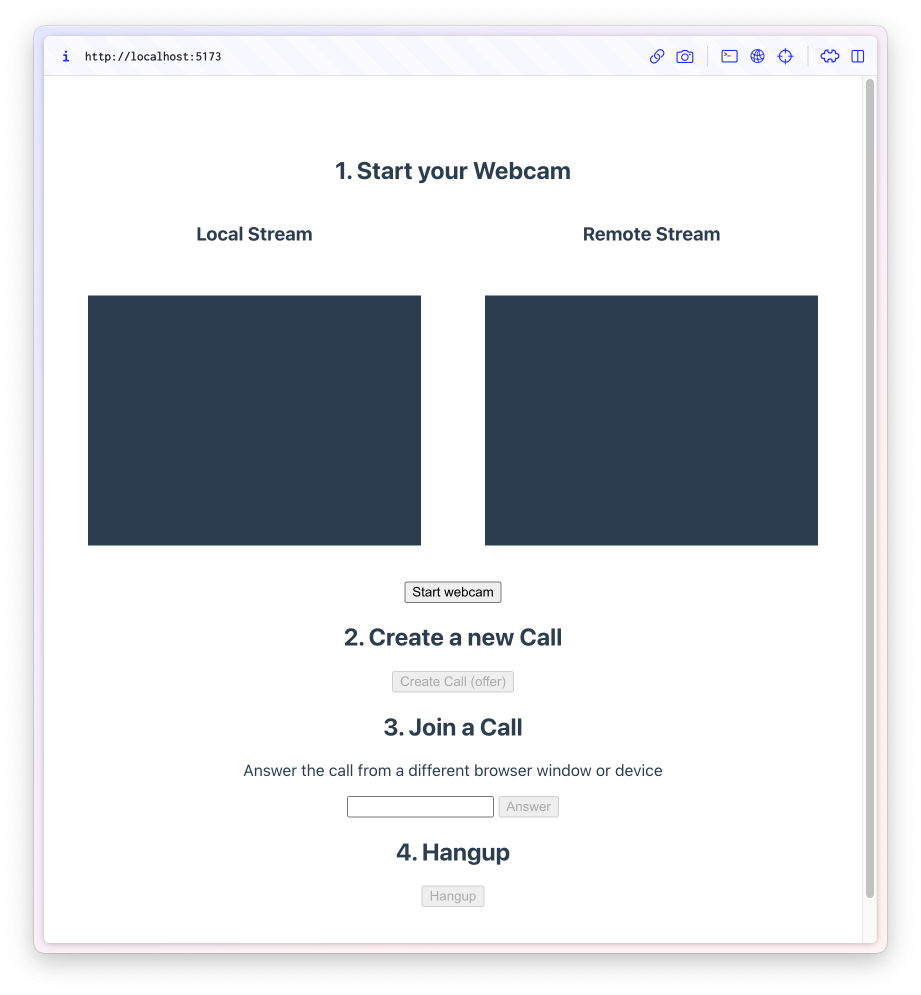
In the first window click and then .
Start webcamCreate Call (offer)This will ask for camera permission and then generate a new id and add it to the text field.
Join a Call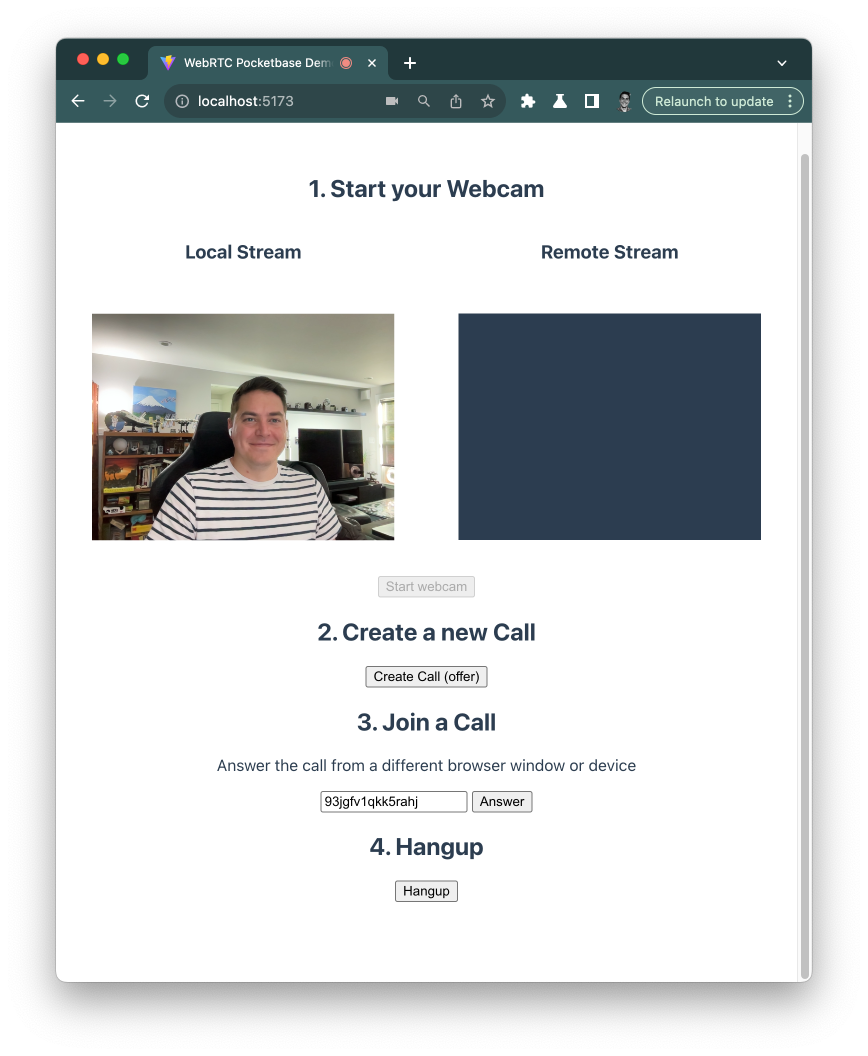
Copy the new id and paste it in the second window field and click .
Start webcam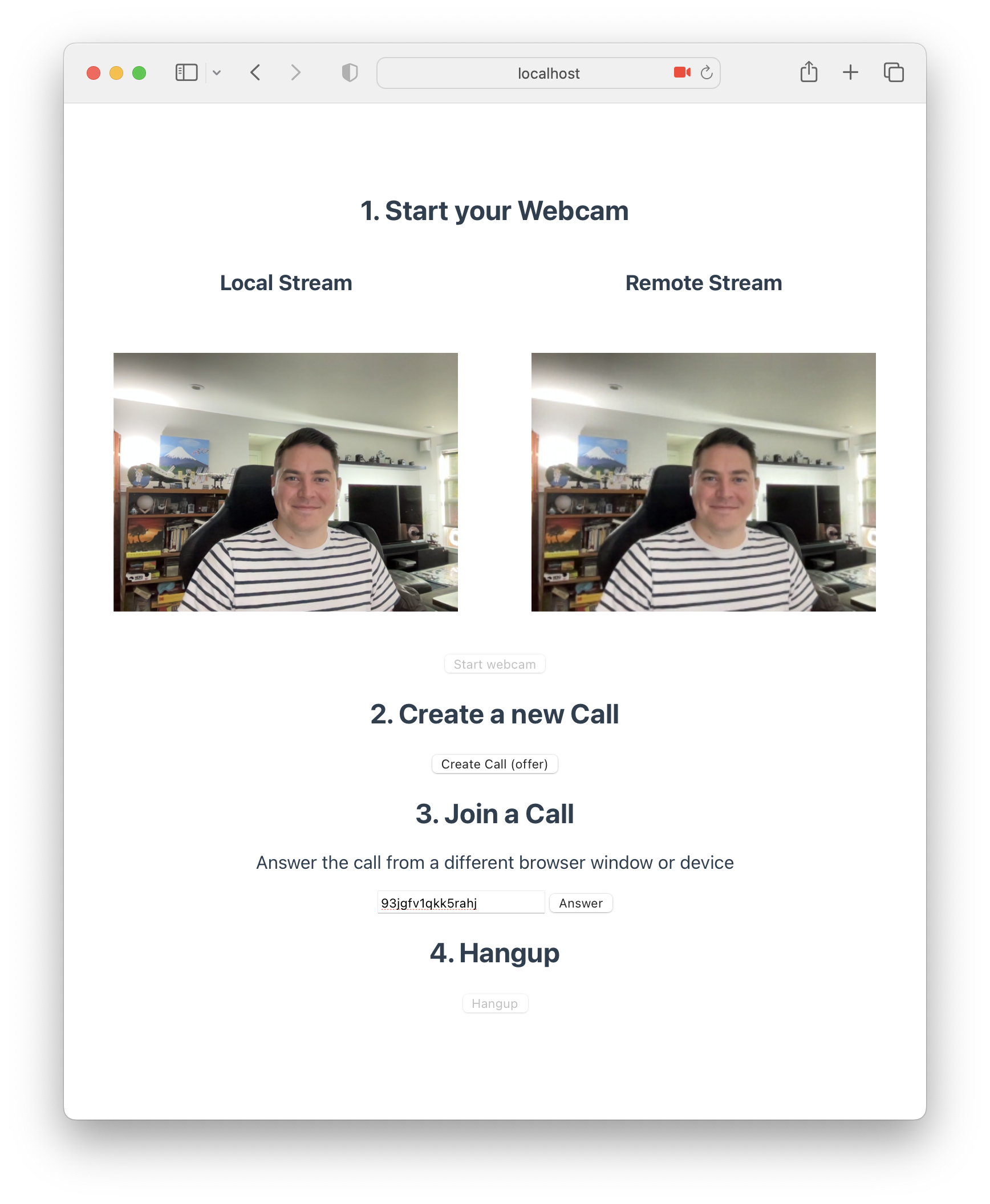
Then click when you are done with the call 🎉.
Hangup运行以下命令启动客户端(确保服务器在另一个终端窗口中运行):
npm run dev如果成功,你会看到以下输出:
  VITE v4.5.0  ready in 547 ms

  ➜  Local:   http://localhost:5173/
  ➜  Network: use --host to expose
  ➜  press h to show help
在两个浏览器中打开相同的网址:
在第一个窗口中点击“启动摄像头”,然后点击“创建通话(发起Offer)”。
这会请求摄像头权限,然后生成一个新的ID并添加到“加入通话”的输入框中。
复制新ID并粘贴到第二个窗口的输入框中,然后点击“启动摄像头”。
通话结束后点击“挂断”即可 🎉。