how-to-build-a-native-cross-platform-project-with-flutter
Compare original and translation side by side
🇺🇸
Original
English🇨🇳
Translation
ChineseHow to build a native cross platform project with Flutter
如何使用Flutter构建原生跨平台项目
Import dart:html and dart:io in the same project!
TLDR The final source here.
Up to now you have been able to create projects with Flutter that run on iOS/Android, Web and Desktop but only sharing pure dart plugins.
Flutter launched Flutter for web at Google I/O and was a temporary fork that required you to change imports from to .
import 'package:flutter/material.dart';import 'package:flutter_web/material.dart';As you can image this was really difficult for a code base as you had to create a fork and change the imports. This also meant that you could not import any package that needed on a path or depended on flutter. The time as come and the merge is complete. Now you no longer need to change the imports!

You can use any plugin now, have a debugger, create new flutter projects with the web folder added, web plugins, and so much more..
在同一个项目中导入dart:html和dart:io!
内容速览 最终源码请查看这里。
到目前为止,你已经可以使用Flutter创建能在iOS/Android、Web和桌面端运行的项目,但只能共享纯Dart插件。
Flutter在Google I/O大会上推出了_Flutter for web_,它当时是一个临时分支,要求你将导入语句从修改为。
import 'package:flutter/material.dart';import 'package:flutter_web/material.dart';可想而知,这对代码库来说非常麻烦,你必须创建分支并修改导入语句。这也意味着你无法导入任何需要特定路径或依赖Flutter的包。现在合并工作已经完成,你再也不需要修改导入语句了!
现在你可以使用任何插件、调试器,创建包含web文件夹的新Flutter项目、Web插件等等。
Disclaimer
注意事项
You will need to be on the latest flutter for this to work.

If you are pretty new to Flutter you can check out this useful guide on how to create a new project step by step.
Create a new project named flutter_x and it should look like this:
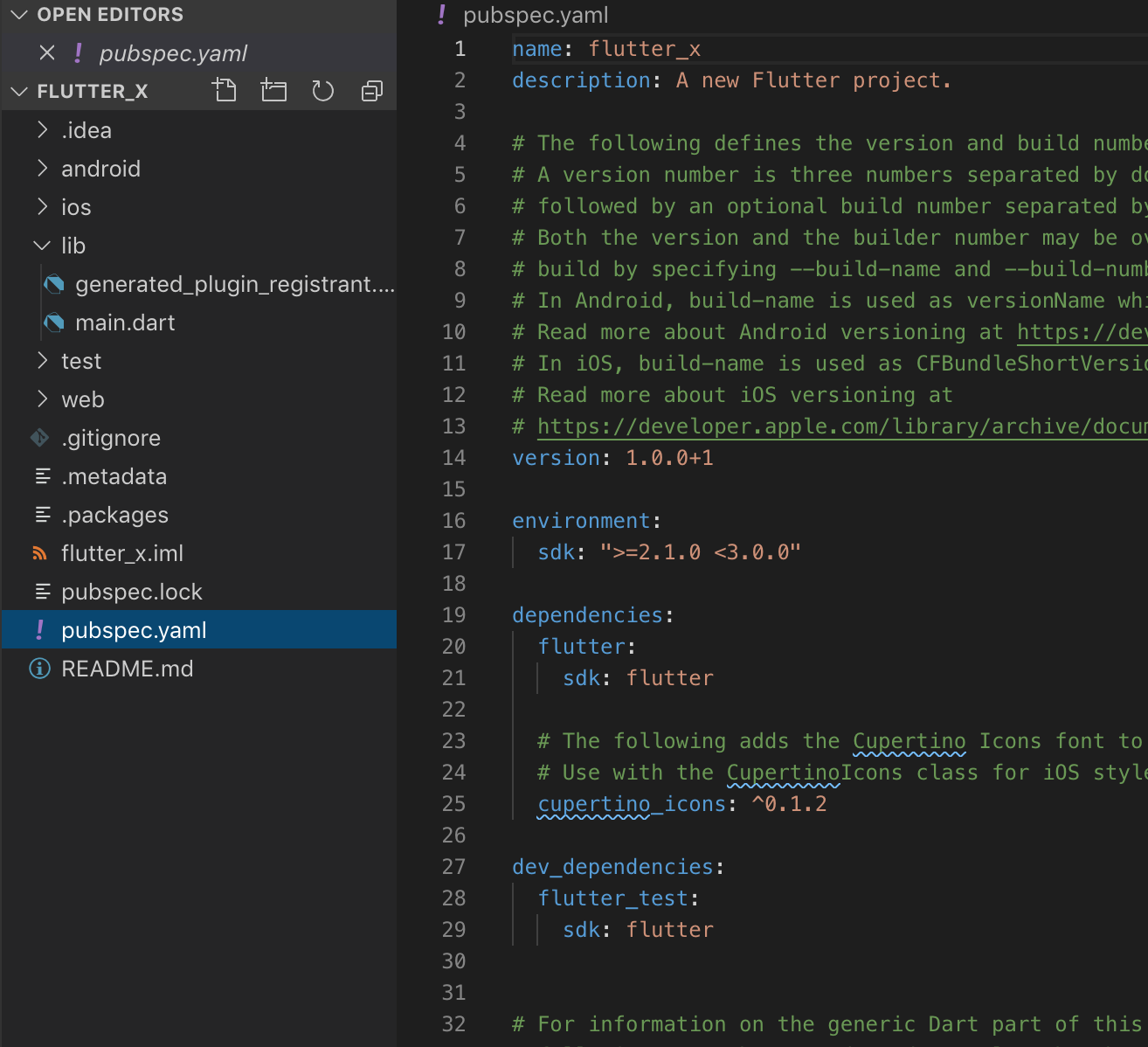
You can also down the starter project here.
Your code should look like this:
import 'package:flutter/material.dart';

void main() => runApp(MyApp());

class MyApp extends StatelessWidget {
  // This widget is the root of your application.
  @override
  Widget build(BuildContext context) {
    return MaterialApp(
      title: 'Flutter Demo',
      theme: ThemeData(
        // This is the theme of your application.
        //
        // Try running your application with "flutter run". You'll see the
        // application has a blue toolbar. Then, without quitting the app, try
        // changing the primarySwatch below to Colors.green and then invoke
        // "hot reload" (press "r" in the console where you ran "flutter run",
        // or simply save your changes to "hot reload" in a Flutter IDE).
        // Notice that the counter didn't reset back to zero; the application
        // is not restarted.
        primarySwatch: Colors.blue,
      ),
      home: MyHomePage(title: 'Flutter Demo Home Page'),
    );
  }
}

class MyHomePage extends StatefulWidget {
  MyHomePage({Key key, this.title}) : super(key: key);

  // This widget is the home page of your application. It is stateful, meaning
  // that it has a State object (defined below) that contains fields that affect
  // how it looks.

  // This class is the configuration for the state. It holds the values (in this
  // case the title) provided by the parent (in this case the App widget) and
  // used by the build method of the State. Fields in a Widget subclass are
  // always marked "final".

  final String title;

  @override
  _MyHomePageState createState() => _MyHomePageState();
}

class _MyHomePageState extends State<MyHomePage> {
  int _counter = 0;

  void _incrementCounter() {
    setState(() {
      // This call to setState tells the Flutter framework that something has
      // changed in this State, which causes it to rerun the build method below
      // so that the display can reflect the updated values. If we changed
      // _counter without calling setState(), then the build method would not be
      // called again, and so nothing would appear to happen.
      _counter++;
    });
  }

  @override
  Widget build(BuildContext context) {
    // This method is rerun every time setState is called, for instance as done
    // by the _incrementCounter method above.
    //
    // The Flutter framework has been optimized to make rerunning build methods
    // fast, so that you can just rebuild anything that needs updating rather
    // than having to individually change instances of widgets.
    return Scaffold(
      appBar: AppBar(
        // Here we take the value from the MyHomePage object that was created by
        // the App.build method, and use it to set our appbar title.
        title: Text(widget.title),
      ),
      body: Center(
        // Center is a layout widget. It takes a single child and positions it
        // in the middle of the parent.
        child: Column(
          // Column is also a layout widget. It takes a list of children and
          // arranges them vertically. By default, it sizes itself to fit its
          // children horizontally, and tries to be as tall as its parent.
          //
          // Invoke "debug painting" (press "p" in the console, choose the
          // "Toggle Debug Paint" action from the Flutter Inspector in Android
          // Studio, or the "Toggle Debug Paint" command in Visual Studio Code)
          // to see the wireframe for each widget.
          //
          // Column has various properties to control how it sizes itself and
          // how it positions its children. Here we use mainAxisAlignment to
          // center the children vertically; the main axis here is the vertical
          // axis because Columns are vertical (the cross axis would be
          // horizontal).
          mainAxisAlignment: MainAxisAlignment.center,
          children: <Widget>[
            Text(
              'You have pushed the button this many times:',
            ),
            Text(
              '$_counter',
              style: Theme.of(context).textTheme.display1,
            ),
          ],
        ),
      ),
      floatingActionButton: FloatingActionButton(
        onPressed: _incrementCounter,
        tooltip: 'Increment',
        child: Icon(Icons.add),
      ), // This trailing comma makes auto-formatting nicer for build methods.
    );
  }
}
Just to make sure everything is working go ahead and run the project on iOS/Android.
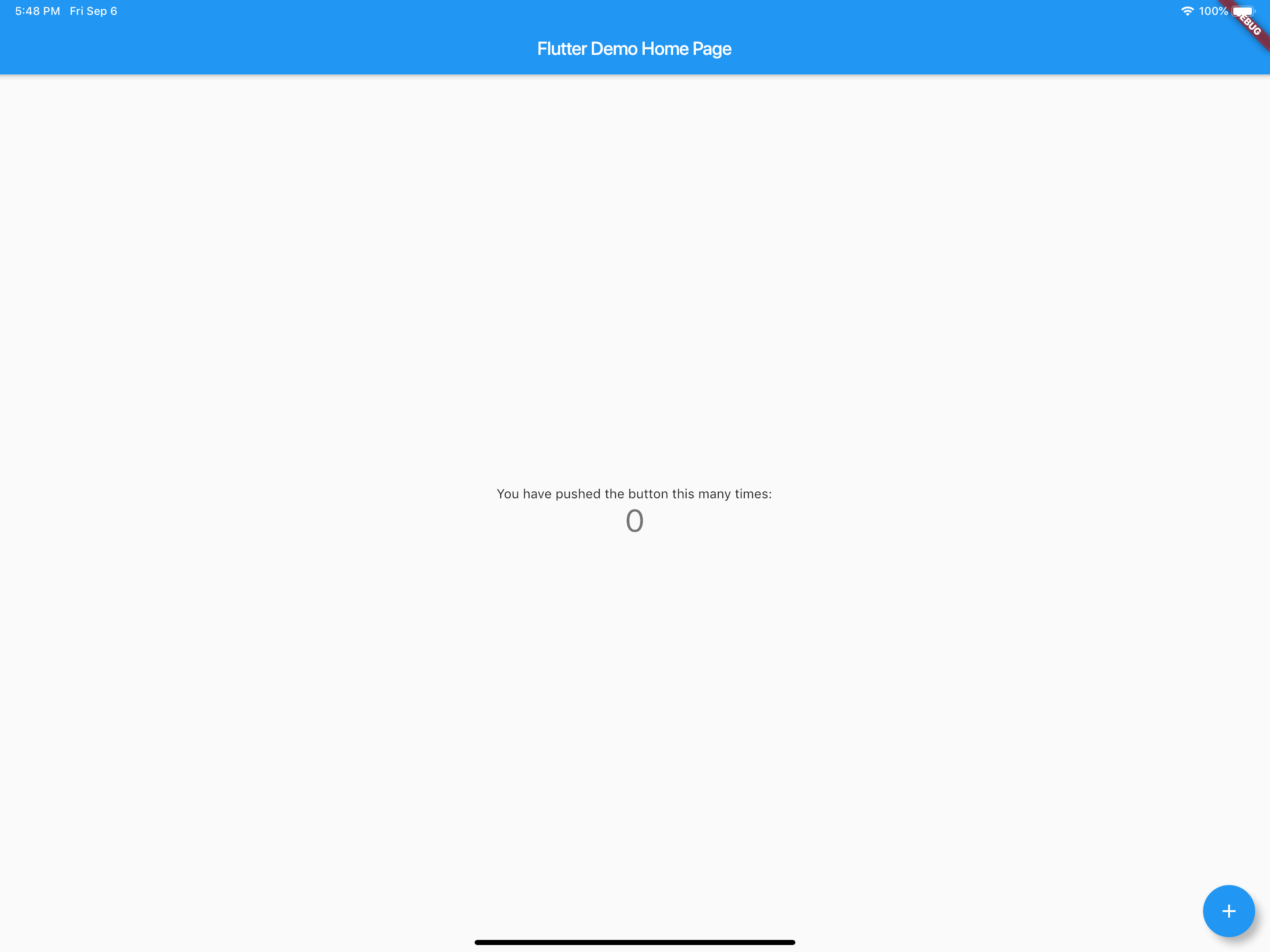
You should have the counter application running and working correctly. Now quit and run on Chrome. It should be listed as a device. You can also run from the command line flutter run -d chrome.
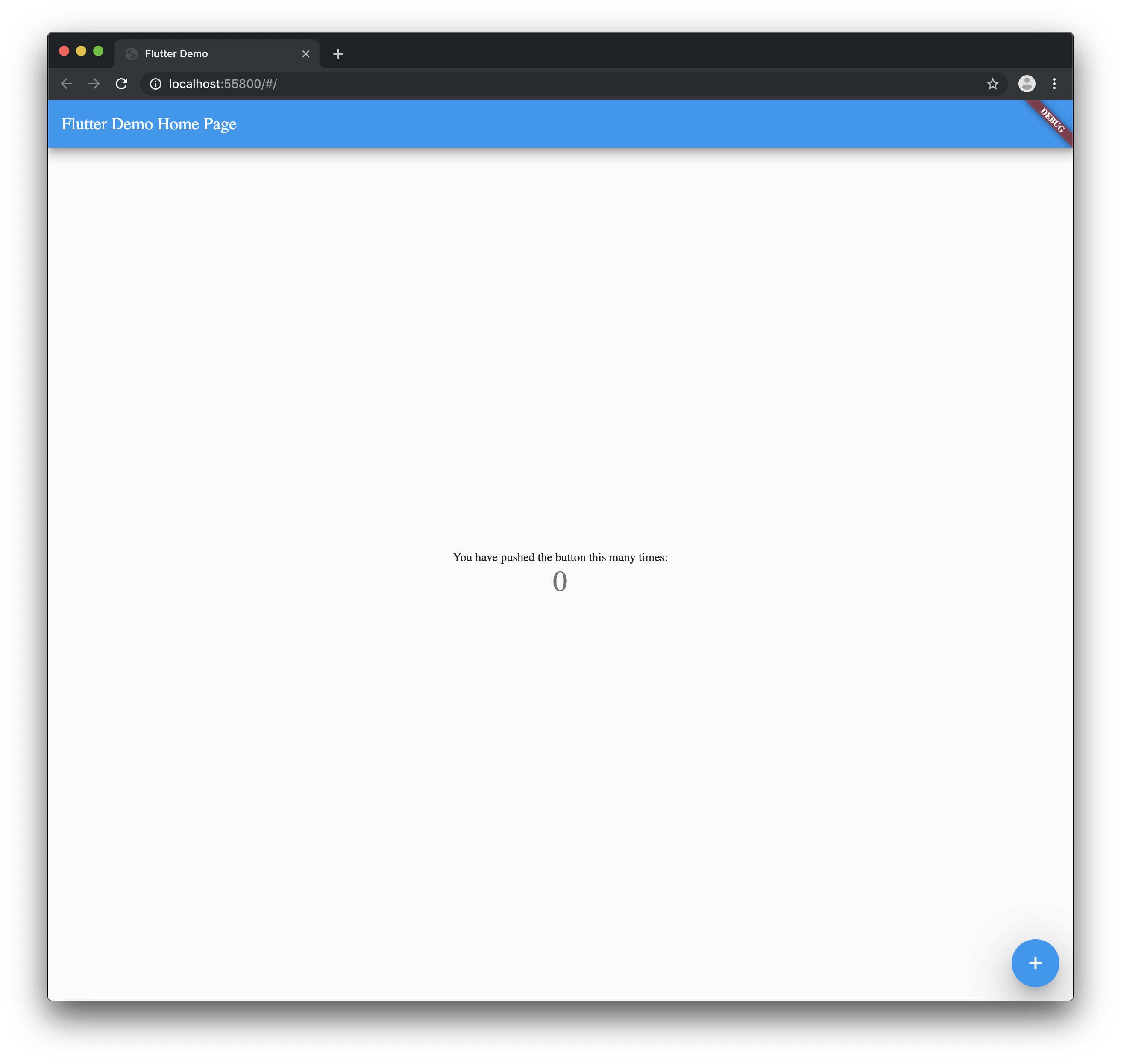
You do not get hot reload yet on web so be aware of that.
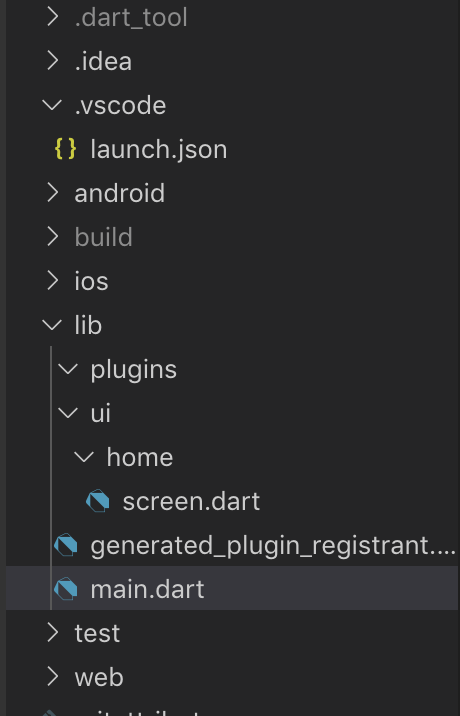
Your project should now look like this.
Open your pubspec.yaml and import the following packages.
dependencies:
  universal_html:
  url_launcher:
You can also remove the comments generated in the pubspec.yaml
Your pubspec.yaml will now read like this:
name: flutter_x
description: A new Flutter project.

version: 1.0.0+1

environment:
  sdk: ">=2.1.0 <3.0.0"

dependencies:
  flutter:
    sdk: flutter

cupertino_icons: ^0.1.2
  universal_html: ^1.1.0
  url_launcher: ^5.1.2

dev_dependencies:
  flutter_test:
    sdk: flutter

flutter:

uses-material-design: true
By default if you were to check if the device was mobile or web you will get an error at compile time when trying to import a plugin that is not meant for the platform. To get around this we will use dynamic imports.
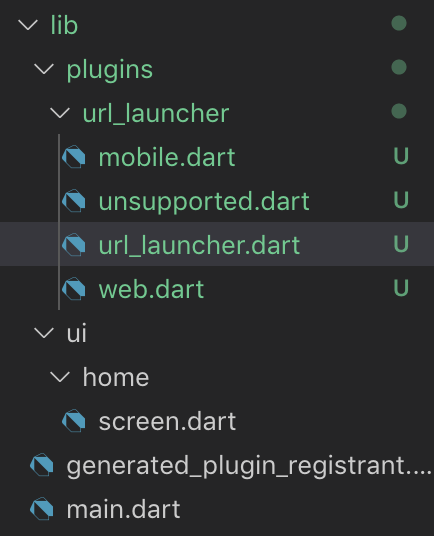
Create a url_launcher folder and file url_launcher.dart, mobile.dart, web.dart, unsupported.dart inside the plugins folder.
In the file url_launcher.dart add the following:
export 'unsupported.dart'
    if (dart.library.html) 'web.dart'
    if (dart.library.io) 'mobile.dart';
This will pick the correct file at runtime and give a fallback if it is not supported.
To protect against edge cases you will need to set up a fallback for the import. In unsupported.dart add the following:
class UrlUtils {
  UrlUtils._();

static void open(String url, {String name}) {
    throw 'Platform Not Supported';
  }
}
The class UrlUtils and the public methods have to match all three files for this to work correctly. Always set up the unsupported first then copy the file into mobile.dart and web.dart to ensure no typos.
You should now have 3 files with the above code in each class.
In mobile.dart add the following:
import 'package:url_launcher/url_launcher.dart';

class UrlUtils {
  UrlUtils._();

static void open(String url, {String name}) async {
    if (await canLaunch(url)) {
      await launch(url);
    }
  }
}
This will open the link in safari view controller or android’s default browser respectively.
In web.dart add the following:
import 'package:universal_html/prefer_universal/html.dart' as html;

class UrlUtils {
  UrlUtils._();

static void open(String url, {String name}) {
    html.window.open(url, name);
  }
}
This will open up a new window in the browser with the specified link.
Add a button to the center of the screen. The ui/home/screen.dart should read the following:
import 'package:flutter/material.dart';

class MyHomePage extends StatefulWidget {
  MyHomePage({Key key, this.title}) : super(key: key);

final String title;

@override
  _MyHomePageState createState() => _MyHomePageState();
}

class _MyHomePageState extends State<MyHomePage> {
  @override
  Widget build(BuildContext context) {
    return Scaffold(
      appBar: AppBar(
        title: Text(widget.title),
      ),
      body: Center(
          child: RaisedButton(
        child: Text('Open Flutter.dev'),
        onPressed: () {},
      )),
    );
  }
}
Update the onPressed to the following:
onPressed: () {
    try {
        UrlUtils.open('[https://flutter.dev'](https://flutter.dev'));
    } catch (e) {
        print('Error -> $e');
    }
},
Now when you go to import the UrlUtils it is important to import the correct URI.
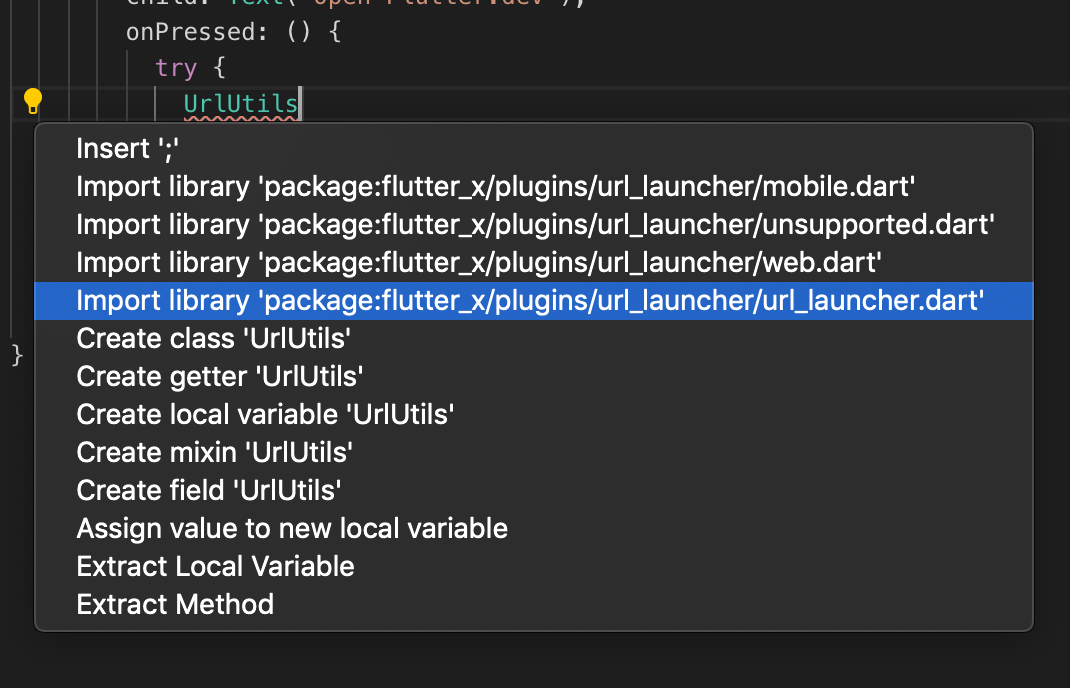
Make sure to import only.
import 'package:flutter_x/plugins/url_launcher/url_launcher.dart';You can use the relative import if you wish.
You UI code will now read the following:
import 'package:flutter/material.dart';

import '../../plugins/url_launcher/url_launcher.dart';

class MyHomePage extends StatefulWidget {
  MyHomePage({Key key, this.title}) : super(key: key);

final String title;

@override
  _MyHomePageState createState() => _MyHomePageState();
}

class _MyHomePageState extends State<MyHomePage> {
  @override
  Widget build(BuildContext context) {
    return Scaffold(
      appBar: AppBar(
        title: Text(widget.title),
      ),
      body: Center(
          child: RaisedButton(
        child: Text('Open Flutter.dev'),
        onPressed: () {
          try {
            UrlUtils.open('[https://flutter.dev'](https://flutter.dev'));
          } catch (e) {
            print('Error -> $e');
          }
        },
      )),
    );
  }
}
Your app on the web should look like this:
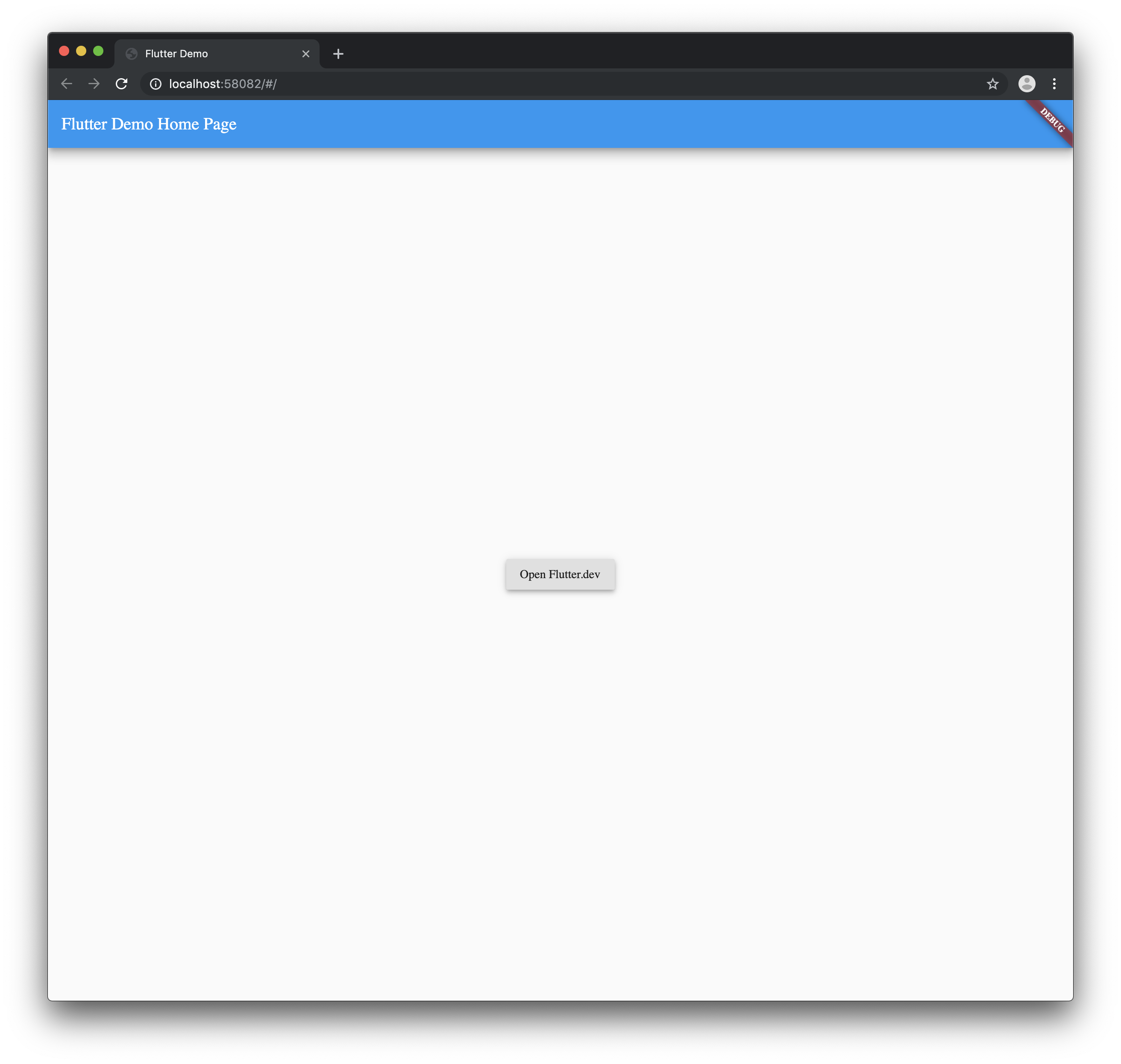
And when you tap the button..
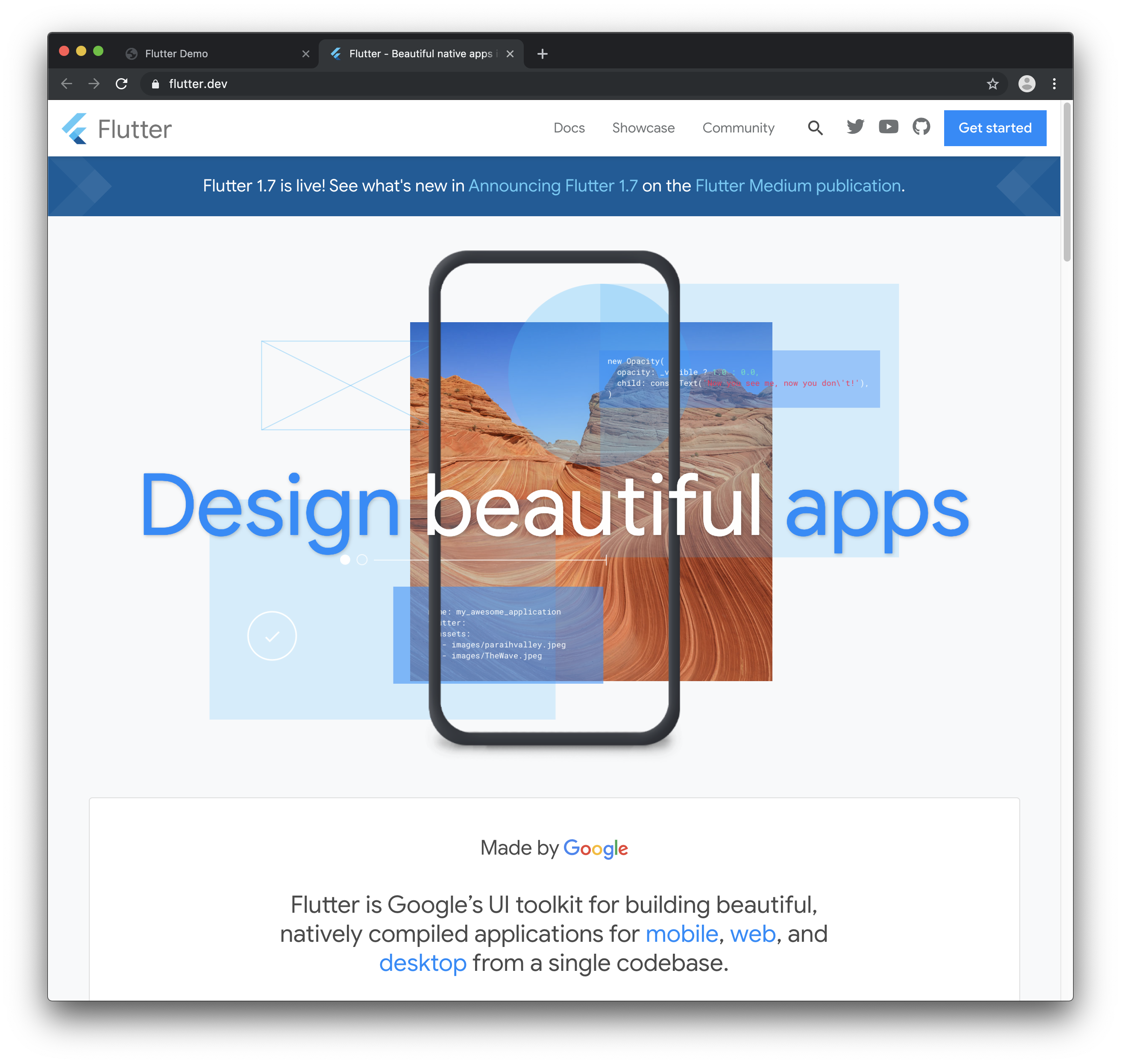
And when you run it on iOS/Android it should look like this:
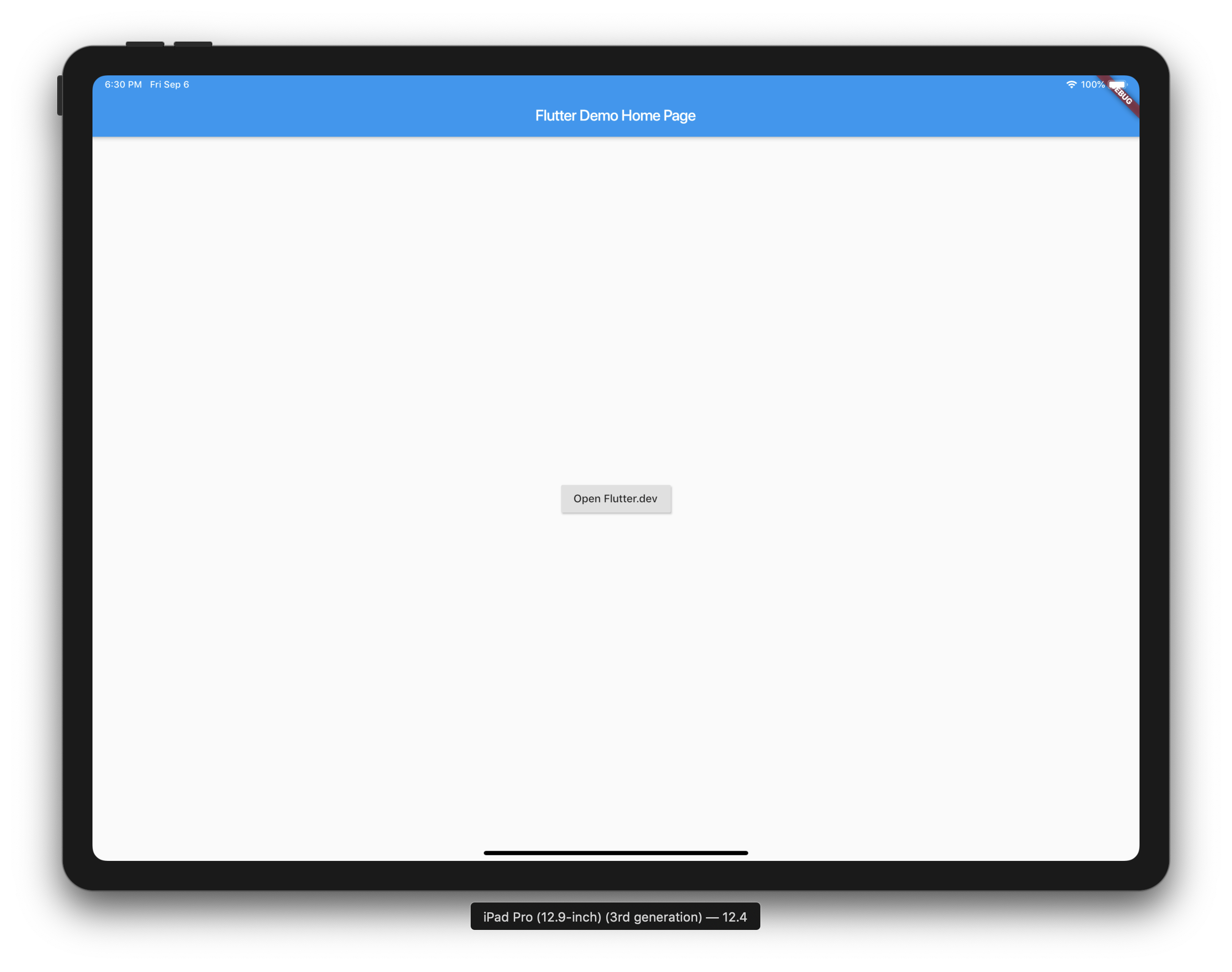
And when you tap the button..
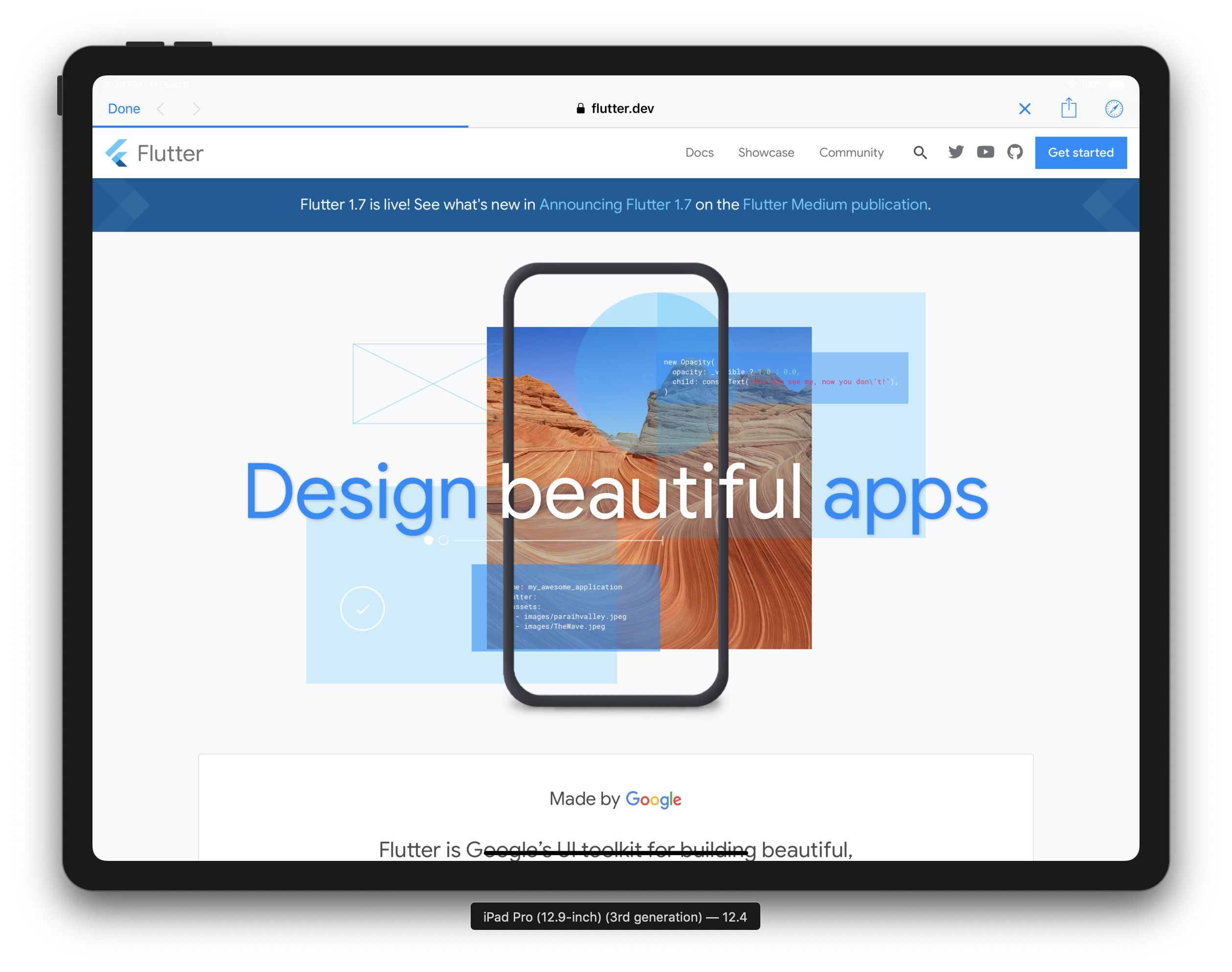
Congratulations! You made it 🎉

Here is the final project located here.
Please reach out if you have any questions!
你需要使用最新版本的Flutter才能实现此功能。
如果你是Flutter新手,可以查看这份实用指南,了解如何一步步创建新项目。
创建一个名为flutter_x的新项目,项目结构应如下所示:
你也可以下载初始项目这里。
你的代码应如下所示:
import 'package:flutter/material.dart';

void main() => runApp(MyApp());

class MyApp extends StatelessWidget {
  // This widget is the root of your application.
  @override
  Widget build(BuildContext context) {
    return MaterialApp(
      title: 'Flutter Demo',
      theme: ThemeData(
        // This is the theme of your application.
        //
        // Try running your application with "flutter run". You'll see the
        // application has a blue toolbar. Then, without quitting the app, try
        // changing the primarySwatch below to Colors.green and then invoke
        // "hot reload" (press "r" in the console where you ran "flutter run",
        // or simply save your changes to "hot reload" in a Flutter IDE).
        // Notice that the counter didn't reset back to zero; the application
        // is not restarted.
        primarySwatch: Colors.blue,
      ),
      home: MyHomePage(title: 'Flutter Demo Home Page'),
    );
  }
}

class MyHomePage extends StatefulWidget {
  MyHomePage({Key key, this.title}) : super(key: key);

  // This widget is the home page of your application. It is stateful, meaning
  // that it has a State object (defined below) that contains fields that affect
  // how it looks.

  // This class is the configuration for the state. It holds the values (in this
  // case the title) provided by the parent (in this case the App widget) and
  // used by the build method of the State. Fields in a Widget subclass are
  // always marked "final".

  final String title;

  @override
  _MyHomePageState createState() => _MyHomePageState();
}

class _MyHomePageState extends State<MyHomePage> {
  int _counter = 0;

  void _incrementCounter() {
    setState(() {
      // This call to setState tells the Flutter framework that something has
      // changed in this State, which causes it to rerun the build method below
      // so that the display can reflect the updated values. If we changed
      // _counter without calling setState(), then the build method would not be
      // called again, and so nothing would appear to happen.
      _counter++;
    });
  }

  @override
  Widget build(BuildContext context) {
    // This method is rerun every time setState is called, for instance as done
    // by the _incrementCounter method above.
    //
    // The Flutter framework has been optimized to make rerunning build methods
    // fast, so that you can just rebuild anything that needs updating rather
    // than having to individually change instances of widgets.
    return Scaffold(
      appBar: AppBar(
        // Here we take the value from the MyHomePage object that was created by
        // the App.build method, and use it to set our appbar title.
        title: Text(widget.title),
      ),
      body: Center(
        // Center is a layout widget. It takes a single child and positions it
        // in the middle of the parent.
        child: Column(
          // Column is also a layout widget. It takes a list of children and
          // arranges them vertically. By default, it sizes itself to fit its
          // children horizontally, and tries to be as tall as its parent.
          //
          // Invoke "debug painting" (press "p" in the console, choose the
          // "Toggle Debug Paint" action from the Flutter Inspector in Android
          // Studio, or the "Toggle Debug Paint" command in Visual Studio Code)
          // to see the wireframe for each widget.
          //
          // Column has various properties to control how it sizes itself and
          // how it positions its children. Here we use mainAxisAlignment to
          // center the children vertically; the main axis here is the vertical
          // axis because Columns are vertical (the cross axis would be
          // horizontal).
          mainAxisAlignment: MainAxisAlignment.center,
          children: <Widget>[
            Text(
              'You have pushed the button this many times:',
            ),
            Text(
              '$_counter',
              style: Theme.of(context).textTheme.display1,
            ),
          ],
        ),
      ),
      floatingActionButton: FloatingActionButton(
        onPressed: _incrementCounter,
        tooltip: 'Increment',
        child: Icon(Icons.add),
      ), // This trailing comma makes auto-formatting nicer for build methods.
    );
  }
}
为确保一切正常,先在iOS/Android上运行项目。
你应该能看到计数器应用正常运行。现在退出并在Chrome上运行,Chrome会被列为可用设备。你也可以通过命令行执行来运行。
flutter run -d chrome目前Web端暂不支持热重载,请留意这一点。
你的项目现在应如下所示。
打开pubspec.yaml文件,导入以下包:
dependencies:
  universal_html:
  url_launcher:
你也可以删除pubspec.yaml中自动生成的注释
修改后的pubspec.yaml内容如下:
name: flutter_x
description: A new Flutter project.

version: 1.0.0+1

environment:
  sdk: ">=2.1.0 <3.0.0"

dependencies:
  flutter:
    sdk: flutter

cupertino_icons: ^0.1.2
  universal_html: ^1.1.0
  url_launcher: ^5.1.2

dev_dependencies:
  flutter_test:
    sdk: flutter

flutter:

uses-material-design: true
默认情况下,如果你检查设备是移动端还是Web端,当尝试导入不适用于该平台的插件时,编译时会报错。为解决这个问题,我们将使用动态导入。
在plugins文件夹中创建url_launcher文件夹,并在其中创建url_launcher.dart、mobile.dart、web.dart、unsupported.dart文件。
在url_launcher.dart文件中添加以下内容:
export 'unsupported.dart'
    if (dart.library.html) 'web.dart'
    if (dart.library.io) 'mobile.dart';
这会在运行时选择正确的文件,如果平台不支持则使用回退方案。
为了应对边缘情况,你需要为导入设置回退。在unsupported.dart中添加以下内容:
class UrlUtils {
  UrlUtils._();

static void open(String url, {String name}) {
    throw 'Platform Not Supported';
  }
}
UrlUtils类及其公共方法在三个文件中必须保持一致,以确保功能正常。请先编写unsupported.dart的代码,然后将其复制到mobile.dart和web.dart中,避免出现拼写错误。
现在你应该有三个文件,每个文件中都包含上述类的代码。
在mobile.dart中添加以下内容:
import 'package:url_launcher/url_launcher.dart';

class UrlUtils {
  UrlUtils._();

static void open(String url, {String name}) async {
    if (await canLaunch(url)) {
      await launch(url);
    }
  }
}
这将分别在Safari视图控制器或Android默认浏览器中打开链接。
在web.dart中添加以下内容:
import 'package:universal_html/prefer_universal/html.dart' as html;

class UrlUtils {
  UrlUtils._();

static void open(String url, {String name}) {
    html.window.open(url, name);
  }
}
这将在浏览器中打开一个新窗口并加载指定链接。
在屏幕中央添加一个按钮,ui/home/screen.dart的内容应如下所示:
import 'package:flutter/material.dart';

class MyHomePage extends StatefulWidget {
  MyHomePage({Key key, this.title}) : super(key: key);

final String title;

@override
  _MyHomePageState createState() => _MyHomePageState();
}

class _MyHomePageState extends State<MyHomePage> {
  @override
  Widget build(BuildContext context) {
    return Scaffold(
      appBar: AppBar(
        title: Text(widget.title),
      ),
      body: Center(
          child: RaisedButton(
        child: Text('Open Flutter.dev'),
        onPressed: () {},
      )),
    );
  }
}
将onPressed方法更新为以下内容:
onPressed: () {
    try {
        UrlUtils.open('[https://flutter.dev'](https://flutter.dev'));
    } catch (e) {
        print('Error -> $e');
    }
},
现在当你导入UrlUtils时,必须确保导入正确的URI。
确保只导入。
import 'package:flutter_x/plugins/url_launcher/url_launcher.dart';你也可以使用相对导入。
修改后的UI代码如下:
import 'package:flutter/material.dart';

import '../../plugins/url_launcher/url_launcher.dart';

class MyHomePage extends StatefulWidget {
  MyHomePage({Key key, this.title}) : super(key: key);

final String title;

@override
  _MyHomePageState createState() => _MyHomePageState();
}

class _MyHomePageState extends State<MyHomePage> {
  @override
  Widget build(BuildContext context) {
    return Scaffold(
      appBar: AppBar(
        title: Text(widget.title),
      ),
      body: Center(
          child: RaisedButton(
        child: Text('Open Flutter.dev'),
        onPressed: () {
          try {
            UrlUtils.open('[https://flutter.dev'](https://flutter.dev'));
          } catch (e) {
            print('Error -> $e');
          }
        },
      )),
    );
  }
}你的Web端应用应如下所示:
当你点击按钮时:
当你在iOS/Android上运行时,应用应如下所示:
当你点击按钮时:
恭喜你!你成功完成了任务 🎉
最终项目源码请查看这里。
如有任何问题,请随时联系我!