displaying-html-in-flutter
Compare original and translation side by side
🇺🇸
Original
English🇨🇳
Translation
ChineseDisplaying HTML in Flutter
在Flutter中显示HTML内容
Sometimes you have content in HTML that needs to be displayed and interacted with in Flutter.
Online Demo:https://rodydavis.github.io/easy_web_view/#/
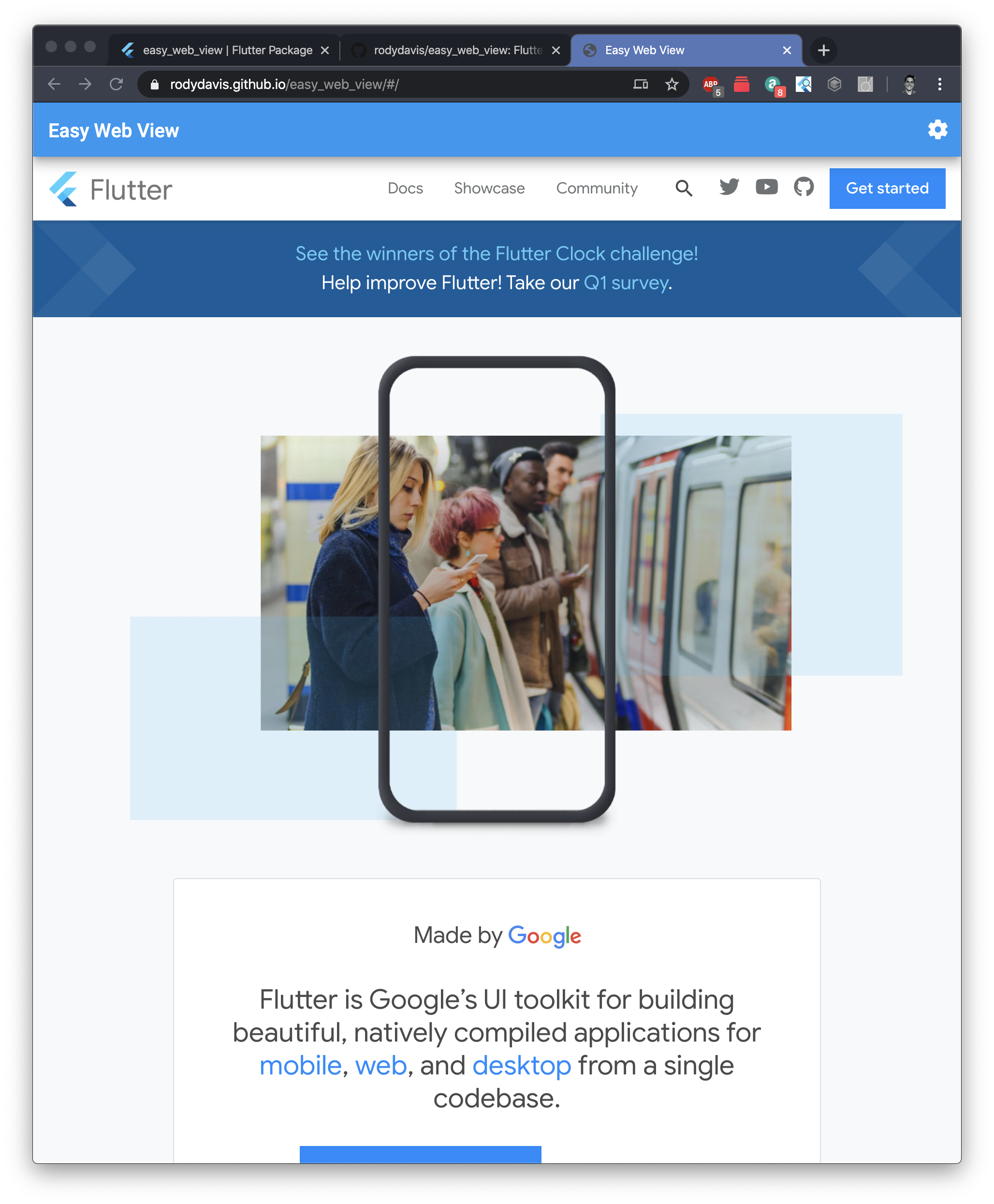
For those impatient I created a package for you to get all the following functionally and more here: https://pub.dev/packages/easy_web_view
有时候你会有需要在Flutter应用中显示并交互的HTML内容。
为了满足急于上手的开发者需求,我创建了一个包含以下所有功能甚至更多功能的包,地址在这里:https://pub.dev/packages/easy_web_view
Getting Started
快速开始
Create a new flutter project named whatever you want.
If you plan on showing HTML content on iOS/Android you will need to add the following to your pubspec.yaml
dependencies:
    webview_flutter: ^0.3.15+1
创建一个新的Flutter项目,名称可以自定义。
如果你计划在iOS/Android上展示HTML内容,你需要在pubspec.yaml中添加以下依赖
dependencies:
    webview_flutter: ^0.3.15+1
Web
Web端
Reference: /lib/src/web.dart
To show html on Flutter web we need to use an HTMLElementView. This is a platform view that allows us to display native content.
We first need to register the Element and add all the options we need. Here we are creating an iFrame element and setting the source based on if it is markdown, html or a url.
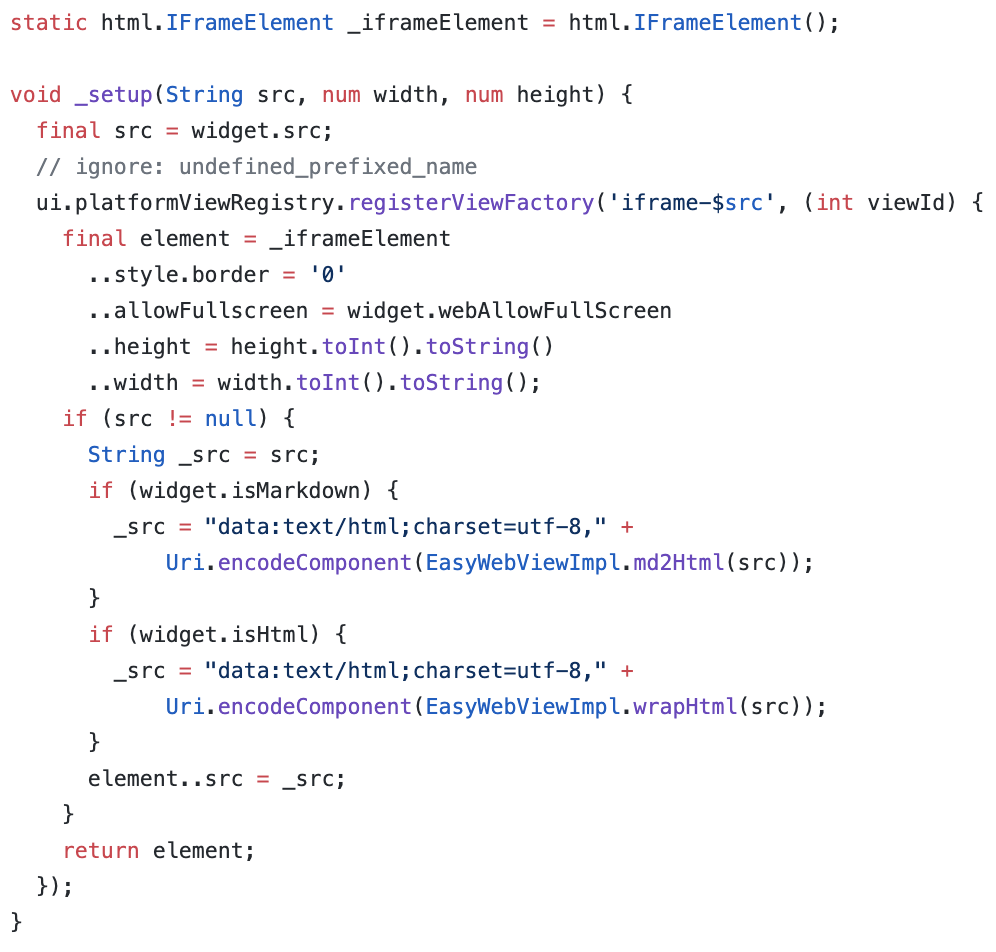
To display valid HTML you can set the src field to the following:
_src = "data:text/html;charset=utf-8," + Uri.encodeComponent("HTML_CONTENT_HERE");For the package you can also pass markdown to the src and it will convert it for you.
After you call the setup method it is now time to display your new platform view:
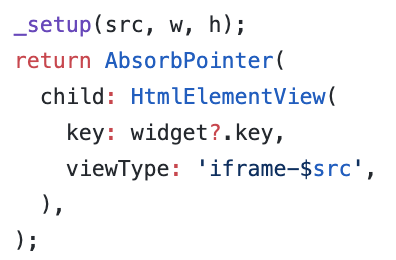
You need to use the same viewType string as you registered for “registerViewFactory” method earlier.
Finally you need to wrap it in a container or sized box with an explicit width and height!
参考代码:/lib/src/web.dart
要在Flutter Web中显示HTML内容,我们需要使用HTMLElementView。这是一个允许我们显示原生内容的平台视图。
我们首先需要注册元素并添加所需的所有配置项。这里我们创建一个iFrame元素,并根据内容是markdown、HTML还是URL来设置源地址。
要显示有效的HTML内容,你可以将src字段设置为以下内容:
_src = "data:text/html;charset=utf-8," + Uri.encodeComponent("HTML_CONTENT_HERE");如果你使用这个包,还可以直接传入markdown内容作为src,它会自动为你转换。
调用setup方法后,就可以显示新的平台视图了:
你需要使用与之前“registerViewFactory”方法中注册的相同的viewType字符串。
最后,你需要将它包裹在一个具有明确宽高的Container或SizedBox中!
Mobile
移动端
Mobile setup should be easier. Let’s add a method for updating the url that we will pass to the web view.
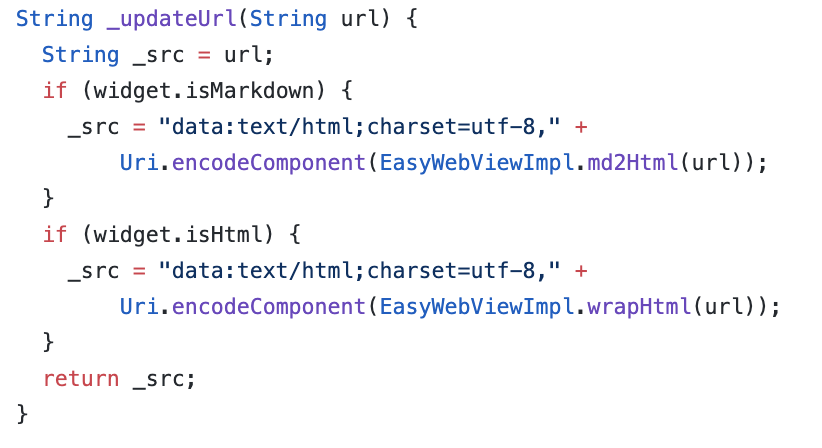
Create the controller:
WebViewController _controller;And when ever the src changes call this method:
_controller.loadUrl(_updateUrl(widget.src), headers: widget.headers);Finally lets show the html in the widget tree:
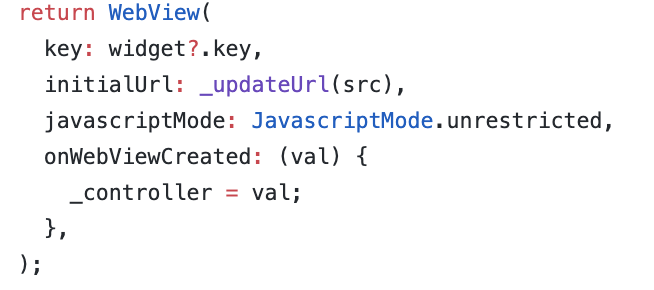
移动端的设置应该更简单。我们添加一个更新URL的方法,将其传递给WebView。
创建控制器:
WebViewController _controller;每当src发生变化时,调用这个方法:
_controller.loadUrl(_updateUrl(widget.src), headers: widget.headers);最后,在widget树中显示HTML内容:
Conclusion
总结
If you want to see a complete example and advanced use case view the source here: https://github.com/rodydavis/easy_web_view
And if you just want to have it all done for you use this package: https://pub.dev/packages/easy_web_view
Feel free to make PRs if you have anything that could help make it better too (Or if you find bugs).
When you show HTML this way you will find that you can interact, select text and work with it just like you would it it were a regular web page. If you are using the package you can also just pass embedded content or html elements too without needing a full html valid file (YouTube video for example).
如果你想查看完整示例和高级用法,可以在这里查看源码:https://github.com/rodydavis/easy_web_view
如果你想直接使用现成的功能,可以使用这个包:https://pub.dev/packages/easy_web_view
如果你有任何可以优化它的想法(或者发现了bug),欢迎提交PR。
通过这种方式显示HTML内容,你会发现可以像在普通网页上一样与它交互、选择文本等。如果你使用这个包,还可以直接传入嵌入式内容或HTML元素,而不需要完整的有效HTML文件(例如YouTube视频)。