creating-your-first-flutter-project
Compare original and translation side by side
🇺🇸
Original
English🇨🇳
Translation
ChineseCreating Your First Flutter Project
创建你的第一个Flutter项目
Flutter is a UI Toolkit from Google allowing you to create expressive and unique experiences unmatched on any platform. You can write your UI once and run it everywhere. Yes everywhere! Web, iOS, Android, Windows, Linux, MacOS, Raspberry PI and much more…

If you prefer a video you can follow the YouTube series I am doing called “Flutter Take 5” where I explore topics that you encounter when building a Flutter application. I will also give you tips and tricks as I go through the series.
Or this short:
Flutter是谷歌推出的一款UI工具包,可让你打造在任何平台上都无与伦比的富有表现力且独特的体验。你只需编写一次UI,即可在所有平台运行。没错,所有平台!包括Web、iOS、Android、Windows、Linux、MacOS、树莓派等等……
如果你更喜欢视频教程,可以关注我在YouTube上推出的《Flutter Take 5》系列视频,我会在其中探讨构建Flutter应用时会遇到的各类主题,同时还会分享相关技巧和窍门。
或者看这个短视频:
What is Flutter
什么是Flutter
Flutter recently crossed React Native on Github and now has more than 2 million developers using Flutter to create applications. There are more than 50,000 apps on Google Play alone published with Flutter.
Flutter最近在Github上的热度超过了React Native,目前已有超过200万开发者使用Flutter创建应用。仅在Google Play上,就有超过5万个由Flutter开发的应用发布。
Getting Started
入门准备
Getting started is very easy once you get the SDK installed. After it is installed creating new applications, plugins and packages is lighting fast. Follow this guide to install Flutter:
One nice thing about Flutter is that it is developed in the open as an open source project that anyone can contribute to. If there is something missing you can easily fork the repo and make a PR for the missing functionality.

安装好SDK后,入门就非常简单了。安装完成后,创建新应用、插件和包的速度极快。按照以下指南安装Flutter:
Flutter的一大优势是它作为开源项目公开开发,任何人都可以贡献代码。如果缺少某些功能,你可以轻松复刻仓库并提交PR来补充缺失的功能。
Create the Project
创建项目
Now that you have Flutter installed it is time to create your first (Of Many 😉) Flutter project! Open up your terminal and navigate to wherever you want the application folder to be created. Once you “cd” into the directory you can type the following:
flutter create my_awesome_projectYou can replace “my_awesome_project” with whatever you want the project to be called. It is important to use snake_case as it is the valid syntax for project names in dart.

Congratulations you just created your first project!
现在你已经安装好了Flutter,是时候创建你的第一个(未来会有很多个😉)Flutter项目了!打开终端,导航到你想要创建应用文件夹的位置。进入目标目录后,输入以下命令:
flutter create my_awesome_project你可以将“my_awesome_project”替换为你想要的项目名称。注意要使用蛇形命名法(snake_case),这是Dart中项目名称的有效语法。
恭喜你,你刚刚创建了第一个Flutter项目!
Open the Project
打开项目
So you may be wondering what we just created so let us dive in to the details. You can open up you project in VSCode if you have it installed by typing the following into terminal:
cd my_awesome_project && code .You can open up the folder in your favorite IDE if you prefer. Two important files to notice are the pubspec.yaml and lib/main.dart
Your UI and Logic is located at “lib/main.dart” and you should see the following:
import 'package:flutter/material.dart';

void main() {
  runApp(MyApp());
}

class MyApp extends StatelessWidget {
  // This widget is the root of your application.
  @override
  Widget build(BuildContext context) {
    return MaterialApp(
      title: 'Flutter Demo',
      theme: ThemeData(
        // This is the theme of your application.
        //
        // Try running your application with "flutter run". You'll see the
        // application has a blue toolbar. Then, without quitting the app, try
        // changing the primarySwatch below to Colors.green and then invoke
        // "hot reload" (press "r" in the console where you ran "flutter run",
        // or simply save your changes to "hot reload" in a Flutter IDE).
        // Notice that the counter didn't reset back to zero; the application
        // is not restarted.
        primarySwatch: Colors.blue,
        // This makes the visual density adapt to the platform that you run
        // the app on. For desktop platforms, the controls will be smaller and
        // closer together (more dense) than on mobile platforms.
        visualDensity: VisualDensity.adaptivePlatformDensity,
      ),
      home: MyHomePage(title: 'Flutter Demo Home Page'),
    );
  }
}

class MyHomePage extends StatefulWidget {
  MyHomePage({Key key, this.title}) : super(key: key);

  // This widget is the home page of your application. It is stateful, meaning
  // that it has a State object (defined below) that contains fields that affect
  // how it looks.

  // This class is the configuration for the state. It holds the values (in this
  // case the title) provided by the parent (in this case the App widget) and
  // used by the build method of the State. Fields in a Widget subclass are
  // always marked "final".

  final String title;

  @override
  _MyHomePageState createState() => _MyHomePageState();
}

class _MyHomePageState extends State<MyHomePage> {
  int _counter = 0;

  void _incrementCounter() {
    setState(() {
      // This call to setState tells the Flutter framework that something has
      // changed in this State, which causes it to rerun the build method below
      // so that the display can reflect the updated values. If we changed
      // _counter without calling setState(), then the build method would not be
      // called again, and so nothing would appear to happen.
      _counter++;
    });
  }

  @override
  Widget build(BuildContext context) {
    // This method is rerun every time setState is called, for instance as done
    // by the _incrementCounter method above.
    //
    // The Flutter framework has been optimized to make rerunning build methods
    // fast, so that you can just rebuild anything that needs updating rather
    // than having to individually change instances of widgets.
    return Scaffold(
      appBar: AppBar(
        // Here we take the value from the MyHomePage object that was created by
        // the App.build method, and use it to set our appbar title.
        title: Text(widget.title),
      ),
      body: Center(
        // Center is a layout widget. It takes a single child and positions it
        // in the middle of the parent.
        child: Column(
          // Column is also a layout widget. It takes a list of children and
          // arranges them vertically. By default, it sizes itself to fit its
          // children horizontally, and tries to be as tall as its parent.
          //
          // Invoke "debug painting" (press "p" in the console, choose the
          // "Toggle Debug Paint" action from the Flutter Inspector in Android
          // Studio, or the "Toggle Debug Paint" command in Visual Studio Code)
          // to see the wireframe for each widget.
          //
          // Column has various properties to control how it sizes itself and
          // how it positions its children. Here we use mainAxisAlignment to
          // center the children vertically; the main axis here is the vertical
          // axis because Columns are vertical (the cross axis would be
          // horizontal).
          mainAxisAlignment: MainAxisAlignment.center,
          children: <Widget>[
            Text(
              'You have pushed the button this many times:',
            ),
            Text(
              '$_counter',
              style: Theme.of(context).textTheme.headline4,
            ),
          ],
        ),
      ),
      floatingActionButton: FloatingActionButton(
        onPressed: _incrementCounter,
        tooltip: 'Increment',
        child: Icon(Icons.add),
      ), // This trailing comma makes auto-formatting nicer for build methods.
    );
  }
}
You can define any dependencies and plugins needed for the application at “pubspec.yaml” and you should see the following:
name: example
description: A new Flutter project.
你可能想知道我们刚刚创建的项目包含什么内容,接下来就让我们深入了解细节。如果你安装了VSCode,可以在终端中输入以下命令打开项目:
cd my_awesome_project && code .你也可以用你喜欢的IDE打开这个文件夹。有两个重要文件需要注意:pubspec.yaml和lib/main.dart
你的UI和逻辑代码位于“lib/main.dart”,你会看到以下内容:
import 'package:flutter/material.dart';

void main() {
  runApp(MyApp());
}

class MyApp extends StatelessWidget {
  // This widget is the root of your application.
  @override
  Widget build(BuildContext context) {
    return MaterialApp(
      title: 'Flutter Demo',
      theme: ThemeData(
        // This is the theme of your application.
        //
        // Try running your application with "flutter run". You'll see the
        // application has a blue toolbar. Then, without quitting the app, try
        // changing the primarySwatch below to Colors.green and then invoke
        // "hot reload" (press "r" in the console where you ran "flutter run",
        // or simply save your changes to "hot reload" in a Flutter IDE).
        // Notice that the counter didn't reset back to zero; the application
        // is not restarted.
        primarySwatch: Colors.blue,
        // This makes the visual density adapt to the platform that you run
        // the app on. For desktop platforms, the controls will be smaller and
        // closer together (more dense) than on mobile platforms.
        visualDensity: VisualDensity.adaptivePlatformDensity,
      ),
      home: MyHomePage(title: 'Flutter Demo Home Page'),
    );
  }
}

class MyHomePage extends StatefulWidget {
  MyHomePage({Key key, this.title}) : super(key: key);

  // This widget is the home page of your application. It is stateful, meaning
  // that it has a State object (defined below) that contains fields that affect
  // how it looks.

  // This class is the configuration for the state. It holds the values (in this
  // case the title) provided by the parent (in this case the App widget) and
  // used by the build method of the State. Fields in a Widget subclass are
  // always marked "final".

  final String title;

  @override
  _MyHomePageState createState() => _MyHomePageState();
}

class _MyHomePageState extends State<MyHomePage> {
  int _counter = 0;

  void _incrementCounter() {
    setState(() {
      // This call to setState tells the Flutter framework that something has
      // changed in this State, which causes it to rerun the build method below
      // so that the display can reflect the updated values. If we changed
      // _counter without calling setState(), then the build method would not be
      // called again, and so nothing would appear to happen.
      _counter++;
    });
  }

  @override
  Widget build(BuildContext context) {
    // This method is rerun every time setState is called, for instance as done
    // by the _incrementCounter method above.
    //
    // The Flutter framework has been optimized to make rerunning build methods
    // fast, so that you can just rebuild anything that needs updating rather
    // than having to individually change instances of widgets.
    return Scaffold(
      appBar: AppBar(
        // Here we take the value from the MyHomePage object that was created by
        // the App.build method, and use it to set our appbar title.
        title: Text(widget.title),
      ),
      body: Center(
        // Center is a layout widget. It takes a single child and positions it
        // in the middle of the parent.
        child: Column(
          // Column is also a layout widget. It takes a list of children and
          // arranges them vertically. By default, it sizes itself to fit its
          // children horizontally, and tries to be as tall as its parent.
          //
          // Invoke "debug painting" (press "p" in the console, choose the
          // "Toggle Debug Paint" action from the Flutter Inspector in Android
          // Studio, or the "Toggle Debug Paint" command in Visual Studio Code)
          // to see the wireframe for each widget.
          //
          // Column has various properties to control how it sizes itself and
          // how it positions its children. Here we use mainAxisAlignment to
          // center the children vertically; the main axis here is the vertical
          // axis because Columns are vertical (the cross axis would be
          // horizontal).
          mainAxisAlignment: MainAxisAlignment.center,
          children: <Widget>[
            Text(
              'You have pushed the button this many times:',
            ),
            Text(
              '$_counter',
              style: Theme.of(context).textTheme.headline4,
            ),
          ],
        ),
      ),
      floatingActionButton: FloatingActionButton(
        onPressed: _incrementCounter,
        tooltip: 'Increment',
        child: Icon(Icons.add),
      ), // This trailing comma makes auto-formatting nicer for build methods.
    );
  }
}
你可以在“pubspec.yaml”中定义应用所需的所有依赖项和插件,该文件内容如下:
name: example
description: A new Flutter project.
The following line prevents the package from being accidentally published to
The following line prevents the package from being accidentally published to
pub.dev using pub publish
. This is preferred for private packages.
pub publishpub.dev using pub publish
. This is preferred for private packages.
pub publishpublish_to: 'none' # Remove this line if you wish to publish to pub.dev
publish_to: 'none' # Remove this line if you wish to publish to pub.dev
The following defines the version and build number for your application.
The following defines the version and build number for your application.
A version number is three numbers separated by dots, like 1.2.43
A version number is three numbers separated by dots, like 1.2.43
followed by an optional build number separated by a +.
followed by an optional build number separated by a +.
Both the version and the builder number may be overridden in flutter
Both the version and the builder number may be overridden in flutter
build by specifying --build-name and --build-number, respectively.
build by specifying --build-name and --build-number, respectively.
In Android, build-name is used as versionName while build-number used as versionCode.
In Android, build-name is used as versionName while build-number used as versionCode.
Read more about Android versioning at https://developer.android.com/studio/publish/versioning
Read more about Android versioning at https://developer.android.com/studio/publish/versioning
In iOS, build-name is used as CFBundleShortVersionString while build-number used as CFBundleVersion.
In iOS, build-name is used as CFBundleShortVersionString while build-number used as CFBundleVersion.
Read more about iOS versioning at
Read more about iOS versioning at
version: 1.0.0+1
environment:
sdk: ">=2.7.0 <3.0.0"
dependencies:
flutter:
sdk: flutter
The following adds the Cupertino Icons font to your application.
Use with the CupertinoIcons class for iOS style icons.
cupertino_icons: ^0.1.3
dev_dependencies:
flutter_test:
sdk: flutter
version: 1.0.0+1
environment:
sdk: ">=2.7.0 <3.0.0"
dependencies:
flutter:
sdk: flutter
The following adds the Cupertino Icons font to your application.
Use with the CupertinoIcons class for iOS style icons.
cupertino_icons: ^0.1.3
dev_dependencies:
flutter_test:
sdk: flutter
For information on the generic Dart part of this file, see the
For information on the generic Dart part of this file, see the
following page: https://dart.dev/tools/pub/pubspec
following page: https://dart.dev/tools/pub/pubspec
The following section is specific to Flutter.
The following section is specific to Flutter.
flutter:
The following line ensures that the Material Icons font is
included with your application, so that you can use the icons in
the material Icons class.
uses-material-design: true
To add assets to your application, add an assets section, like this:
assets:
- images/a_dot_burr.webp
- images/a_dot_ham.webp
An image asset can refer to one or more resolution-specific "variants", see
https://flutter.dev/assets-and-images/#resolution-aware.
For details regarding adding assets from package dependencies, see
https://flutter.dev/assets-and-images/#from-packages
To add custom fonts to your application, add a fonts section here,
in this "flutter" section. Each entry in this list should have a
"family" key with the font family name, and a "fonts" key with a
list giving the asset and other descriptors for the font. For
example:
fonts:
- family: Schyler
fonts:
- asset: fonts/Schyler-Regular.ttf
- asset: fonts/Schyler-Italic.ttf
style: italic
- family: Trajan Pro
fonts:
- asset: fonts/TrajanPro.ttf
- asset: fonts/TrajanPro_Bold.ttf
weight: 700
For details regarding fonts from package dependencies,
see https://flutter.dev/custom-fonts/#from-packages
undefinedflutter:
The following line ensures that the Material Icons font is
included with your application, so that you can use the icons in
the material Icons class.
uses-material-design: true
To add assets to your application, add an assets section, like this:
assets:
- images/a_dot_burr.webp
- images/a_dot_ham.webp
An image asset can refer to one or more resolution-specific "variants", see
https://flutter.dev/assets-and-images/#resolution-aware.
For details regarding adding assets from package dependencies, see
https://flutter.dev/assets-and-images/#from-packages
To add custom fonts to your application, add a fonts section here,
in this "flutter" section. Each entry in this list should have a
"family" key with the font family name, and a "fonts" key with a
list giving the asset and other descriptors for the font. For
example:
fonts:
- family: Schyler
fonts:
- asset: fonts/Schyler-Regular.ttf
- asset: fonts/Schyler-Italic.ttf
style: italic
- family: Trajan Pro
fonts:
- asset: fonts/TrajanPro.ttf
- asset: fonts/TrajanPro_Bold.ttf
weight: 700
For details regarding fonts from package dependencies,
see https://flutter.dev/custom-fonts/#from-packages
undefinedRunning the Project
运行项目
Running the application is very easy too. While there are buttons in all the IDEs you can also run your project from the command line for quick testing. You can also configure Flutter for Desktop and no need to wait for an emulator to warm up. Open your project and enter the following into terminal:
flutter run -d macosNotice the “-d macos” as you can customize what device you want to run on. You should see the following in terminal:
Building macOS application...
Syncing files to device macOS...                                   141ms

Flutter run key commands.
r Hot reload. 🔥🔥🔥
R Hot restart.
h Repeat this help message.
d Detach (terminate "flutter run" but leave application running).
c Clear the screen
q Quit (terminate the application on the device).
An Observatory debugger and profiler on macOS is available at: [http://127.0.0.1:58932/f1Mspofty_k=/](http://127.0.0.1:58932/f1Mspofty_k=/)
Application finished.
You can also run multiple devices at the same time. You can find more info on the Flutter Octopus here. If everything went well you should see the following application launch:
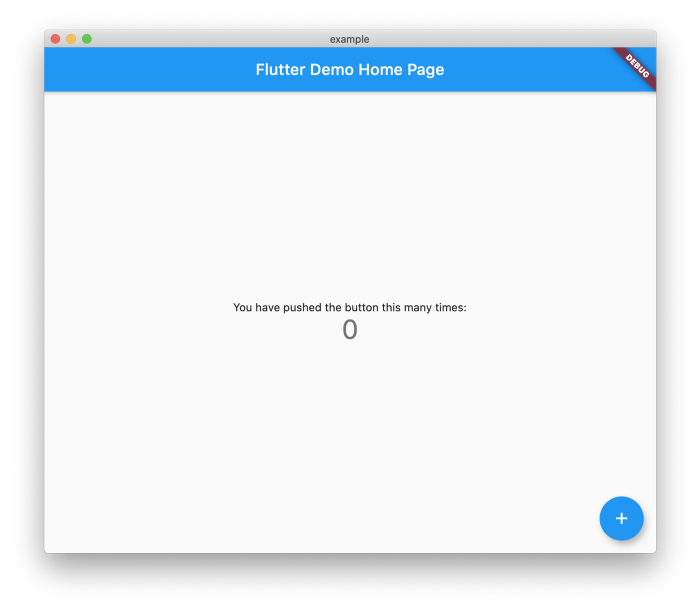
It is a pretty basic application at this point but it is important to show how easy it is to change the state in the application. You can rebuild the UI just by calling “setState()”.
运行应用也非常简单。所有IDE都有运行按钮,你也可以通过命令行快速测试项目。你还可以配置Flutter桌面版,无需等待模拟器启动。打开项目后,在终端中输入以下命令:
flutter run -d macos注意“-d macos”参数,你可以自定义要运行的设备。终端中会显示以下内容:
Building macOS application...
Syncing files to device macOS...                                   141ms

Flutter run key commands.
r Hot reload. 🔥🔥🔥
R Hot restart.
h Repeat this help message.
d Detach (terminate "flutter run" but leave application running).
c Clear the screen
q Quit (terminate the application on the device).
An Observatory debugger and profiler on macOS is available at: [http://127.0.0.1:58932/f1Mspofty_k=/](http://127.0.0.1:58932/f1Mspofty_k=/)
Application finished.你还可以同时在多个设备上运行项目。你可以在Flutter Octopus了解更多信息。如果一切顺利,你会看到以下应用启动:
目前这是一个非常基础的应用,但它展示了在应用中更改状态是多么容易。你只需调用“setState()”即可重建UI。
Testing the Project
测试项目
Testing is one of the reasons I love Flutter so much and it is dead simple to run and write tests for the project. If you look at the file “test/widget_test.dart” you should see the following:
// This is a basic Flutter widget test.
//
// To perform an interaction with a widget in your test, use the WidgetTester
// utility that Flutter provides. For example, you can send tap and scroll
// gestures. You can also use WidgetTester to find child widgets in the widget
// tree, read text, and verify that the values of widget properties are correct.

import 'package:flutter/material.dart';
import 'package:flutter_test/flutter_test.dart';

import 'package:example/main.dart';

void main() {
  testWidgets('Counter increments smoke test', (WidgetTester tester) async {
    // Build our app and trigger a frame.
    await tester.pumpWidget(MyApp());

    // Verify that our counter starts at 0.
    expect(find.text('0'), findsOneWidget);
    expect(find.text('1'), findsNothing);

    // Tap the '+' icon and trigger a frame.
    await tester.tap(find.byIcon(Icons.add));
    await tester.pump();

    // Verify that our counter has incremented.
    expect(find.text('0'), findsNothing);
    expect(find.text('1'), findsOneWidget);
  });
}
You can run these tests very easily. Open your project and type the following into the terminal:
flutter test
00:07 +1: All tests passed!
Just like that all your tests will run and you can catch any bugs you missed.

You can also generate code coverage for your applications easily by typing the following:
flutter test --coverageThis will generate a new file at “coverage/lcov.info” and will read the following:
SF:lib/main.dart
DA:3,0
DA:4,0
DA:9,1
DA:11,1
DA:13,1
DA:27,1
DA:29,1
DA:35,2
DA:48,1
DA:49,1
DA:55,1
DA:56,2
DA:62,2
DA:66,1
DA:74,1
DA:75,1
DA:78,3
DA:80,1
DA:83,1
DA:99,1
DA:100,1
DA:103,1
DA:104,2
DA:105,3
DA:110,1
DA:111,1
DA:113,1
LF:27
LH:25
end_of_record
You can now easily create badges and graphs with the LCOV data. Here is a package that will make that easier:
测试是我如此喜爱Flutter的原因之一,运行和编写项目测试非常简单。查看“test/widget_test.dart”文件,你会看到以下内容:
// This is a basic Flutter widget test.
//
// To perform an interaction with a widget in your test, use the WidgetTester
// utility that Flutter provides. For example, you can send tap and scroll
// gestures. You can also use WidgetTester to find child widgets in the widget
// tree, read text, and verify that the values of widget properties are correct.

import 'package:flutter/material.dart';
import 'package:flutter_test/flutter_test.dart';

import 'package:example/main.dart';

void main() {
  testWidgets('Counter increments smoke test', (WidgetTester tester) async {
    // Build our app and trigger a frame.
    await tester.pumpWidget(MyApp());

    // Verify that our counter starts at 0.
    expect(find.text('0'), findsOneWidget);
    expect(find.text('1'), findsNothing);

    // Tap the '+' icon and trigger a frame.
    await tester.tap(find.byIcon(Icons.add));
    await tester.pump();

    // Verify that our counter has incremented.
    expect(find.text('0'), findsNothing);
    expect(find.text('1'), findsOneWidget);
  });
}
你可以轻松运行这些测试。打开项目后,在终端中输入以下命令:
flutter test
00:07 +1: All tests passed!
就这样,所有测试都会运行,你可以发现任何遗漏的bug。
你还可以通过输入以下命令轻松生成应用的代码覆盖率报告:
flutter test --coverage这会在“coverage/lcov.info”生成一个新文件,内容如下:
SF:lib/main.dart
DA:3,0
DA:4,0
DA:9,1
DA:11,1
DA:13,1
DA:27,1
DA:29,1
DA:35,2
DA:48,1
DA:49,1
DA:55,1
DA:56,2
DA:62,2
DA:66,1
DA:74,1
DA:75,1
DA:78,3
DA:80,1
DA:83,1
DA:99,1
DA:100,1
DA:103,1
DA:104,2
DA:105,3
DA:110,1
DA:111,1
DA:113,1
LF:27
LH:25
end_of_record
现在你可以使用LCOV数据轻松创建徽章和图表。这里有一个包可以简化这个过程:
Conclusion
总结
Flutter makes it possible to build applications very quickly that do not depend on web or mobile technologies. It can familiar to writing a game as you have to design all your own UI. You can find the final source code here:
You can also find the Flutter source code here:
Flutter让你能够快速构建不依赖Web或移动技术的应用。它的开发体验类似于编写游戏,因为你需要设计所有自己的UI。你可以在这里找到最终的源代码:
你也可以在这里找到Flutter的源代码: