2d-or-3d-force-graph-with-lit
Compare original and translation side by side
🇺🇸
Original
English🇨🇳
Translation
Chinese2D or 3D Force Graph with Lit
使用Lit构建2D或3D力导向图
In this article we will cover how to create a 2D/3D force graph using Lit.
Prerequisites
前置要求
- Vscode
- Node >= 16
- Typescript
- Vscode
- Node >= 16
- Typescript
Getting Started
开始上手
We can start off by navigating in terminal to the location of the project and run the following:
npm init @vitejs/app --template lit-tsThen enter a project name and now open the project in vscode and install the dependencies:
lit-force-graphcd lit-force-graph force-graph
npm i lit 3d-force-graph
npm i -D @types/node
code .Update the with the following:
vite.config.tsimport { defineConfig } from "vite";
import { resolve } from "path";
export default defineConfig({
base: "/lit-force-graph/",
build: {
lib: {
entry: "src/lit-force-graph.ts",
formats: ["es"],
},
rollupOptions: {
input: {
main: resolve(__dirname, "index.html"),
},
},
},
});我们可以先在终端导航到项目位置,然后运行以下命令:
npm init @vitejs/app --template lit-ts然后输入项目名称,现在用Vscode打开项目并安装依赖:
lit-force-graphcd lit-force-graph
npm i lit 3d-force-graph
npm i -D @types/node
code .更新文件如下:
vite.config.tsimport { defineConfig } from "vite";
import { resolve } from "path";
export default defineConfig({
base: "/lit-force-graph/",
build: {
lib: {
entry: "src/lit-force-graph.ts",
formats: ["es"],
},
rollupOptions: {
input: {
main: resolve(__dirname, "index.html"),
},
},
},
});Template
模板
Open up the and update it with the following:
index.html<!DOCTYPE html>
<html lang="en">
<head>
<meta charset="UTF-8" />
<link rel="icon" type="image/svg+xml" href="/src/favicon.svg" />
<meta name="viewport" content="width=device-width, initial-scale=1.0" />
<title>Lit Force Graph</title>
<script type="module" src="/src/lit-force-graph.ts"></script>
<link rel="stylesheet" href="/style.css" />
</head>
<body>
<lit-force-graph>
<script type="application/json">
{
"name": "Lit Force Graph",
"description": "A force graph built with Lit",
"nodes": [
{
"id": "1",
"name": "Node 1"
},
{
"id": "2",
"name": "Node 2"
},
{
"id": "3",
"name": "Node 3"
},
{
"id": "4",
"name": "Node 4"
}
],
"links": [
{
"source": "1",
"target": "2"
},
{
"source": "1",
"target": "3"
},
{
"source": "2",
"target": "3"
},
{
"source": "2",
"target": "4"
},
{
"source": "3",
"target": "4"
},
{
"source": "4",
"target": "1"
}
]
}
</script>
</lit-force-graph>
</body>
</html>We are passing the graph data as JSON here, but we could also set a src attribute pointed to a remote or local file. It is still possible to set the graph data directly on a component.
打开文件并更新如下:
index.html<!DOCTYPE html>
<html lang="en">
<head>
<meta charset="UTF-8" />
<link rel="icon" type="image/svg+xml" href="/src/favicon.svg" />
<meta name="viewport" content="width=device-width, initial-scale=1.0" />
<title>Lit Force Graph</title>
<script type="module" src="/src/lit-force-graph.ts"></script>
<link rel="stylesheet" href="/style.css" />
</head>
<body>
<lit-force-graph>
<script type="application/json">
{
"name": "Lit Force Graph",
"description": "A force graph built with Lit",
"nodes": [
{
"id": "1",
"name": "Node 1"
},
{
"id": "2",
"name": "Node 2"
},
{
"id": "3",
"name": "Node 3"
},
{
"id": "4",
"name": "Node 4"
}
],
"links": [
{
"source": "1",
"target": "2"
},
{
"source": "1",
"target": "3"
},
{
"source": "2",
"target": "3"
},
{
"source": "2",
"target": "4"
},
{
"source": "3",
"target": "4"
},
{
"source": "4",
"target": "1"
}
]
}
</script>
</lit-force-graph>
</body>
</html>我们在这里以JSON格式传递图数据,但也可以设置src属性指向远程或本地文件,还可以直接在组件上设置图数据。
Styles
样式
Create and open the file and update it with the following:
public/style.cssbody {
margin: 0;
padding: 0;
overflow: hidden;
font-size: 12px;
font-family: sans-serif;
position: relative;
width: 100%;
height: 100%;
}
lit-force-graph {
width: 100%;
height: 100vh;
}
:root {
--graph-background-color: #eee;
--graph-foreground-color: #000;
--graph-line-color: rgb(90, 90, 90);
--graph-node-color: rgb(218, 14, 14);
}
@media (prefers-color-scheme: dark) {
:root {
--graph-background-color: #000;
--graph-foreground-color: #fafafa;
--graph-line-color: rgb(214, 214, 214);
--graph-node-color: rgb(228, 8, 8);
}
}创建并打开文件,更新如下:
public/style.cssbody {
margin: 0;
padding: 0;
overflow: hidden;
font-size: 12px;
font-family: sans-serif;
position: relative;
width: 100%;
height: 100%;
}
lit-force-graph {
width: 100%;
height: 100vh;
}
:root {
--graph-background-color: #eee;
--graph-foreground-color: #000;
--graph-line-color: rgb(90, 90, 90);
--graph-node-color: rgb(218, 14, 14);
}
@media (prefers-color-scheme: dark) {
:root {
--graph-background-color: #000;
--graph-foreground-color: #fafafa;
--graph-line-color: rgb(214, 214, 214);
--graph-node-color: rgb(228, 8, 8);
}
}Web Component
Web组件
Before we update our component we need to rename to
my-element.tslit-force-graph.tsOpen up and update it with the following:
lit-force-graph.tsimport { html, css, LitElement } from "lit";
import { customElement, property, query, state } from "lit/decorators.js";
export const tagName = "lit-force-graph";
@customElement(tagName)
export class LitForceGraph extends LitElement {
static styles = css`
:host {
background-color: var(--graph-background-color, #000011);
color: var(--graph-foreground-color, #ffffff);
width: var(--graph-width, 100%);
height: var(--graph-height, 100vh);
}
#graph {
width: 100%;
height: 100%;
width: var(--graph-width, 100%);
height: var(--graph-height, 100vh);
}
#controls {
position: absolute;
top: 20px;
right: 20px;
z-index: 100 !important;
display: flex;
flex-direction: column;
align-items: flex-end;
}
#controls div {
padding: 5px;
}
#info {
position: absolute;
top: 10px;
left: 10px;
z-index: 100 !important;
display: flex;
flex-direction: column;
align-items: flex-start;
}
#tooltips {
position: absolute;
bottom: 10px;
left: 10px;
right: 10px;
display: flex;
flex-direction: row;
align-items: center;
text-align: center;
justify-content: center;
}
.node-tooltip {
background-color: var(--graph-foreground-color, #ffffff);
color: var(--graph-background-color, #000011);
border-radius: 5px;
font-size: 12px;
padding: 5px;
opacity: 0.67;
}
#graph-description {
opacity: 0.67;
}
.scene-tooltip {
color: var(--graph-foreground-color, #ffffff);
background-color: transparent;
display: none;
}
`;
@query("#graph") graph!: HTMLElement;
@property() src = "";
@property() mode = "2D";
render() {
return html` <main
accept="application/json"
@drop="${this.onDrop}"
@dragover="${(e: Event) => e.preventDefault()}"
>
<div id="graph"></div>
<div id="controls">
<div>
<label for="render-mode">Render mode</label>
<select id="render-mode" @change=${this.onChangeMode}>
<!-- TODO: Add render options -->
</select>
</div>
</div>
<div id="info">
<!-- TODO: Add labels for graph -->
</div>
<div id="tooltips">
<!-- TODO: Add tooltip for node -->
</div>
</main>`;
}
override async firstUpdated() {
await this.refresh();
const prefersDark = window.matchMedia("(prefers-color-scheme: dark)");
prefersDark.addEventListener("change", () => {
this.refresh();
});
}
override attributeChangedCallback(
name: string,
_old: string | null,
value: string | null
): void {
if (name === "src" && value) {
this.refresh();
}
if (name === "data" && value) {
this.setData(JSON.parse(value));
}
if (name === "mode" && value) {
this.mode = value;
if (this.data) {
this.setData({ ...this.data! });
}
}
super.attributeChangedCallback(name, _old, value);
}
/**
* Set the graph data and update the renderer
*
* @param data Graph JSON
*/
setData(data: GraphData) {
this.data = data;
// TODO: Render the graph!
}
private async refresh() {
// Get json from script tag
const children = Array.from(this.children);
const elem = children.find((child) => child.tagName === "SCRIPT");
if (elem) {
// Render from script tag contents
if (elem.textContent) {
const data = JSON.parse(elem.textContent);
if (data) this.setData(data);
// Render from script tag src
} else if (elem.hasAttribute("src")) {
const url = elem.getAttribute("src")!;
const data = await fetch(url).then((res) => res.json());
if (data) this.setData(data);
}
} else if (this.src.length > 0) {
// Render from src attribute
const data = await fetch(this.src).then((res) => res.json());
if (data) this.setData(data);
}
}
private onDrop(e: DragEvent) {
e.preventDefault();
const files = e.dataTransfer?.files;
if (files && files.length > 0) {
const file = files[0];
const reader = new FileReader();
reader.onload = () => {
const json = JSON.parse(reader.result as string);
this.data = json;
this.setData(json);
};
reader.readAsText(file);
}
return false;
}
private onChangeMode(e: Event) {
const mode = (e.target as HTMLSelectElement).value;
this.mode = mode;
if (!this.data) return;
this.setData({ ...this.data! });
}
}
declare global {
interface HTMLElementTagNameMap {
"lit-force-graph": LitForceGraph;
}
}Here we are creating the base component and wiring it up to listen for a drop event of JSON, accept the src attribute or script tag with json in the text contents.
The CSS just sets the tooltip at the bottom of the screen, title to the left and the render selection controls to the top right.
With Lit it makes it easy to support multiple ways to set the data of the component.
在更新组件之前,我们需要把重命名为
my-element.tslit-force-graph.ts打开并更新如下:
lit-force-graph.tsimport { html, css, LitElement } from "lit";
import { customElement, property, query, state } from "lit/decorators.js";
export const tagName = "lit-force-graph";
@customElement(tagName)
export class LitForceGraph extends LitElement {
static styles = css`
:host {
background-color: var(--graph-background-color, #000011);
color: var(--graph-foreground-color, #ffffff);
width: var(--graph-width, 100%);
height: var(--graph-height, 100vh);
}
#graph {
width: 100%;
height: 100%;
width: var(--graph-width, 100%);
height: var(--graph-height, 100vh);
}
#controls {
position: absolute;
top: 20px;
right: 20px;
z-index: 100 !important;
display: flex;
flex-direction: column;
align-items: flex-end;
}
#controls div {
padding: 5px;
}
#info {
position: absolute;
top: 10px;
left: 10px;
z-index: 100 !important;
display: flex;
flex-direction: column;
align-items: flex-start;
}
#tooltips {
position: absolute;
bottom: 10px;
left: 10px;
right: 10px;
display: flex;
flex-direction: row;
align-items: center;
text-align: center;
justify-content: center;
}
.node-tooltip {
background-color: var(--graph-foreground-color, #ffffff);
color: var(--graph-background-color, #000011);
border-radius: 5px;
font-size: 12px;
padding: 5px;
opacity: 0.67;
}
#graph-description {
opacity: 0.67;
}
.scene-tooltip {
color: var(--graph-foreground-color, #ffffff);
background-color: transparent;
display: none;
}
`;
@query("#graph") graph!: HTMLElement;
@property() src = "";
@property() mode = "2D";
render() {
return html` <main
accept="application/json"
@drop="${this.onDrop}"
@dragover="${(e: Event) => e.preventDefault()}"
>
<div id="graph"></div>
<div id="controls">
<div>
<label for="render-mode">Render mode</label>
<select id="render-mode" @change=${this.onChangeMode}>
<!-- TODO: Add render options -->
</select>
</div>
</div>
<div id="info">
<!-- TODO: Add labels for graph -->
</div>
<div id="tooltips">
<!-- TODO: Add tooltip for node -->
</div>
</main>`;
}
override async firstUpdated() {
await this.refresh();
const prefersDark = window.matchMedia("(prefers-color-scheme: dark)");
prefersDark.addEventListener("change", () => {
this.refresh();
});
}
override attributeChangedCallback(
name: string,
_old: string | null,
value: string | null
): void {
if (name === "src" && value) {
this.refresh();
}
if (name === "data" && value) {
this.setData(JSON.parse(value));
}
if (name === "mode" && value) {
this.mode = value;
if (this.data) {
this.setData({ ...this.data! });
}
}
super.attributeChangedCallback(name, _old, value);
}
/**
* Set the graph data and update the renderer
*
* @param data Graph JSON
*/
setData(data: GraphData) {
this.data = data;
// TODO: Render the graph!
}
private async refresh() {
// Get json from script tag
const children = Array.from(this.children);
const elem = children.find((child) => child.tagName === "SCRIPT");
if (elem) {
// Render from script tag contents
if (elem.textContent) {
const data = JSON.parse(elem.textContent);
if (data) this.setData(data);
// Render from script tag src
} else if (elem.hasAttribute("src")) {
const url = elem.getAttribute("src")!;
const data = await fetch(url).then((res) => res.json());
if (data) this.setData(data);
}
} else if (this.src.length > 0) {
// Render from src attribute
const data = await fetch(this.src).then((res) => res.json());
if (data) this.setData(data);
}
}
private onDrop(e: DragEvent) {
e.preventDefault();
const files = e.dataTransfer?.files;
if (files && files.length > 0) {
const file = files[0];
const reader = new FileReader();
reader.onload = () => {
const json = JSON.parse(reader.result as string);
this.data = json;
this.setData(json);
};
reader.readAsText(file);
}
return false;
}
private onChangeMode(e: Event) {
const mode = (e.target as HTMLSelectElement).value;
this.mode = mode;
if (!this.data) return;
this.setData({ ...this.data! });
}
}
declare global {
interface HTMLElementTagNameMap {
"lit-force-graph": LitForceGraph;
}
}这里我们创建了基础组件,并设置监听JSON文件的拖放事件,支持src属性或包含JSON内容的script标签传入数据。
CSS样式设置了屏幕底部的提示框、左侧的标题以及右上角的渲染模式选择控件。
使用Lit可以轻松支持多种组件数据设置方式。
Inline
内联方式
<lit-source-graph>
  <script type="application/json">
    {
      "nodes": [],
      "links": []
    }
  </script>
</lit-source-graph>
<lit-source-graph>
<script type="application/json">
{
"nodes": [],
"links": []
}
</script>
</lit-source-graph>Lazy Loading
懒加载方式
<lit-source-graph></lit-source-graph>
<script>
  const elem = document.createElement("lit-source-graph");
  elem.src = "./graph-data.json";
  // Or remote url
  elem.src = "https://example.com/graph-data.json";
  // Or data from an object
  elem.data = { node: [], links: [] };
</script>
<lit-source-graph></lit-source-graph>
<script>
const elem = document.createElement("lit-source-graph");
elem.src = "./graph-data.json";
// 或远程地址
elem.src = "https://example.com/graph-data.json";
// 或直接传入对象数据
elem.data = { node: [], links: [] };
</script>Graph Data
图数据
Create and open the file and add the following:
src/classes/graph.tsexport class Graph {
private ids = new Set();
private graph: GraphData = {
nodes: [],
links: [],
};
addNode<T = any>(node: GraphNode<T>) {
if (this.ids.has(node.id)) {
return this.graph.nodes.find((n) => n.id === node.id)!;
}
this.ids.add(node.id);
this.graph.nodes.push(node);
return node;
}
addLink<T = any>(link: GraphLink<T>) {
this.graph.links.push(link);
return link;
}
toJSON() {
return this.graph;
}
}
export interface GraphNode<T = any> {
id: string;
name?: string;
group?: string;
value?: T;
}
export interface GraphLink<T = any> {
source: string;
target: string;
name?: string;
value?: T;
}
export interface GraphData<A = any, B = any> {
name?: string;
description?: string;
nodes: GraphNode<A>[];
links: GraphLink<B>[];
}Here we are creating a utility class that can generate the nodes and links while excluding duplicates and returning the graph data.
Create and open the file and add the following:
src/classes/context.tsimport { GraphData, GraphNode } from "./graph";
export interface RenderContext {
data: GraphData;
element: HTMLElement;
onHover: (node?: GraphNode) => void;
}
export type Renderer = (context: RenderContext) => void;Here is the context type that we will use to create the renderers and pass with the data.
创建并打开文件,添加如下内容:
src/classes/graph.tsexport class Graph {
private ids = new Set();
private graph: GraphData = {
nodes: [],
links: [],
};
addNode<T = any>(node: GraphNode<T>) {
if (this.ids.has(node.id)) {
return this.graph.nodes.find((n) => n.id === node.id)!;
}
this.ids.add(node.id);
this.graph.nodes.push(node);
return node;
}
addLink<T = any>(link: GraphLink<T>) {
this.graph.links.push(link);
return link;
}
toJSON() {
return this.graph;
}
}
export interface GraphNode<T = any> {
id: string;
name?: string;
group?: string;
value?: T;
}
export interface GraphLink<T = any> {
source: string;
target: string;
name?: string;
value?: T;
}
export interface GraphData<A = any, B = any> {
name?: string;
description?: string;
nodes: GraphNode<A>[];
links: GraphLink<B>[];
}这里我们创建了一个工具类,可用于生成节点和连接,同时排除重复项并返回图数据。
创建并打开文件,添加如下内容:
src/classes/context.tsimport { GraphData, GraphNode } from "./graph";
export interface RenderContext {
data: GraphData;
element: HTMLElement;
onHover: (node?: GraphNode) => void;
}
export type Renderer = (context: RenderContext) => void;这是我们将用于创建渲染器并传递数据的上下文类型。
2D Renderer
2D渲染器
Create and open the file and add the following:
src/renderers/mode-2d.tsimport ForceGraph from "force-graph";
import { RenderContext } from "../classes/context";
export function render(context: RenderContext) {
const graph = ForceGraph();
const style = getComputedStyle(context.element);
const lineColor = style.getPropertyValue("--graph-line-color").trim();
const bgColor = style.getPropertyValue("--graph-background-color").trim();
const fgColor = style.getPropertyValue("--graph-foreground-color").trim();
const nodeColor = style.getPropertyValue("--graph-node-color").trim();
graph(context.element)
.graphData(context.data)
.width(Number(style.width.slice(0, -2)))
.height(Number(style.height.slice(0, -2)))
.cooldownTicks(100)
.backgroundColor(bgColor)
.linkColor(() => lineColor)
.linkWidth(0.2)
.nodeCanvasObject((node: any, ctx, globalScale) => {
// Draw a circle
ctx.beginPath();
const size = 5 / globalScale;
ctx.arc(node.x, node.y, size, 0, 2 * Math.PI);
// ctx.fillStyle = nodeColor(node, groupColors);
ctx.fillStyle = nodeColor;
ctx.fill();
ctx.lineWidth = 1 / globalScale;
ctx.strokeStyle = lineColor;
ctx.stroke();
if (globalScale >= 4) {
const label = node.name ?? node.id;
const fontSize = 12 / globalScale;
ctx.font = `${fontSize}px Sans-Serif`;
const textWidth = ctx.measureText(label).width;
const bckgDimensions = [textWidth, fontSize].map(
(n) => n + fontSize * 0.2
); // some padding
ctx.textAlign = "center";
ctx.textBaseline = "middle";
ctx.fillStyle = fgColor;
// Measure text
ctx.fillText(label, node.x + size * 2 + textWidth / 2, node.y);
node.__bckgDimensions = bckgDimensions;
}
})
.onNodeHover((node: any, prev: any) => {
if (node) {
const graphNode = context.data.nodes.find((n) => n.id === node.id);
context.onHover(graphNode);
}
if (prev) {
context.onHover(undefined);
}
});
}Here we are importing the context and creating the boilerplate for the 2D renderer. When the scale is greater than 4 we draw the node name to add a little more detail.
Notice that on node hover we are calling the onHover callback with the hovered node and we are using custom properties to render the colors.
创建并打开文件,添加如下内容:
src/renderers/mode-2d.tsimport ForceGraph from "force-graph";
import { RenderContext } from "../classes/context";
export function render(context: RenderContext) {
const graph = ForceGraph();
const style = getComputedStyle(context.element);
const lineColor = style.getPropertyValue("--graph-line-color").trim();
const bgColor = style.getPropertyValue("--graph-background-color").trim();
const fgColor = style.getPropertyValue("--graph-foreground-color").trim();
const nodeColor = style.getPropertyValue("--graph-node-color").trim();
graph(context.element)
.graphData(context.data)
.width(Number(style.width.slice(0, -2)))
.height(Number(style.height.slice(0, -2)))
.cooldownTicks(100)
.backgroundColor(bgColor)
.linkColor(() => lineColor)
.linkWidth(0.2)
.nodeCanvasObject((node: any, ctx, globalScale) => {
// 绘制圆形
ctx.beginPath();
const size = 5 / globalScale;
ctx.arc(node.x, node.y, size, 0, 2 * Math.PI);
// ctx.fillStyle = nodeColor(node, groupColors);
ctx.fillStyle = nodeColor;
ctx.fill();
ctx.lineWidth = 1 / globalScale;
ctx.strokeStyle = lineColor;
ctx.stroke();
if (globalScale >= 4) {
const label = node.name ?? node.id;
const fontSize = 12 / globalScale;
ctx.font = `${fontSize}px Sans-Serif`;
const textWidth = ctx.measureText(label).width;
const bckgDimensions = [textWidth, fontSize].map(
(n) => n + fontSize * 0.2
); // 一些内边距
ctx.textAlign = "center";
ctx.textBaseline = "middle";
ctx.fillStyle = fgColor;
// 测量文本
ctx.fillText(label, node.x + size * 2 + textWidth / 2, node.y);
node.__bckgDimensions = bckgDimensions;
}
})
.onNodeHover((node: any, prev: any) => {
if (node) {
const graphNode = context.data.nodes.find((n) => n.id === node.id);
context.onHover(graphNode);
}
if (prev) {
context.onHover(undefined);
}
});
}这里我们导入上下文并创建2D渲染器的基础代码。当缩放比例大于4时,我们会绘制节点名称以添加更多细节。
注意,当节点被悬停时,我们会调用onHover回调并传入悬停的节点,同时使用自定义属性来渲染颜色。
3D Renderer
3D渲染器
Create and open the file and add the following:
src/renderers/mode-3d.tsimport ForceGraph from "3d-force-graph";
import { RenderContext } from "../classes/context.js";
export function render(context: RenderContext) {
const graph = ForceGraph({
controlType: "trackball",
rendererConfig: { antialias: true, alpha: true },
});
const style = getComputedStyle(context.element);
const lineColor = style.getPropertyValue("--graph-line-color").trim();
const bgColor = style.getPropertyValue("--graph-background-color").trim();
const nodeColor = style.getPropertyValue("--graph-node-color").trim();
graph(context.element)
.graphData(context.data)
.width(Number(style.width.slice(0, -2)))
.height(Number(style.height.slice(0, -2)))
.showNavInfo(false)
.linkColor(() => lineColor)
.backgroundColor(bgColor)
.nodeThreeObject((node: any) => {
const color = node.color ?? nodeColor;
node.color = color;
return false as any;
})
.nodeThreeObjectExtend(true)
.onNodeHover((node: any, prev: any) => {
if (node) {
const graphNode = context.data.nodes.find((n) => n.id === node.id);
context.onHover(graphNode);
}
if (prev) {
context.onHover(undefined);
}
})
.cooldownTicks(100);
}We are almost doing the same thing as the 2D renderer but creating it with Three.js instead.
创建并打开文件,添加如下内容:
src/renderers/mode-3d.tsimport ForceGraph from "3d-force-graph";
import { RenderContext } from "../classes/context.js";
export function render(context: RenderContext) {
const graph = ForceGraph({
controlType: "trackball",
rendererConfig: { antialias: true, alpha: true },
});
const style = getComputedStyle(context.element);
const lineColor = style.getPropertyValue("--graph-line-color").trim();
const bgColor = style.getPropertyValue("--graph-background-color").trim();
const nodeColor = style.getPropertyValue("--graph-node-color").trim();
graph(context.element)
.graphData(context.data)
.width(Number(style.width.slice(0, -2)))
.height(Number(style.height.slice(0, -2)))
.showNavInfo(false)
.linkColor(() => lineColor)
.backgroundColor(bgColor)
.nodeThreeObject((node: any) => {
const color = node.color ?? nodeColor;
node.color = color;
return false as any;
})
.nodeThreeObjectExtend(true)
.onNodeHover((node: any, prev: any) => {
if (node) {
const graphNode = context.data.nodes.find((n) => n.id === node.id);
context.onHover(graphNode);
}
if (prev) {
context.onHover(undefined);
}
})
.cooldownTicks(100);
}我们的操作几乎和2D渲染器一样,但使用Three.js来创建3D版本。
Rendering
渲染实现
Now open up and the imports for the renderers and graph/context classes we created:
src/lit-force-graph.ts// ...
import { Renderer } from "./classes/context";
import { GraphData, GraphNode } from "./classes/graph";
import { render as render2D } from "./modes/mode-2d";
import { render as render3D } from "./modes/mode-3d";
// ...Now add the property for the graph data and the renderers in the class:
  @property({ type: Object }) data?: GraphData;
  @state() hovered?: GraphNode;

  renderers = new Map<string, Renderer>([
    ["2D", render2D],
    ["3D", render3D],
  ]);
Update to render with the current renderer:
setDatasetData(data: GraphData) {
this.data = data;
const renderer = this.renderers.get(this.mode);
renderer?.({
element: this.graph,
data,
onHover: (node) => (this.hovered = node),
});
}And finally update the render method to show the graph title and currently hovered node:
render() {
return html` <main
accept="application/json"
@drop="${this.onDrop}"
@dragover="${(e: Event) => e.preventDefault()}"
>
<div id="graph"></div>
<div id="controls">
<div>
<label for="render-mode">Render mode</label>
<select id="render-mode" @change=${this.onChangeMode}>
${Array.from(this.renderers.keys()).map((mode) => {
return html` <option value="${mode}">${mode}</option> `;
})}
</select>
</div>
</div>
<div id="info">
<h2 id="graph-name">${this.data?.name}</h2>
<div id="graph-description">${this?.data?.description}</div>
</div>
<div id="tooltips">
${this.hovered
? html` <div class="node-tooltip">
${this.hovered?.name ?? this.hovered?.id}
</div>`
: html``}
</div>
</main>`;
}现在打开,导入我们创建的渲染器以及graph/context类:
src/lit-force-graph.ts// ...
import { Renderer } from "./classes/context";
import { GraphData, GraphNode } from "./classes/graph";
import { render as render2D } from "./modes/mode-2d";
import { render as render3D } from "./modes/mode-3d";
// ...现在在类中添加图数据的属性和渲染器:
@property({ type: Object }) data?: GraphData;
@state() hovered?: GraphNode;
renderers = new Map<string, Renderer>([
["2D", render2D],
["3D", render3D],
]);更新方法以使用当前渲染器进行渲染:
setDatasetData(data: GraphData) {
this.data = data;
const renderer = this.renderers.get(this.mode);
renderer?.({
element: this.graph,
data,
onHover: (node) => (this.hovered = node),
});
}最后更新render方法以显示图标题和当前悬停的节点:
render() {
return html` <main
accept="application/json"
@drop="${this.onDrop}"
@dragover="${(e: Event) => e.preventDefault()}"
>
<div id="graph"></div>
<div id="controls">
<div>
<label for="render-mode">Render mode</label>
<select id="render-mode" @change=${this.onChangeMode}>
${Array.from(this.renderers.keys()).map((mode) => {
return html` <option value="${mode}">${mode}</option> `;
})}
</select>
</div>
</div>
<div id="info">
<h2 id="graph-name">${this.data?.name}</h2>
<div id="graph-description">${this?.data?.description}</div>
</div>
<div id="tooltips">
${this.hovered
? html` <div class="node-tooltip">
${this.hovered?.name ?? this.hovered?.id}
</div>`
: html``}
</div>
</main>`;
}Final Code
最终代码
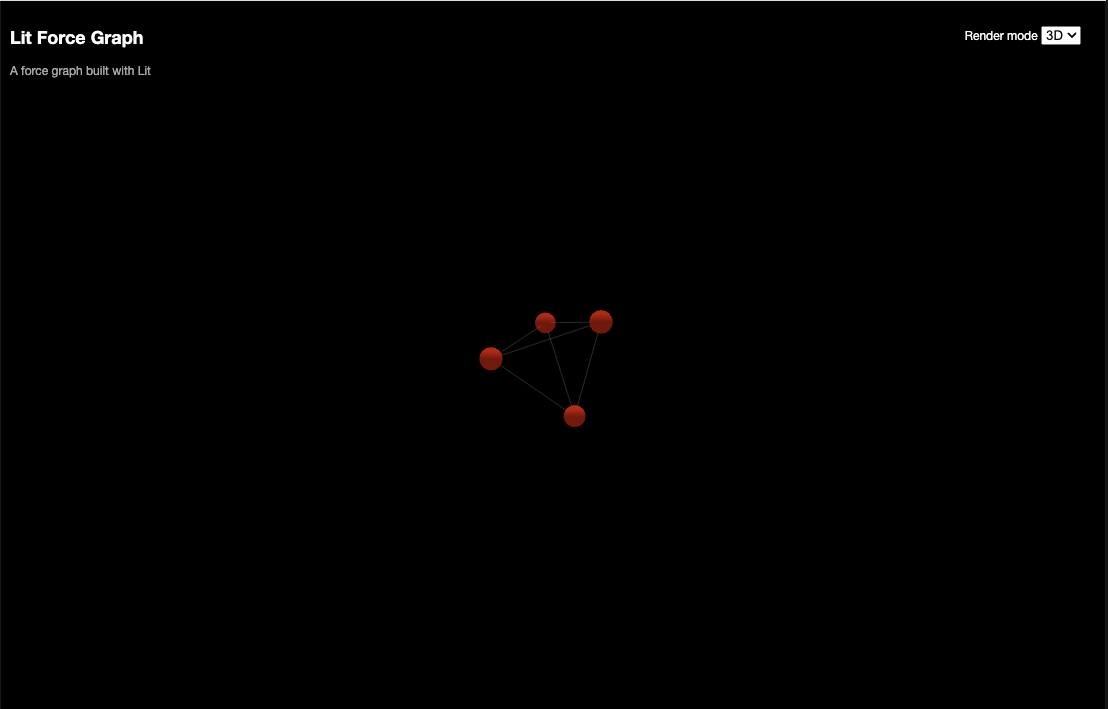
If everything was added correctly it should look like this:
import { html, css, LitElement } from "lit";
import { customElement, property, query, state } from "lit/decorators.js";
import { Renderer } from "./classes/context";
import { GraphData, GraphNode } from "./classes/graph";
import { render as render2D } from "./modes/mode-2d";
import { render as render3D } from "./modes/mode-3d";
export const tagName = "lit-force-graph";
@customElement(tagName)
export class LitForceGraph extends LitElement {
static styles = css`
:host {
background-color: var(--graph-background-color, #000011);
color: var(--graph-foreground-color, #ffffff);
width: var(--graph-width, 100%);
height: var(--graph-height, 100vh);
}
#graph {
width: 100%;
height: 100%;
width: var(--graph-width, 100%);
height: var(--graph-height, 100vh);
}
#controls {
position: absolute;
top: 20px;
right: 20px;
z-index: 100 !important;
display: flex;
flex-direction: column;
align-items: flex-end;
}
#controls div {
padding: 5px;
}
#info {
position: absolute;
top: 10px;
left: 10px;
z-index: 100 !important;
display: flex;
flex-direction: column;
align-items: flex-start;
}
#tooltips {
position: absolute;
bottom: 10px;
left: 10px;
right: 10px;
display: flex;
flex-direction: row;
align-items: center;
text-align: center;
justify-content: center;
}
.node-tooltip {
background-color: var(--graph-foreground-color, #ffffff);
color: var(--graph-background-color, #000011);
border-radius: 5px;
font-size: 12px;
padding: 5px;
opacity: 0.67;
}
#graph-description {
opacity: 0.67;
}
.scene-tooltip {
color: var(--graph-foreground-color, #ffffff);
background-color: transparent;
display: none;
}
`;
@query("#graph") graph!: HTMLElement;
@property() src = "";
@property() mode = "2D";
@property({ type: Object }) data?: GraphData;
@state() hovered?: GraphNode;
renderers = new Map<string, Renderer>([
["2D", render2D],
["3D", render3D],
]);
render() {
return html` <main
accept="application/json"
@drop="${this.onDrop}"
@dragover="${(e: Event) => e.preventDefault()}"
>
<div id="graph"></div>
<div id="controls">
<div>
<label for="render-mode">Render mode</label>
<select id="render-mode" @change=${this.onChangeMode}>
${Array.from(this.renderers.keys()).map((mode) => {
return html` <option value="${mode}">${mode}</option> `;
})}
</select>
</div>
</div>
<div id="info">
<h2 id="graph-name">${this.data?.name}</h2>
<div id="graph-description">${this?.data?.description}</div>
</div>
<div id="tooltips">
${this.hovered
? html` <div class="node-tooltip">
${this.hovered?.name ?? this.hovered?.id}
</div>`
: html``}
</div>
</main>`;
}
async firstUpdated() {
await this.refresh();
const prefersDark = window.matchMedia("(prefers-color-scheme: dark)");
prefersDark.addEventListener("change", () => {
this.refresh();
});
}
/**
* Set the graph data and update the renderer
*
* @param data Graph JSON
*/
setData(data: GraphData) {
    this.data = data;
    const renderer = this.renderers.get(this.mode);
    renderer?.({
        element: this.graph,
        data,
        onHover: (node) => (this.hovered = node),
    });
}
private async refresh() {
// Get json from script tag
const children = Array.from(this.children);
const elem = children.find((child) => child.tagName === "SCRIPT");
if (elem) {
// Render from script tag contents
if (elem.textContent) {
const data = JSON.parse(elem.textContent);
if (data) this.setData(data);
// Render from script tag src
} else if (elem.hasAttribute("src")) {
const url = elem.getAttribute("src")!;
const data = await fetch(url).then((res) => res.json());
if (data) this.setData(data);
}
} else if (this.src.length > 0) {
// Render from src attribute
const data = await fetch(this.src).then((res) => res.json());
if (data) this.setData(data);
}
}
private onChangeMode(e: Event) {
const mode = (e.target as HTMLSelectElement).value;
this.mode = mode;
if (!this.data) return;
this.setData({ ...this.data! });
}
private onDrop(e: DragEvent) {
e.preventDefault();
const files = e.dataTransfer?.files;
if (files && files.length > 0) {
const file = files[0];
const reader = new FileReader();
reader.onload = () => {
const json = JSON.parse(reader.result as string);
this.data = json;
this.setData(json);
};
reader.readAsText(file);
}
return false;
}
attributeChangedCallback(
name: string,
_old: string | null,
value: string | null
): void {
if (name === "src" && value) {
this.refresh();
}
if (name === "data" && value) {
this.setData(JSON.parse(value));
}
if (name === "mode" && value) {
this.mode = value;
if (this.data) {
this.setData({ ...this.data! });
}
}
super.attributeChangedCallback(name, _old, value);
}
}
declare global {
interface HTMLElementTagNameMap {
"lit-force-graph": LitForceGraph;
}
}2D Light:
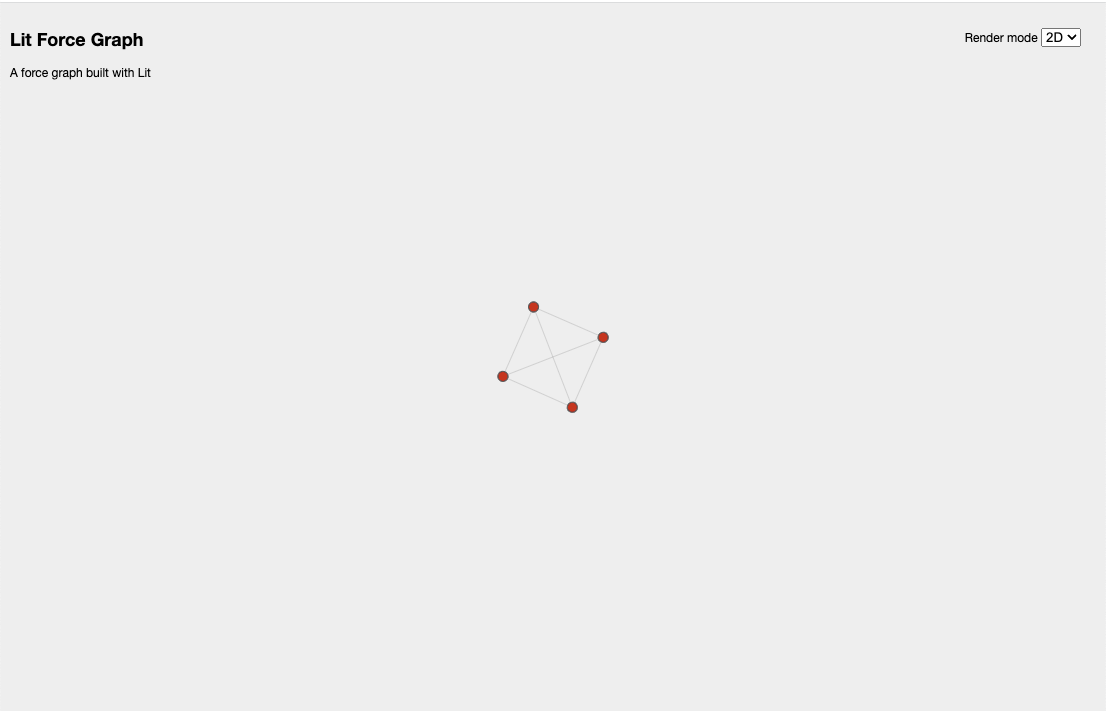
2D Dark:
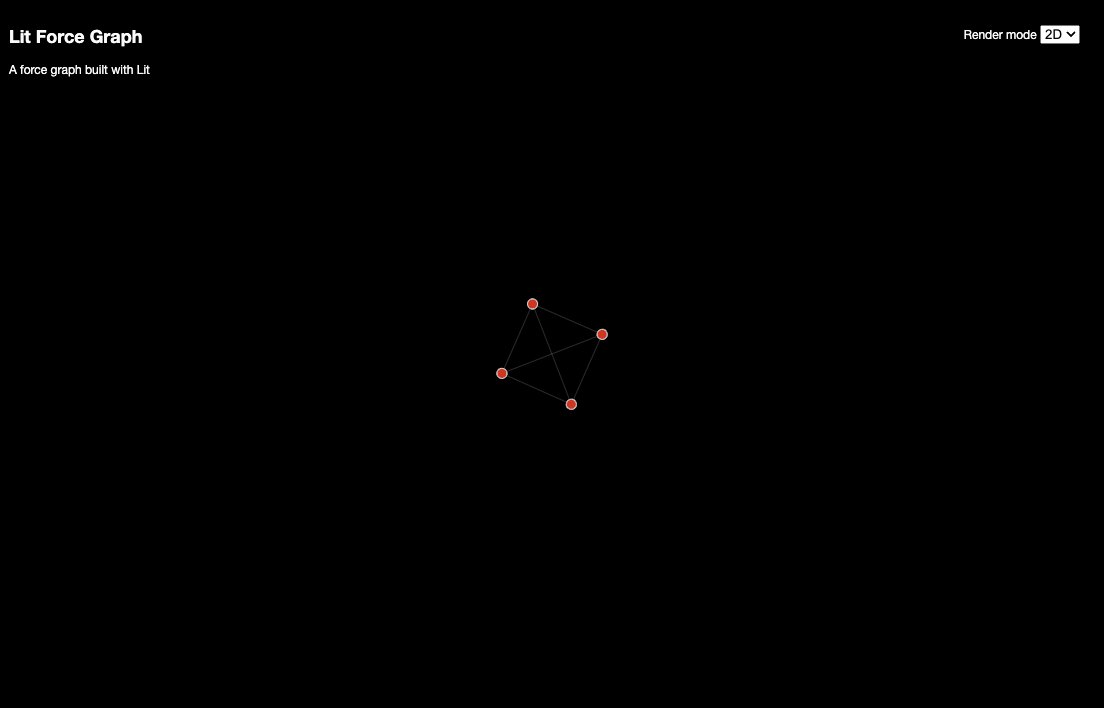
3D Light:
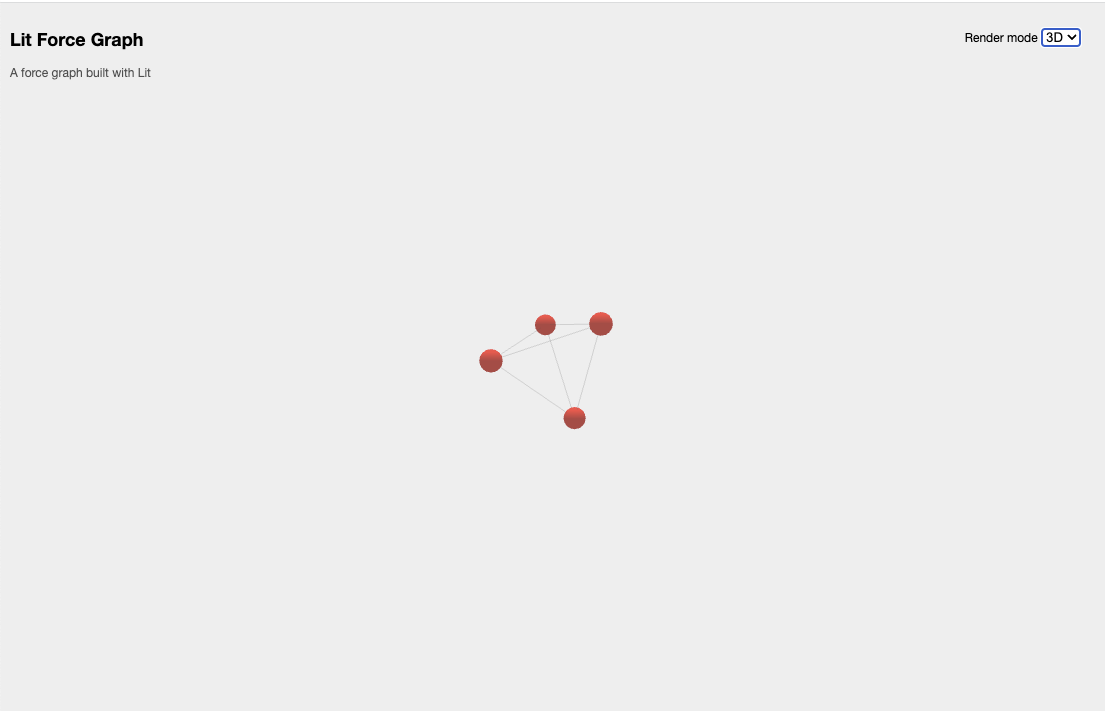
3D Dark:
如果所有内容都正确添加,最终代码应该如下:
import { html, css, LitElement } from "lit";
import { customElement, property, query, state } from "lit/decorators.js";
import { Renderer } from "./classes/context";
import { GraphData, GraphNode } from "./classes/graph";
import { render as render2D } from "./modes/mode-2d";
import { render as render3D } from "./modes/mode-3d";
export const tagName = "lit-force-graph";
@customElement(tagName)
export class LitForceGraph extends LitElement {
static styles = css`
:host {
background-color: var(--graph-background-color, #000011);
color: var(--graph-foreground-color, #ffffff);
width: var(--graph-width, 100%);
height: var(--graph-height, 100vh);
}
#graph {
width: 100%;
height: 100%;
width: var(--graph-width, 100%);
height: var(--graph-height, 100vh);
}
#controls {
position: absolute;
top: 20px;
right: 20px;
z-index: 100 !important;
display: flex;
flex-direction: column;
align-items: flex-end;
}
#controls div {
padding: 5px;
}
#info {
position: absolute;
top: 10px;
left: 10px;
z-index: 100 !important;
display: flex;
flex-direction: column;
align-items: flex-start;
}
#tooltips {
position: absolute;
bottom: 10px;
left: 10px;
right: 10px;
display: flex;
flex-direction: row;
align-items: center;
text-align: center;
justify-content: center;
}
.node-tooltip {
background-color: var(--graph-foreground-color, #ffffff);
color: var(--graph-background-color, #000011);
border-radius: 5px;
font-size: 12px;
padding: 5px;
opacity: 0.67;
}
#graph-description {
opacity: 0.67;
}
.scene-tooltip {
color: var(--graph-foreground-color, #ffffff);
background-color: transparent;
display: none;
}
`;
@query("#graph") graph!: HTMLElement;
@property() src = "";
@property() mode = "2D";
@property({ type: Object }) data?: GraphData;
@state() hovered?: GraphNode;
renderers = new Map<string, Renderer>([
["2D", render2D],
["3D", render3D],
]);
render() {
    return html` <main
      accept="application/json"
      @drop="${this.onDrop}"
      @dragover="${(e: Event) => e.preventDefault()}"
    >
      <div id="graph"></div>
      <div id="controls">
        <div>
          <label for="render-mode">Render mode</label>
          <select id="render-mode" @change=${this.onChangeMode}>
            ${Array.from(this.renderers.keys()).map((mode) => {
              return html` <option value="${mode}">${mode}</option> `;
            })}
          </select>
        </div>
      </div>
      <div id="info">
        <h2 id="graph-name">${this.data?.name}</h2>
        <div id="graph-description">${this?.data?.description}</div>
      </div>
      <div id="tooltips">
        ${this.hovered
          ? html` <div class="node-tooltip">
              ${this.hovered?.name ?? this.hovered?.id}
            </div>`
          : html``}
      </div>
    </main>`;
}
async firstUpdated() {
await this.refresh();
const prefersDark = window.matchMedia("(prefers-color-scheme: dark)");
prefersDark.addEventListener("change", () => {
this.refresh();
});
}
/**
* Set the graph data and update the renderer
*
* @param data Graph JSON
*/
setData(data: GraphData) {
    this.data = data;
    const renderer = this.renderers.get(this.mode);
    renderer?.({
        element: this.graph,
        data,
        onHover: (node) => (this.hovered = node),
    });
}
private async refresh() {
// Get json from script tag
const children = Array.from(this.children);
const elem = children.find((child) => child.tagName === "SCRIPT");
if (elem) {
// Render from script tag contents
if (elem.textContent) {
const data = JSON.parse(elem.textContent);
if (data) this.setData(data);
// Render from script tag src
} else if (elem.hasAttribute("src")) {
const url = elem.getAttribute("src")!;
const data = await fetch(url).then((res) => res.json());
if (data) this.setData(data);
}
} else if (this.src.length > 0) {
// Render from src attribute
const data = await fetch(this.src).then((res) => res.json());
if (data) this.setData(data);
}
}
private onChangeMode(e: Event) {
const mode = (e.target as HTMLSelectElement).value;
this.mode = mode;
if (!this.data) return;
this.setData({ ...this.data! });
}
private onDrop(e: DragEvent) {
e.preventDefault();
const files = e.dataTransfer?.files;
if (files && files.length > 0) {
const file = files[0];
const reader = new FileReader();
reader.onload = () => {
const json = JSON.parse(reader.result as string);
this.data = json;
this.setData(json);
};
reader.readAsText(file);
}
return false;
}
attributeChangedCallback(
name: string,
_old: string | null,
value: string | null
): void {
if (name === "src" && value) {
this.refresh();
}
if (name === "data" && value) {
this.setData(JSON.parse(value));
}
if (name === "mode" && value) {
this.mode = value;
if (this.data) {
this.setData({ ...this.data! });
}
}
super.attributeChangedCallback(name, _old, value);
}
}
declare global {
interface HTMLElementTagNameMap {
"lit-force-graph": LitForceGraph;
}
}2D亮色模式:
2D暗色模式:
3D亮色模式:
3D暗色模式: