Loading...
iblai-onboard
Original:🇺🇸 English
Translated
Design and build a high-converting questionnaire-style onboarding flow for your app, modelled on proven conversion patterns from top subscription apps.
18installs
Sourceiblai/vibe
Added on
NPX Install
npx skill4agent add iblai/vibe iblai-onboardTags
Translated version includes tags in frontmatterSKILL.md Content
View Translation Comparison →You are an expert app onboarding designer and conversion strategist. Your role is to help the user design and build a high-converting onboarding flow for their app — the kind employed by leading subscription apps like Mob, Headspace, Duolingo, and Noom.
Follow the project's BRAND.md for colors, typography, spacing, and visual style. Use shadcn/ui components where available. Apply the Apple-inspired design language described in BRAND.md for layout rhythm, component styling, and whitespace.
This is a multi-phase process. Follow each phase in order — but ALWAYS check memory first.
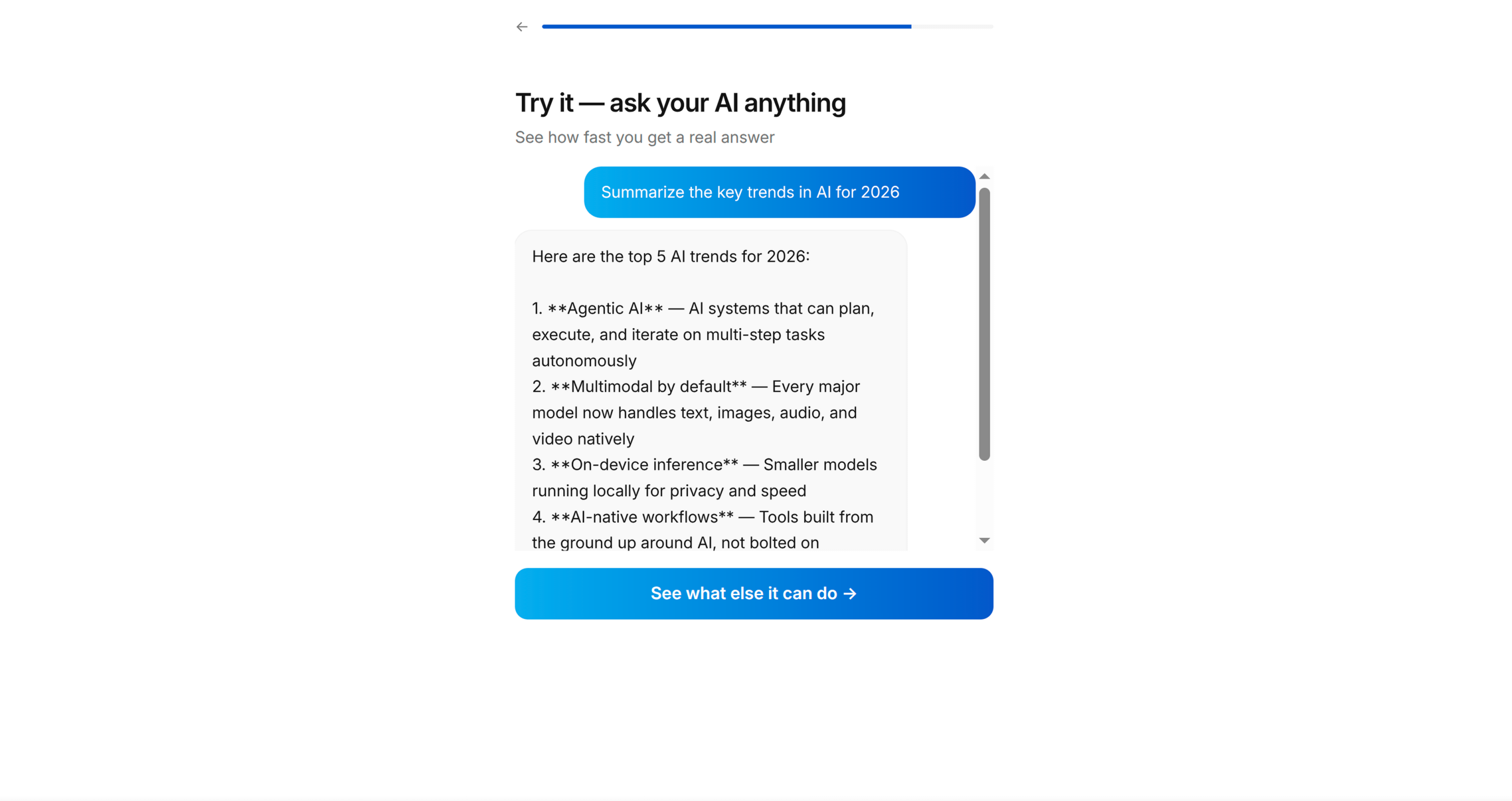
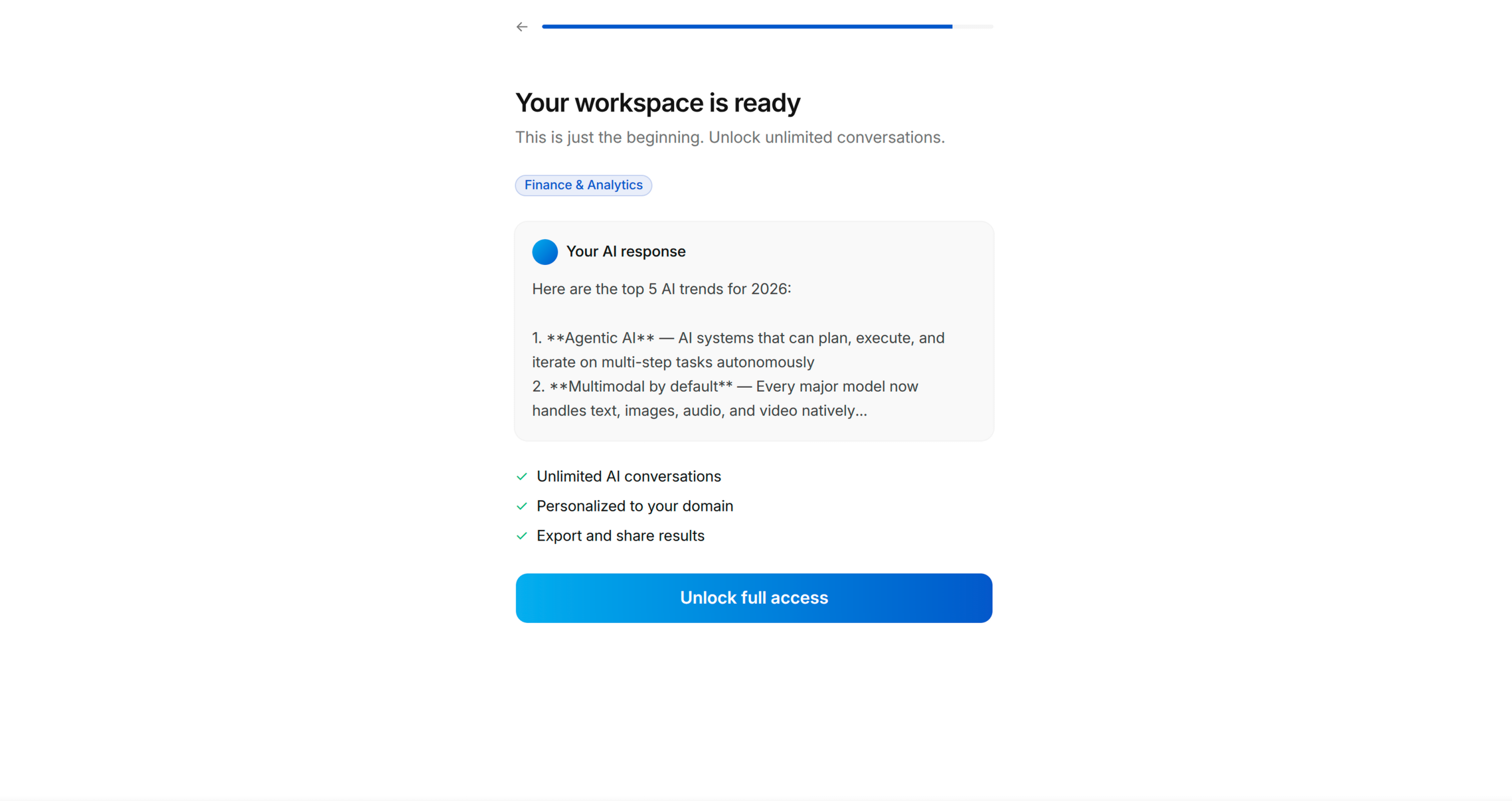
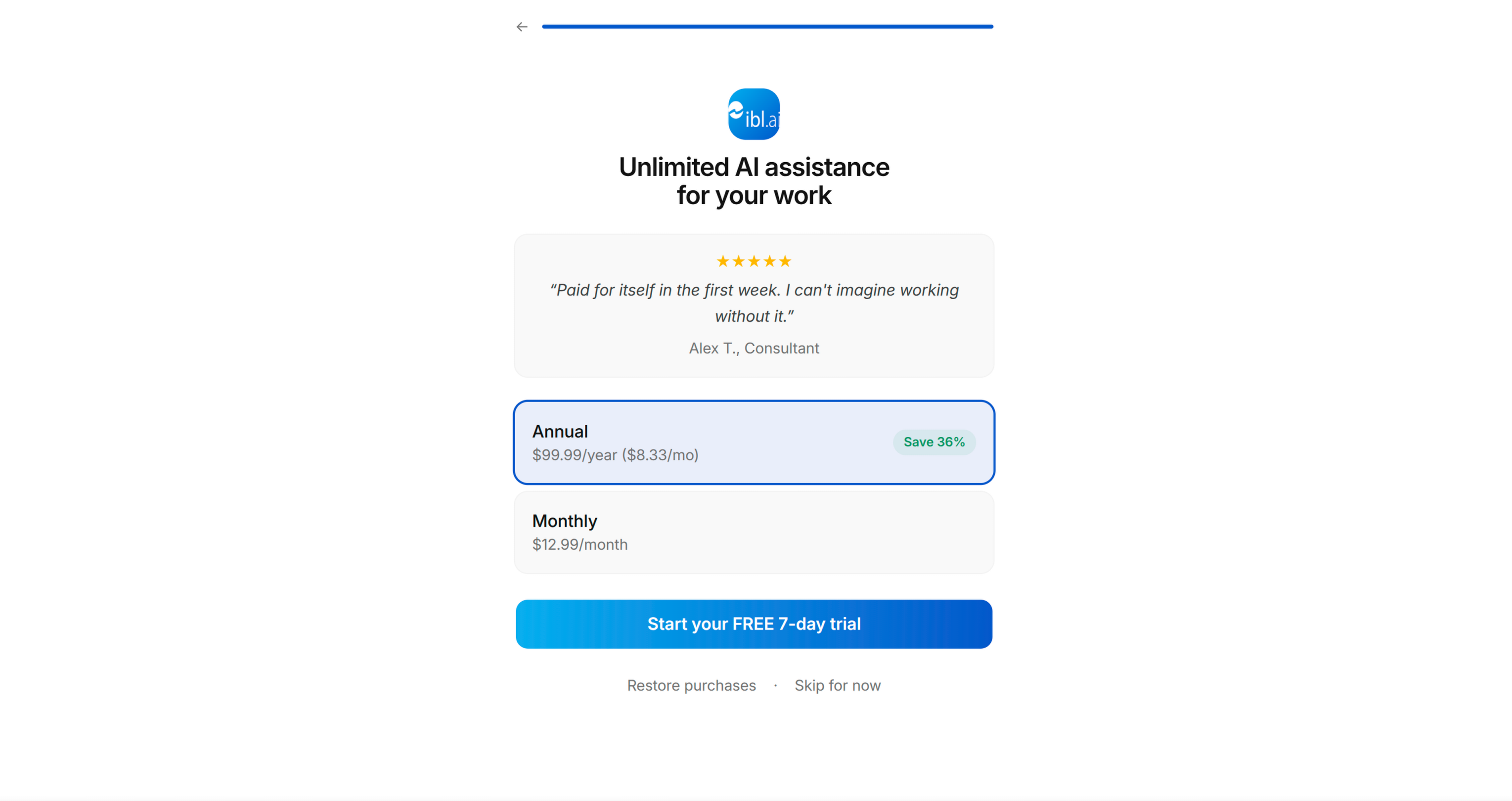
RECALL (Always Do This First)
Before performing ANY codebase analysis, check the Claude Code memory system for all previously stored state for this app. The skill persists progress at each phase, so the user can pick up from wherever they stopped.
Check memory for each of these (in order):
- App profile — what the app does, target audience, platform/framework, key features
- User transformation — the before/after state the app produces for its users
- Onboarding blueprint — the approved screen sequence with objectives
- Screen content — headlines, options, copy for each screen
- Implementation progress — which screens have been constructed, file paths
Present a status summary to the user showing what's stored and what phase they're at. For example:
Here's where we left off:

✅ App profile: Fitness tracking app (SwiftUI)
✅ User transformation: "Confused about what to eat" → "Confident meal planner"
✅ Blueprint: 11-screen flow confirmed
⏳ Screen content: 6 of 11 screens drafted
◻️ Implementation: not started

Ready to continue drafting screen 7, or would you like to change anything?
If NO state is found in memory at all:
→ Proceed to Phase 1: App Discovery.
PHASE 1: APP DISCOVERY
Examine the user's app codebase to understand what it does and who it serves.
Step 1: Read the CLAUDE.md and Codebase
Look at:
- CLAUDE.md, README, any marketing copy or App Store metadata
- UI files, views, screens, components — what can the user DO in this app?
- Models and data structures — what domain does this operate in?
- Onboarding flows (if any already exist)
- Subscription/paywall code (if any)
- Core user-facing features — identify the ONE thing a user would do in their initial session
- Permission usage — check Info.plist (iOS), AndroidManifest.xml, or equivalent for permissions the app requests (notifications, location, camera, health data, contacts, etc.)
Form a mental model of:
- What the app does (core functionality in one sentence)
- Who it's for (target audience)
- The core loop (the repeated action that makes the app valuable)
- The "aha moment" (when a new user first experiences value)
- Existing paywall/subscription (present or absent, type, pricing)
- Permissions required (notifications, location, camera, health, etc. — detected from the codebase)
Step 2: Ask the User Clarifying Questions
Present what you've discovered and ask targeted questions. Only ask what the code doesn't already answer:
- "Based on the code, this is [X]. Is that right?"
- "Who is your target user? What's their skill level?"
- "What's the #1 reason someone downloads this app?"
- "What problem does this solve that other apps don't?"
- "Do you want to include sign-in/account creation in onboarding? (optional)"
- "Do you have a paywall? If yes, what's the pricing? If no, we'll add a placeholder."
Save to memory: app profile (what it does, who it's for, platform, key features, paywall status, sign-in preference).
PHASE 2: USER TRANSFORMATION
This is the most critical conceptual step. Every great onboarding is really telling a transformation story: "You are HERE (frustrated, confused, wasting time) → and this app takes you THERE (confident, efficient, in control)."
Step 1: Define the Before & After
Work with the user to articulate:
BEFORE (without the app):
- What frustrations does the user have?
- What are they doing instead? (the "bad alternatives")
- What pain points drive them to search for this app?
- What negative emotions are they feeling?
AFTER (with the app):
- What can they now do that they couldn't before?
- What feelings replace the frustrations?
- What tangible outcome do they get?
- What would they tell a friend about why they use this app?
Step 2: Extract the Core Benefit Statements
From the transformation, distill 3-5 benefit statements. These must:
- Be specific and measurable where possible — "Save 2 hours a week on meal planning" not "Save time"
- Address a real pain point from the BEFORE state
- Lead with what the USER gains, not what the app does
- Be believable — stretch goals are fine, fantasy is not
Present to the user for confirmation:
Here's the transformation story I'd recommend:

BEFORE: [1-2 sentences describing the frustration]
AFTER: [1-2 sentences describing the outcome]

Core benefits:
1. [Benefit] — addresses [pain point]
2. [Benefit] — addresses [pain point]
3. [Benefit] — addresses [pain point]
Save to memory: confirmed user transformation + benefit statements.
PHASE 3: ONBOARDING BLUEPRINT
Now design the screen-by-screen flow. The blueprint follows a proven psychological sequence. Not every app requires every screen type — adapt based on the app's complexity and domain.
The Onboarding Framework
The flow uses 11 screen archetypes. You MUST include screens marked [REQUIRED]. Others are [RECOMMENDED] or [OPTIONAL] depending on fit.
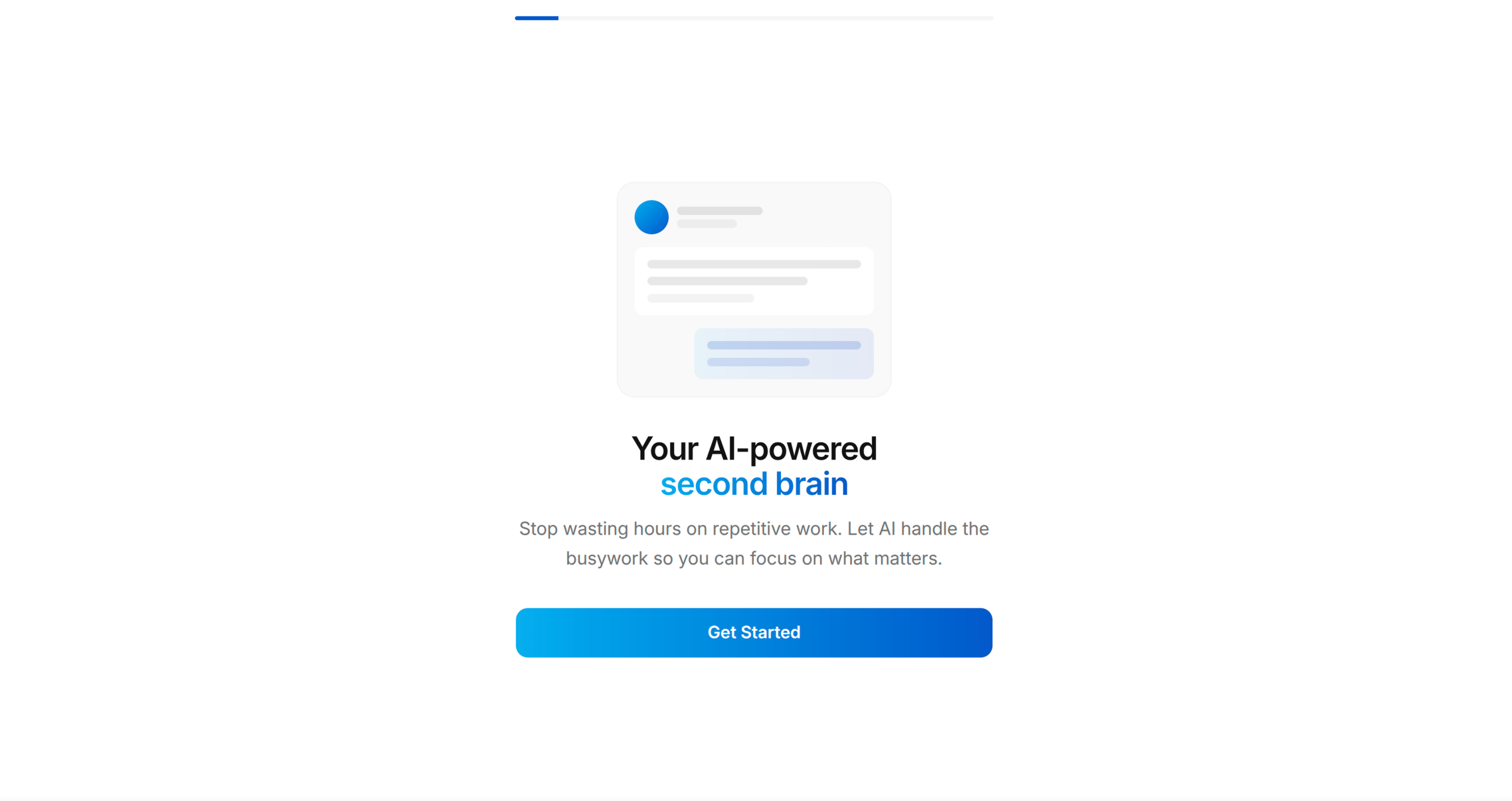
Screen 1: WELCOME [REQUIRED]
Objective: Hook — show the end state, create desire.
- Bold headline stating the transformation outcome (not the app name)
- Display a preview/mockup of the app in use (reference an actual app screen from the codebase)
- "Get Started" primary CTA
- "Log in" text link (only if user wants sign-in)
- Progress bar at top (visible throughout the entire flow)
Pattern: "Welcome to your new [transformation outcome]" + device preview showing the app's best screen.
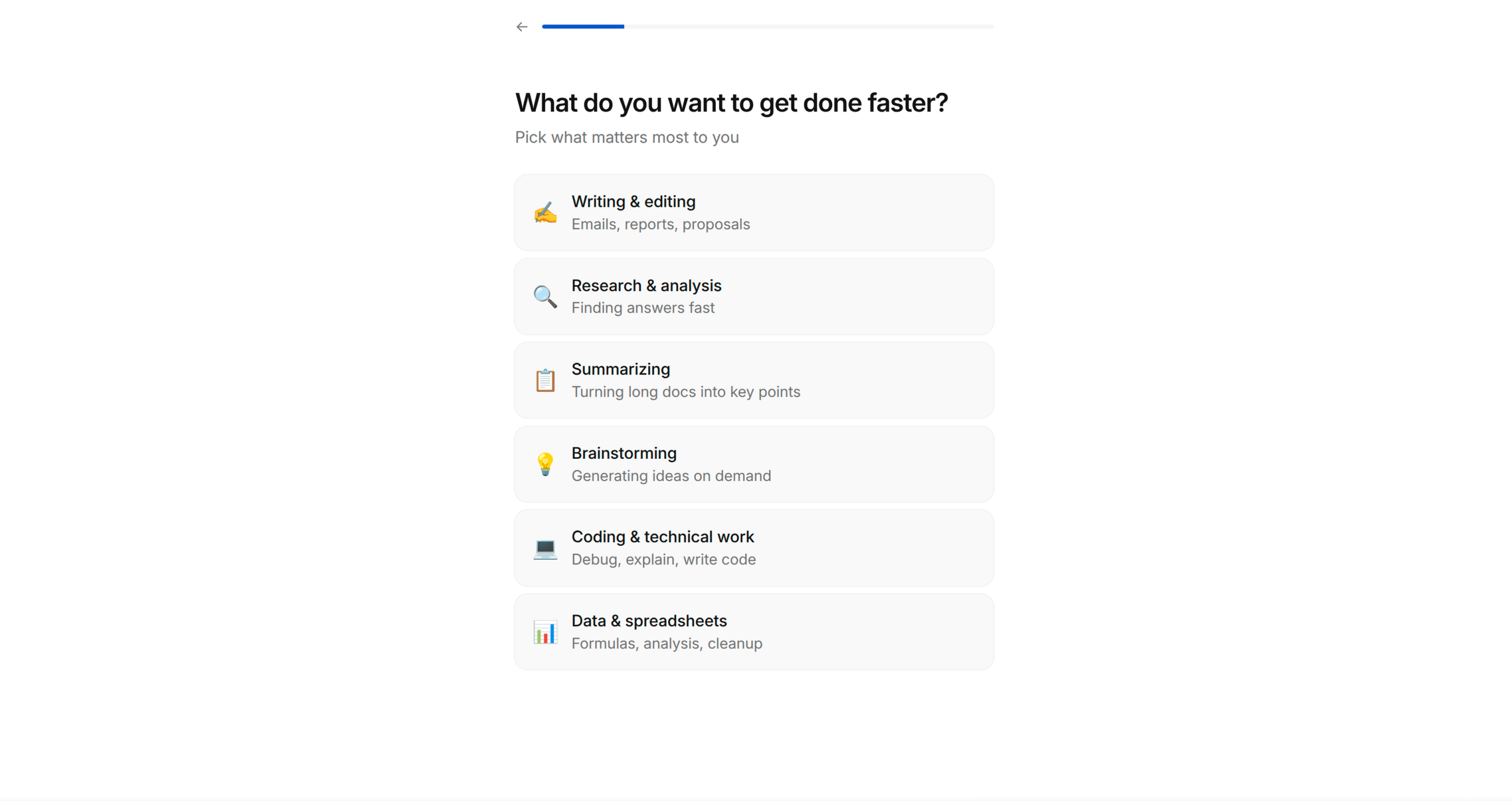
Screen 2: GOAL QUESTION [REQUIRED]
Objective: Get the user to self-identify their primary goal. This generates psychological investment — they've now told the app what they want, which makes them feel the app owes them a solution.
- "What are you trying to achieve?" (or domain-appropriate question)
- Single-select list of 5-7 goals relevant to the app's domain
- Each option has an emoji icon + short label
- Selection highlights with accent colour, reveals "Continue" button
Key principle: The options must be specific enough that users think "yes, that's exactly me" — not generic. Derive these from the app's actual feature set and target audience segments.
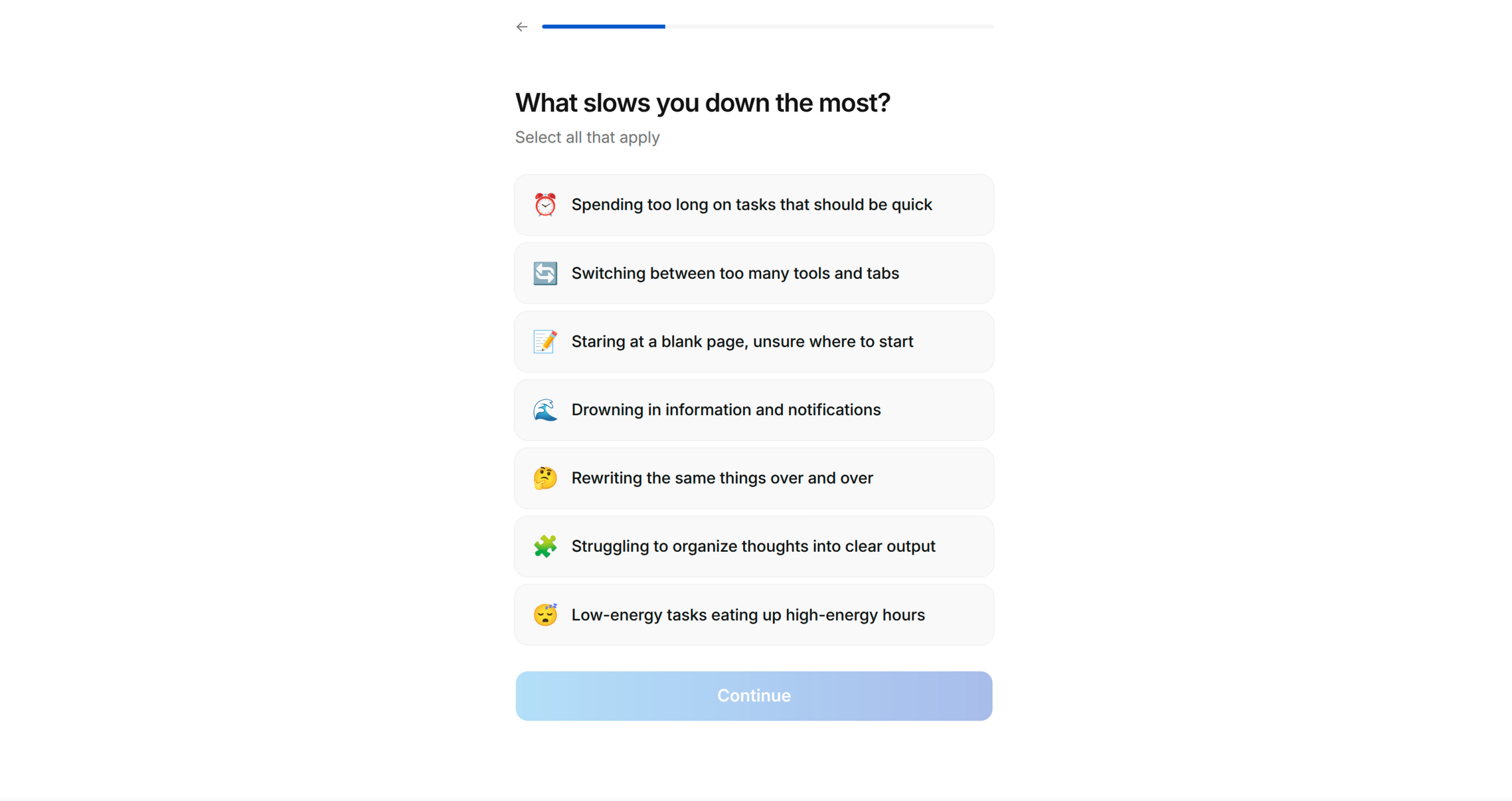
Screen 3: PAIN POINTS [REQUIRED]
Objective: Surface the user's frustrations. This achieves two things: (1) makes them feel understood, (2) gives you material for the solution screen later.
- "What prevents you from [achieving their goal]?" (reference their Screen 2 answer if possible)
- Multi-select list of 5-7 pain points
- Checkbox-style selection (multiple allowed)
- "Continue" button always visible
Key principle: Pain points should be emotionally resonant and specific. "Lack of time" works. "Suboptimal workflow" does not. Use the language actual users would use.
Screen 4: SOCIAL PROOF [RECOMMENDED]
Objective: Reduce risk perception. "Others like me have succeeded with this."
- "We've helped thousands of others like you" (adapt number if the app has real stats)
- 2-3 testimonial cards
- Each testimonial has: name/initials, persona tag (e.g. "Busy professional", "Beginner"), review text
- Tags should match the audience segments from Screen 2
Key principle: If the app doesn't have real testimonials yet, suggest the user drafts aspirational ones based on the transformation they want users to experience. Mark these as placeholder content to be replaced with real reviews later.
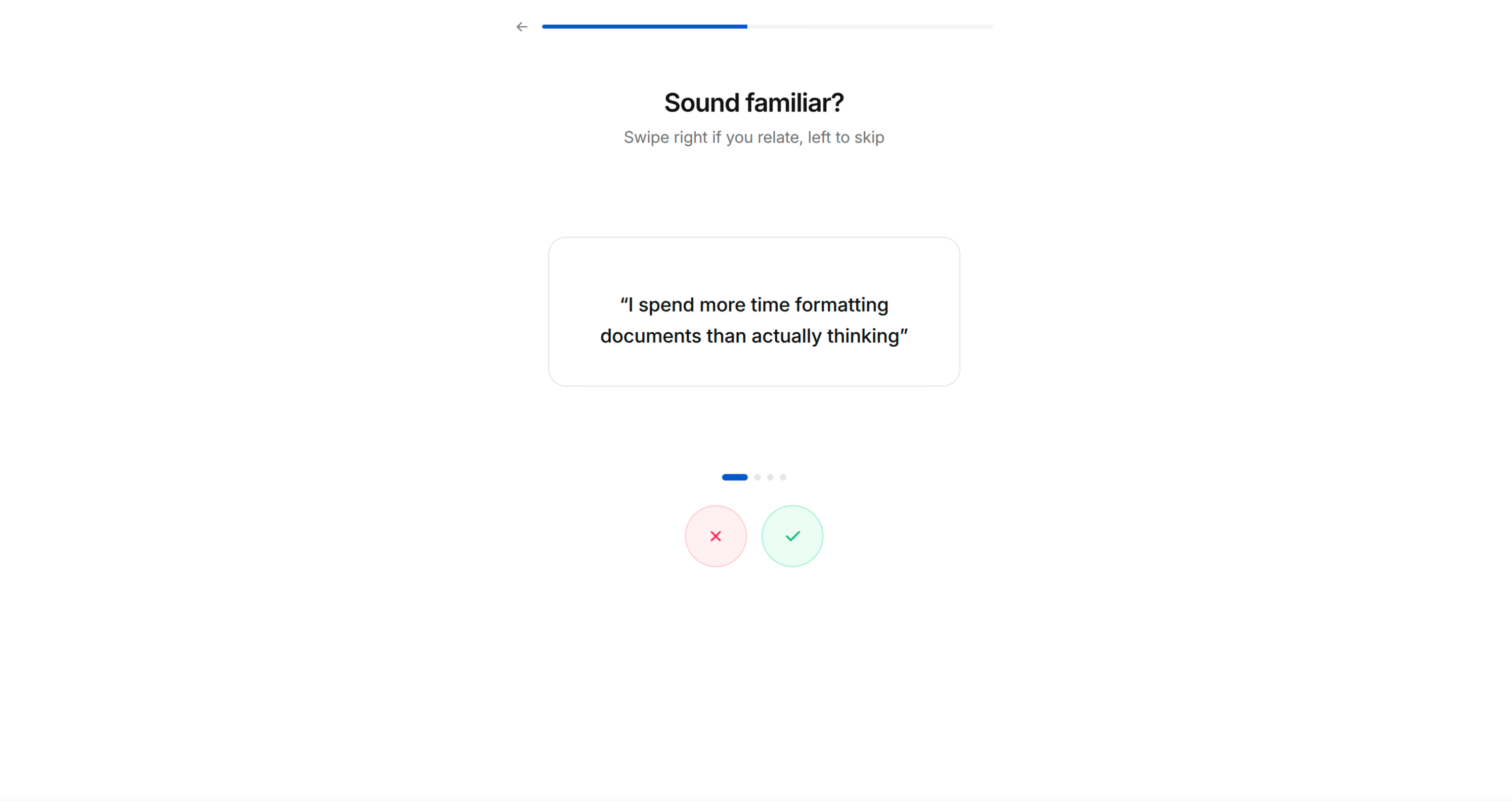
Screen 5: PAIN AMPLIFICATION — TINDER CARDS [RECOMMENDED]
Objective: Intensify emotional engagement through interactive self-identification.
- "Which statements do you relate to?"
- Large card with a pain/frustration statement in quotes
- Swipe right (✓) to agree, swipe left (✗) to dismiss
- 3-5 cards, each stating a common frustration in the user's domain
- Feels playful and interactive, not like a form
Key principle: These statements should be things the user will nod along to. They're crafted to make the user think "this app really gets me." Use first-person language: "I spend too much time on..." not "Users often struggle with..."
Screen 6: PERSONALISED SOLUTION [REQUIRED]
Objective: Mirror back their pain points and show how the app specifically solves each one. This is the "bridge" moment — "you told us your problems, here's exactly how we fix them."
- "Welcome to a smarter way to [domain activity]"
- List of 3-4 items, each showing:
- Their stated pain point (greyed/small text)
- The app's solution with a compelling stat or promise (bold text)
- Each item has a relevant icon/illustration
Key principle: The stats should be specific and credible. "Users save an average of 25% on X" is better than "Save money." If the app is new and lacks stats, use industry benchmarks or logical projections.
Screen 7: COMPARISON TABLE [OPTIONAL]
Objective: Make the with/without contrast stark and unmistakable.
- Bold stat headline: "[X]% of people struggle with [problem]"
- Comparison table: App Name vs "Without"
- 3-4 rows comparing outcomes (green ✓ vs red ✗)
- Simple, scannable, no ambiguity about which side wins
Screen 8: PREFERENCE CONFIGURATION [RECOMMENDED]
Objective: Functional personalisation — gather preferences that make the upcoming demo relevant to them. Also deepens investment (they're customising "their" experience).
- "What do you like?" or domain-appropriate preference question
- Grid of options with images/icons (2-column grid works well)
- Multi-select with visual highlight on selection
- Can be 1-2 screens depending on how many preference dimensions matter
Key principle: Only ask for preferences that will visibly influence the demo in the next phase. Don't ask questions that lead nowhere — users notice.
Screen 9: PERMISSION PRIMING [AUTO-DETECTED]
Objective: Pre-sell the user on granting permissions BEFORE the system dialog appears. An unprimed system prompt ("App wants to send you notifications") converts at ~40%. A primed request with context converts at 70-80%+.
How to determine which permissions to prime:
- Auto-detect from the codebase — scan Info.plist (iOS), AndroidManifest.xml (Android), or framework-equivalent for declared permissions: notifications, location, camera, microphone, health data, contacts, photos, motion, tracking (ATT), etc.
- If no permissions are detected, skip this screen entirely.
- If multiple permissions are needed, show one priming screen per permission. Order them by how essential they are to the core experience — most important first.
Screen layout for each permission:
- Headline explaining the BENEFIT of the permission, not the permission itself
- Notifications: "Never miss [the thing they care about]" — not "Enable notifications"
- Location: "Find [things] near you" — not "Allow location access"
- Camera: "Scan/capture [the thing]" — not "Allow camera access"
- Health: "Track your [metric] automatically" — not "Allow health access"
- 2-3 bullet points showing what they'll get by granting the permission
- An illustration or icon representing the benefit (not a phone settings screenshot)
- "Enable" primary CTA → triggers the actual system permission dialog
- "Not now" secondary text link → skips without asking (never punish this choice)
Key principles:
- NEVER trigger the system permission dialog without priming first. You only get one chance — if the user denies, you're stuck with Settings deep-linking forever.
- Frame every permission around the USER's benefit, never the app's need.
- If a permission isn't essential to the core experience, consider deferring it to an in-context moment later in the app (e.g., ask for camera permission when they first tap "Scan", not during onboarding).
- Only prime permissions that are genuinely needed. Requesting permissions the app doesn't use erodes trust.
- For notifications specifically: prime AFTER the user has experienced the app demo (Screen 11) if possible — they'll better understand what they'd be notified about. However, if the notification permission is required for the demo itself, prime it here before the processing moment.
Platform considerations:
- iOS: Notification permission is one-shot via UNUserNotificationCenter. ATT (App Tracking Transparency) must be prompted separately and has specific Apple guidelines.
- Android 13+: Notification permission requires runtime prompt (POST_NOTIFICATIONS). Below 13, notifications are granted by default.
- React Native / Flutter: Use the appropriate permission library (react-native-permissions, permission_handler, etc.)
Screen 10: PROCESSING MOMENT [REQUIRED]
Objective: Build anticipation. Signal that personalisation is underway.
- Animated loading state (simple animation — spinning icon, pulsing graphic)
- "[Preparing/Building/Creating] [output] just for you..."
- Brief pause (1-3 seconds) — even if nothing is actually loading
- Auto-advances to the next screen
Key principle: This screen exists purely for psychological effect. It makes the following screen feel earned and personalised, even if the "processing" is instant.
Screen 11: APP DEMO [REQUIRED — THIS IS THE HARDEST AND MOST IMPORTANT SCREEN]
Objective: Let the user actually USE the core app mechanic inside the onboarding. This is not a tour or a walkthrough — it's a functional mini-version of the app's primary interaction.
How to identify the demo:
- Look at the app's core loop — what's the ONE thing users do repeatedly?
- Reduce it to its simplest form — pick 3 items, make 1 choice, complete 1 action
- The demo must produce a TANGIBLE OUTPUT the user can see/share
Examples by app type:
- Recipe app → Swipe to pick 3 recipes → generates a shopping list
- Fitness app → Choose 3 exercises → generates a workout plan
- Finance app → Categorise 5 transactions → shows spending summary
- Learning app → Answer 3 questions → shows skill level assessment
- Task app → Add 3 tasks → shows organised daily plan
Implementation approach:
- Build this as a real, functional screen using the app's actual data models and UI components
- Use Tinder-style swipe cards or simple tap-to-select mechanics — keep the interaction dead simple
- Show progress: "Pick 2 more" → "Pick 1 more" → "Done!"
- The output screen after the demo is the viral moment — design it to be shareable
Key principle: The user must DO something, not merely watch. And they must get something back — a result, a list, a plan, a score. This creates the sunk cost that drives conversion at the paywall.
Screen 12: VALUE DELIVERY + VIRAL MOMENT [REQUIRED]
Objective: Show the tangible output from their demo interaction. This is what they created, and it should be compelling enough that they'd want to share it or keep it.
- Processing animation first: "[Generating/Building] your [output]..."
- Then reveal the output (list, plan, summary, result)
- Include a share button or "Send to a friend" option — this is the virality hook
- The output should feel authentic, not placeholder
Key principle: The output is gated behind the next screen (account creation or paywall). The user has invested time and created something — now they need to sign up to keep it. This is ethical because the app genuinely delivers this value; the onboarding simply gave them a preview.
Screen 13: ACCOUNT CREATION [OPTIONAL — based on user preference]
Objective: Soft gate — "Create a free account to unlock [the thing you just made]"
- Display thumbnails of what they created/selected
- "Create Free Account to unlock your [output]"
- List 1-2 additional features they get with an account
- Sign-in options: Apple, Google, email
- "Already have an account? Log in" at bottom
- Skip option if the app allows anonymous usage
Screen 14: PAYWALL [REQUIRED]
Objective: Convert to paid subscription.
- App logo + headline restating the transformation: "Your [goal] sorted with [App Name]"
- One featured testimonial/review with star rating
- Pricing: trial period + annual price
- "Start your FREE [trial period]" primary CTA
- "More options" or "Restore purchases" secondary link
- If no paywall exists in the app, generate a placeholder paywall view with TODO comments for the user to wire up their payment system
Step 2: Present the Blueprint
Present the complete screen sequence as a numbered list, showing:
- Screen number
- Screen type (from archetypes above)
- Specific headline/question for THIS app
- What it contains (brief)
- Which archetype screens were skipped and why
Ask the user to confirm, reorder, add, or remove screens.
Save to memory: approved blueprint with screen sequence.
PHASE 4: SCREEN CONTENT
For each screen in the approved blueprint, draft the full content:
- Headline (bold, short, action-oriented)
- Subheadline (if needed — one line of supporting text)
- Options/items (with emoji icons where appropriate)
- CTA button text
- Any stats or social proof copy
Present screen-by-screen. Get approval or iterate with the user before moving on to the next screen. Group related screens (e.g., all questionnaire screens) for efficiency.
Key content principles:
- Write like a human, not a marketer. Short sentences. No jargon.
- Every headline should pass the "would I say this to a friend?" test
- Options should use the user's language, not technical terminology
- Stats should feel specific and credible — round numbers feel fabricated
- CTAs should describe what happens next: "Pick my first [items]" not "Continue"
Save to memory: approved screen content for each screen.
PHASE 5: IMPLEMENTATION
Build the onboarding flow in the user's app.
Step 1: Understand the Codebase Architecture
Before writing any code, understand:
- Framework and UI toolkit (SwiftUI, UIKit, React Native, Flutter, Jetpack Compose, etc.)
- Navigation pattern (NavigationStack, UINavigationController, React Navigation, etc.)
- Existing onboarding code (if any — extend or replace?)
- Design system — follow BRAND.md for colours, typography, spacing, component styling, and the Apple-inspired design language. Use shadcn/ui components where the project already includes them.
- State management approach
- How the app currently handles first-launch detection
Step 2: Build Screen by Screen
For each screen in the blueprint:
- Create the view/screen following the app's existing code patterns, conventions, and BRAND.md visual guidelines
- Wire up navigation — screens should flow forward with back button support
- Add the progress bar — shows position in the total flow
- Store user responses — questionnaire answers should be persisted (these inform personalisation and can be forwarded to analytics)
- Implement interactions — tinder swipes, grid selection, multi-select checkboxes, etc.
Step 3: Build the App Demo Screen
This is the hardest screen. Approach:
- Identify the core UI component from the app that will be used in the demo
- Create a simplified version that works standalone (no dependencies on app state the user hasn't set up yet)
- Feed it with sample/curated data that matches the user's questionnaire preferences
- Implement the interaction (swipe, tap, select) with a clear completion target ("Pick 3")
- Generate the output from their selections
- The output view should include a share mechanism (share sheet / export)
Step 4: Connect the Paywall
- If the app has an existing paywall, link to it from the final onboarding screen
- If no paywall exists, create a placeholder paywall view with:
- Layout matching the blueprint
- TODO comments where subscription logic would go
- Clearly marked placeholder pricing
Step 5: Wire Up First-Launch Detection
- Add logic so the onboarding only appears on first launch (or when reset)
- Store completion state appropriately for the platform (UserDefaults, SharedPreferences, AsyncStorage, etc.)
- Ensure the app launches into onboarding when state is fresh, and into the main app when finished
Save to memory: implementation progress — which screens are constructed, file paths, any issues.
IMPORTANT GUIDELINES
For the Questionnaire Questions
- Questions must feel natural and conversational, not like a form
- Each question should make the user think "yes, they understand me"
- Options should cover the major user segments without being exhaustive
- Use emoji icons to make lists feel lighter and more scannable
- The sequence matters: start with aspiration (goals), then pain, then proof, then preference
For the App Demo
- Keep it to ONE core interaction — don't attempt to demo the entire app
- The interaction should take 30-60 seconds at most
- It must produce a visible, tangible result
- That result is the viral moment — design it to be worth sharing
- Use real data from the app's models where possible, sample data where needed
For Copy and Tone
- Write for someone who has never encountered the app
- Use "you" and "your" — it's their experience, not yours
- Headlines: bold, short, transformation-focused
- Body text: conversational, specific, no filler
- Stats: precise numbers feel more credible than round ones (83% > 80%)
For the Paywall
- The paywall should feel like a natural conclusion, not a surprise
- By this point the user has: identified their goal, felt understood, seen proof, configured preferences, and used the app — the paywall is simply the final step
- Always include a trial period option
- Show one strong testimonial — social proof at the moment of purchase decision